
Set up your gear library and import your list
How to add gear with its rates, quantity, and serial, group pieces into kits, and bring in a spreadsheet, PDF, or pasted list that you check row by row before anything is added.
Your gear lives in one library, and every project draws from it.
The Gear library holds everything you own: cameras, lenses, lights, sound kit, grip, cases. Add an item once and it follows you onto every job with its rate, its quantity, and its serial number. When you put it on a project, Aestro checks it against the project's dates, so you see when something is already out.
Only a name is needed to start. Rates, serials, and replacement values can be filled in later. The library, kits, and importing are free.
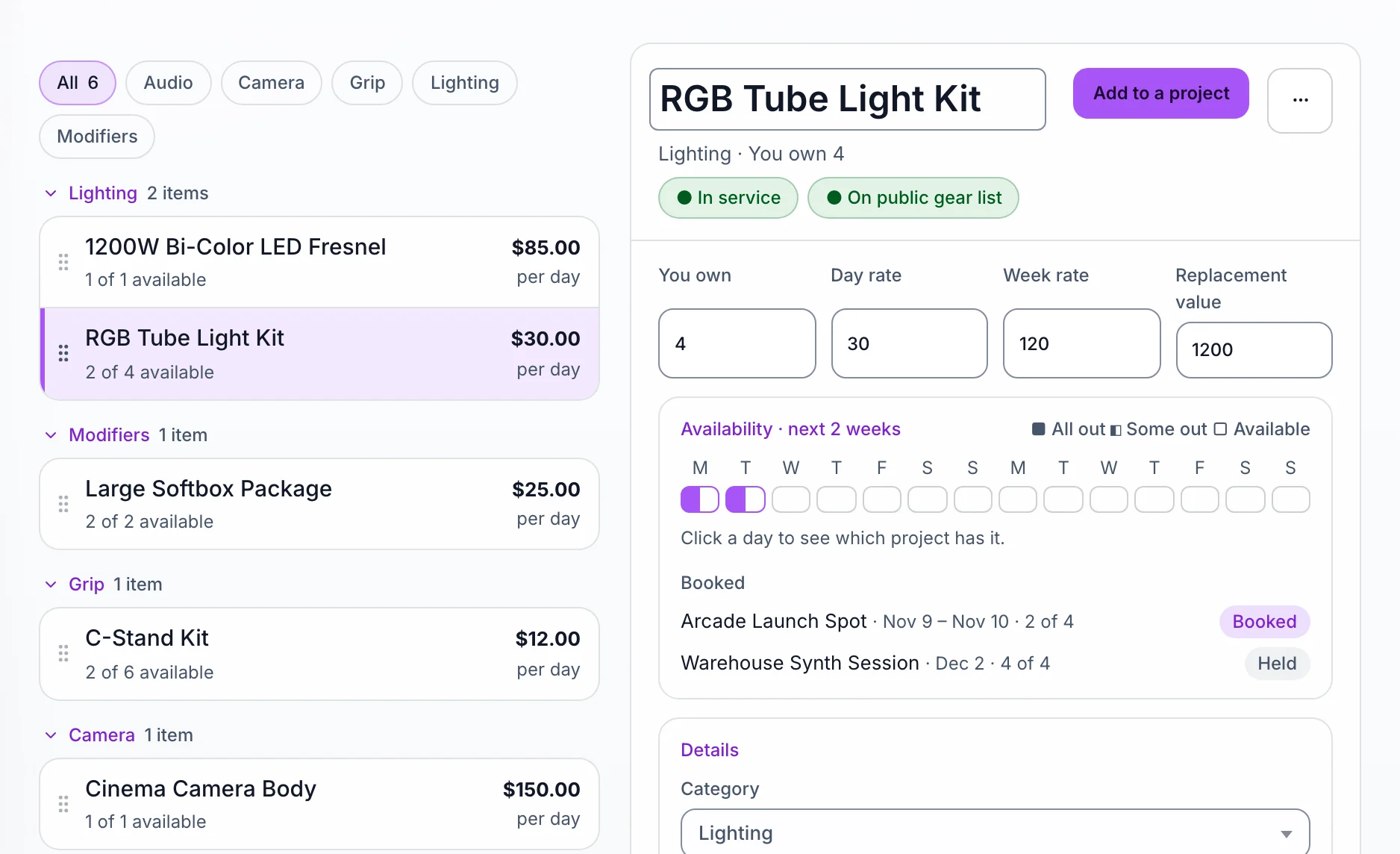
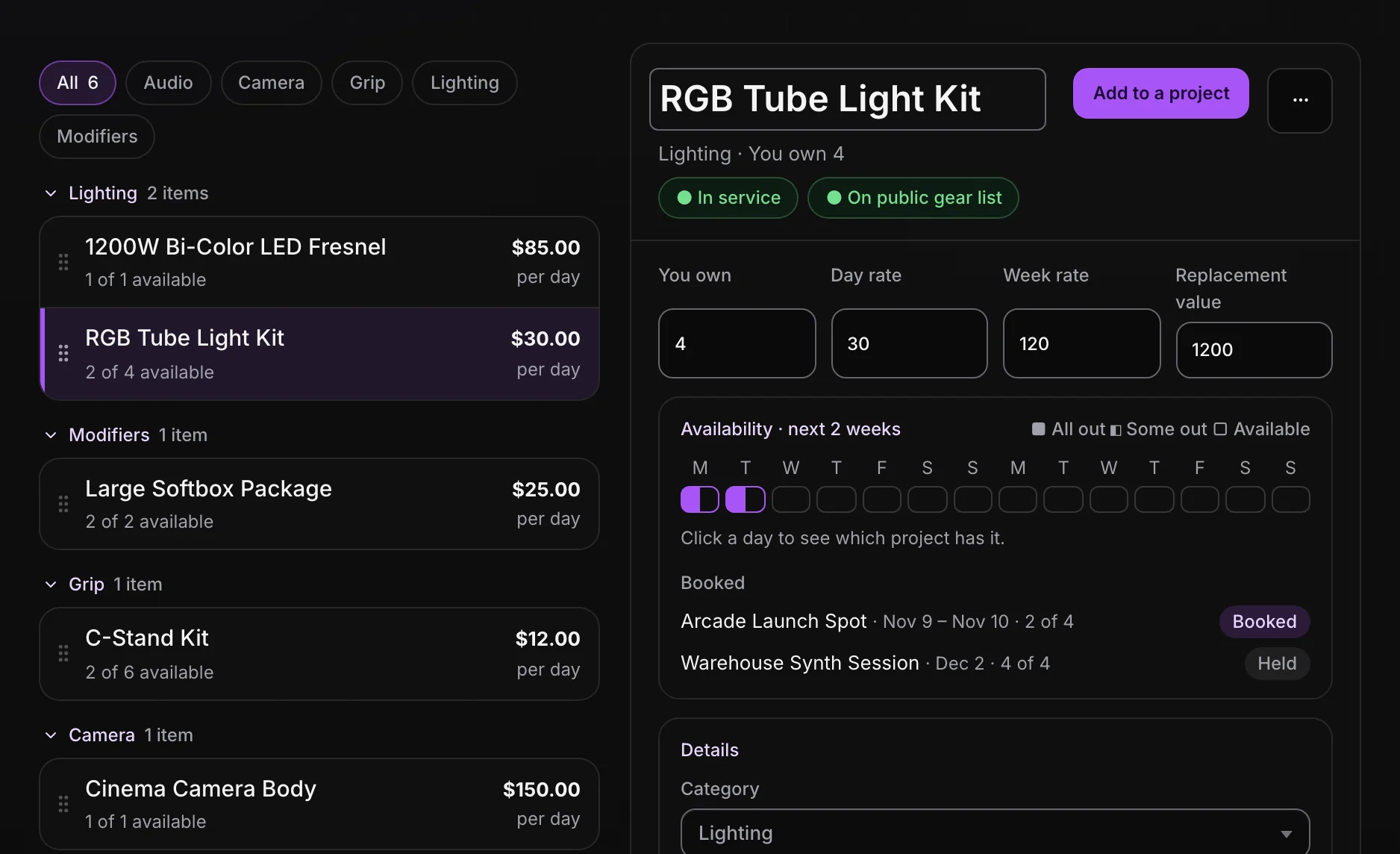
Add a piece of gear.
On the web, open Gear library in the sidebar and go to the Gear tab.
- Choose Add gear. It's in the Manage library strip at the top of the tab, and on the Overview tab too.
- Name it. Name is the only field you have to fill in.
- Fill in what you know. Category, Quantity, Day rate, Week rate, Replacement value, Description, and Serial number are all there. The description shows on your public gear page.
- Decide if renters can see it. List on public request page is on by default. Untick it for gear you only use yourself.
- Choose Add gear. The item opens in the panel on the right, where every field saves as you type.
In the panel, In service and On public gear list switch an item off without deleting it. Out of service gear can't be booked. Add to a project puts the item on a project's gear list. To retire an item, choose Archive in the ••• menu; archived gear leaves your public page and can be restored.
On iPhone, open the Gear tab, tap +, then New gear. The sheet asks for Name, Category, How many, and Day rate. Tap More details for the week rate, replacement value, serial numbers, and notes, then Save.
Group gear you rent together as a kit.
A kit is a set of your gear that goes onto a project and an invoice as one line, at one price. A lighting kit, an interview audio kit, a lens set. The pieces inside stay in your library, so their availability still counts.
- On the Gear tab, choose New kit. On iPhone, tap +, then New kit.
- Give it a name, then add its pieces under In this kit: pick one from Choose gear to add… and choose Add gear. Set how many of each.
- Set Day rate for the whole kit. Aestro shows what the same gear costs rented piece by piece, so you can see the discount you're giving.
A kit with a piece out on another job shows how many kits are free today. Want a list you can copy onto projects and still edit item by item? Use the Saved lists tab instead.
Bring in the list you already keep.
If your gear is in a spreadsheet, a rental quote, or a note on your phone, import it instead of typing it. On the web, Aestro reads Excel, CSV, TSV, and PDF files, or text you paste. Nothing is added until you've checked it.
- Start the import. On the Gear tab, open More and choose Import gear. An empty library shows Bring in your gear list straight away.
- Choose a file or paste. Use Choose a file, drop the file on the page, or paste into Or paste it: cells copied from a spreadsheet, or one item per line. Headings in a plain list become categories.
- Check the columns. Under Columns, Aestro says what it thinks each column is. Change any that are wrong, or choose Skip this column.
- Check the rows. Each row is tagged New, Updates, Already have, or Needs a look. Edit any cell in place. The No day rate and No category filters show what's still missing.
- Answer the questions. When a row looks like gear you already have, Aestro says Might be your and the item's name; choose Same item or Not the same. Anything you don't want, Leave it out.
- Add it. The Ready to add panel counts new items and updates. Choose Add with the count, like Add 24 to my gear.
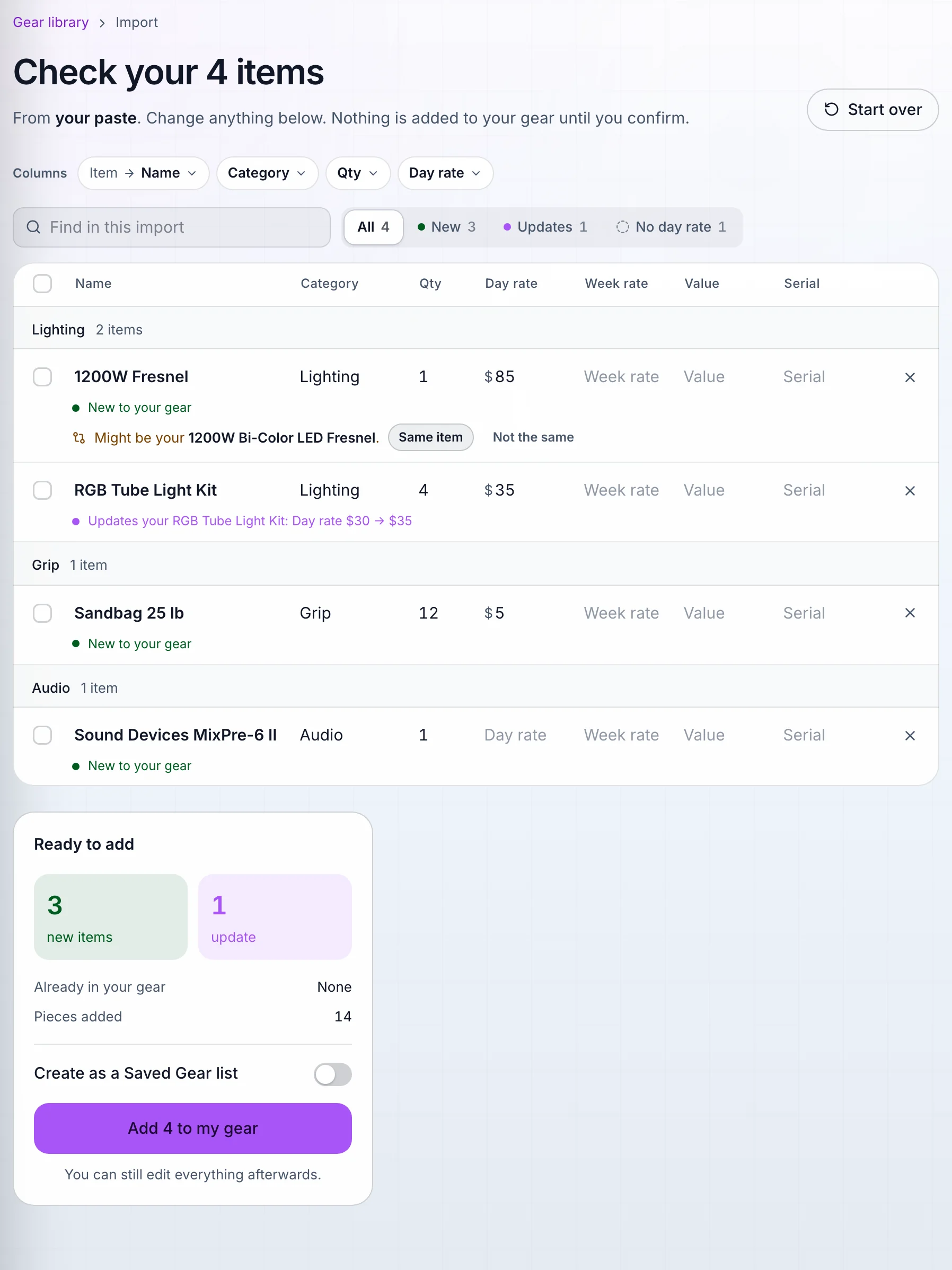
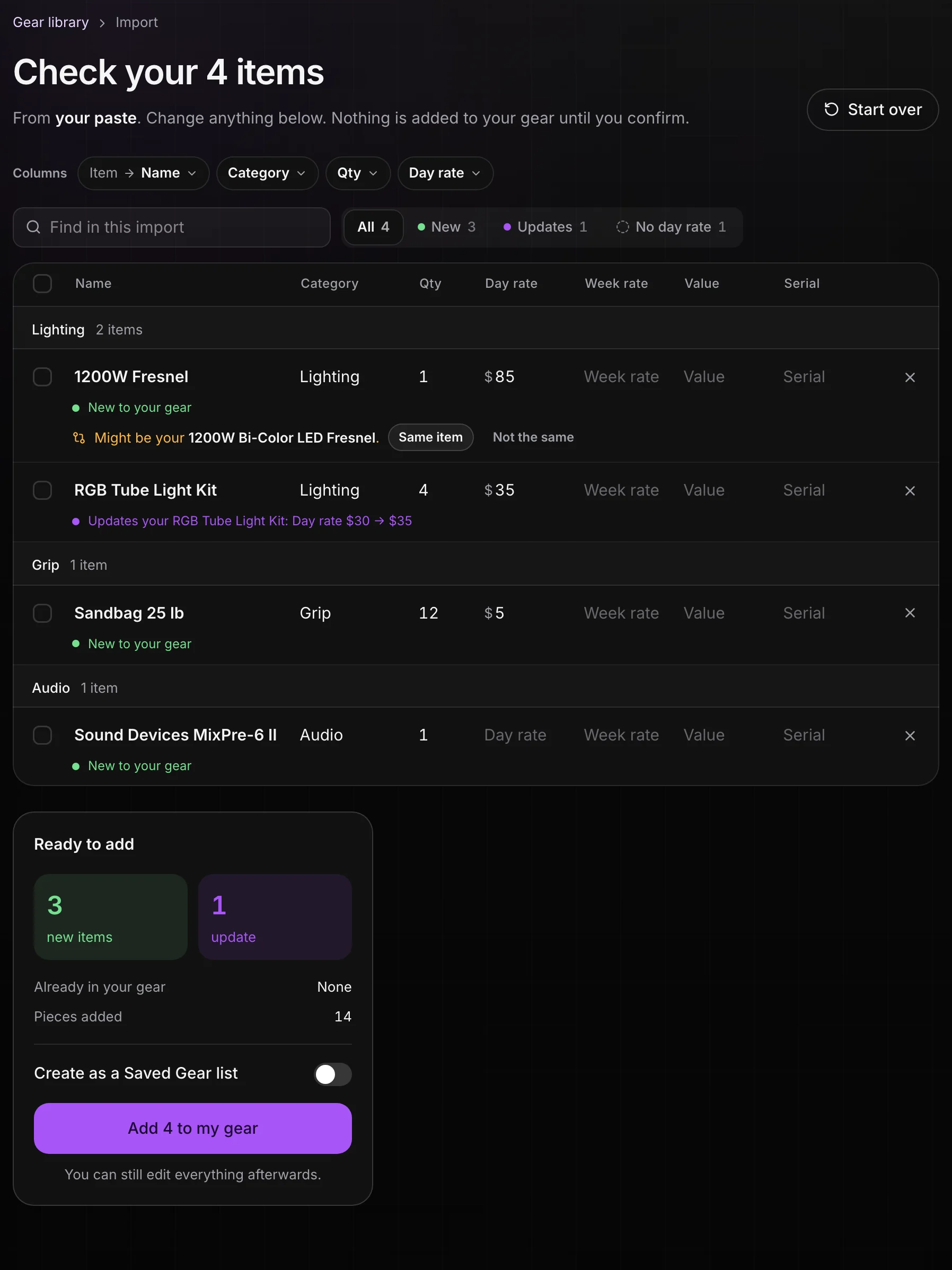
Starting from nothing? Download template in the same More menu gives you a CSV with the columns Aestro reads, already filled with any gear you have. If your sheet lists the pieces of a kit, Kits in your sheet offers to make it, and Create as a Saved Gear list keeps the whole import as one list. Changed your mind? Undo this import on the last screen puts your gear back the way it was.
Before you put it on a job.
Use this checklist as you review. Your checks stay on this page until you leave or reload.
0 of 6 checked
Next, build a list for a job with the shoot gear list guide, or work out what to charge with the kit fee guide.
Bring your gear into Aestro.
Drop in your spreadsheet or paste your list, check what Aestro read, and your library is ready for your next project.
Start your gear libraryExplore the demo first