
Label, scan, and check out your gearProfeature
How to give gear a code, print QR labels on a label maker or sticker sheet, track pieces and parts, and scan gear out at pickup and back in at return on iPhone or the web.
Each piece of gear gets a code you can scan.
A code is the thing a scanner reads. It can be one Aestro makes for you, or a sticker or asset tag the gear already wears, like a rental house barcode. Either way it's one field, and the maker's serial number stays separate. Aestro finds gear by its code or its serial.
With codes on your gear, you print QR labels, scan to open any item, and scan gear out at pickup and back in at return. Codes, labels, and scanning are part of Pro. On Free, you find gear by name or serial and check items off by hand.
- On the web, open the item in your Gear library. Under Details, find Code.
- To use a tag it already has, click into Code and scan it with a handheld scanner, or type it.
- To use an Aestro code, choose Make code. Labels you print later make codes for anything that doesn't have one yet.
On iPhone, open the item and tap Code. Choose Make an Aestro code or Scan a sticker or tag. Taking a code off is always free, even without Pro.
Track gear one by one when each piece matters.
Some gear you only count. Twelve sandbags are twelve sandbags, and pickup and return just ask how many. Other gear you hand out piece by piece, like lights, monitors, or camera bodies, and you want to know which one came back.
- Counted is the default. A counted item can still have one code for its bin; each scan of it counts one.
- One by one gives each piece a number (#1, #2…) and its own label. Pickup and return show which piece is where.
- Parts are the pieces of one thing that travel apart, like a head, a ballast, and a cable. Each part gets its own code, made from the piece's code: AE-84J4K6-01, -02, and so on.
On the web, open the item and choose Track one by one under Tracking. The sheet asks how you track it, then what comes with each piece, then lists your pieces with their serials and codes. On iPhone the same choices are under Tracking on the item's page. Numbered pieces and serials are free; their codes and labels are Pro.
A piece that goes missing can be marked with Report missing. Anyone who scans its label then sees that you're looking for it.
Print QR labels on a label maker or a sticker sheet.
Labels are made for your whole library, not one project at a time. Each one carries a QR code and the lines you choose.
- Open the label designer. On the Gear tab, open More and choose Print labels. An item's ••• menu has Print labels too.
- Pick a template. Classic, Big code, Case label, and Cable flag are ready to use, and New template makes your own. Each category uses its own template when you print.
- Pick a size. Under Label size, choose a tape width (12 mm, 18 mm, 24 mm, or Custom size…) or Sticker sheet. For tape, Max length keeps labels short enough to fit.
- Choose what's on it. Under On the label, turn lines on or off, drag them into order, and set their size. Add a line of your own takes fill-ins like {code} or {category}.
- Choose the gear. Choose gear picks what to print. Only what still needs a label skips gear you've already labeled.
- Download. The button counts the labels, like Download 38 labels. You get one PDF per size.
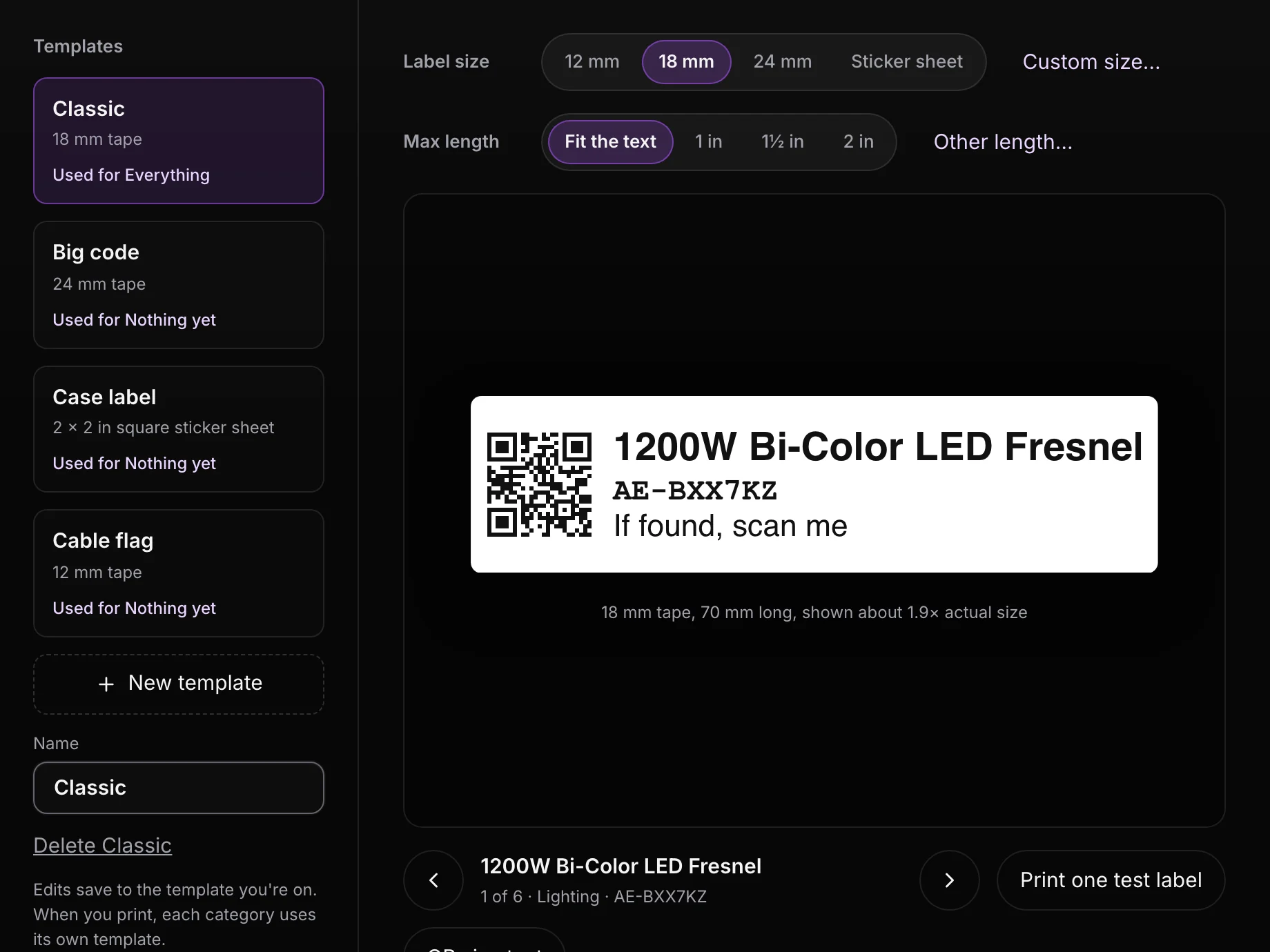
Before a full run, use Print one test label and scan it. For sticker sheets, Print a test on plain paper, hold it over a sheet against a window, and nudge until the boxes line up. Print at 100%, not "fit to page".
On iPhone, tap the tag button on the Gear tab, or Print label on one item. When the labels are ready, share them to Brother iPrint&Label for a Brother label maker, or to another app as a PDF.
Scan gear out at pickup and back in at return.
Checking out happens on the project. The project's whole gear list becomes the checklist, and each scan ticks a piece off it.
- Open the checklist. On the web, open the project's Package tab and choose Pickup / Return. On iPhone, open a gear list on the project and tap Pickup or Return.
- Say who's taking it. Type a name under Who’s picking up?
- Scan. On iPhone, point the camera at each label. On the web, a handheld scanner types straight into Scan or type a code. Gear without a label can be ticked by hand, and counted gear has + and − buttons.
- Add a spare if one turns up. Scan gear that isn't on the project at pickup and Aestro offers to add it. Choose Add to project & tick on the web, or Add & tick on iPhone.
- Finish. At pickup the button reads Hand off with the count, like Hand off 6 of 9. At return it reads Record return with what's back. Anything not ticked stays on the list for next time.
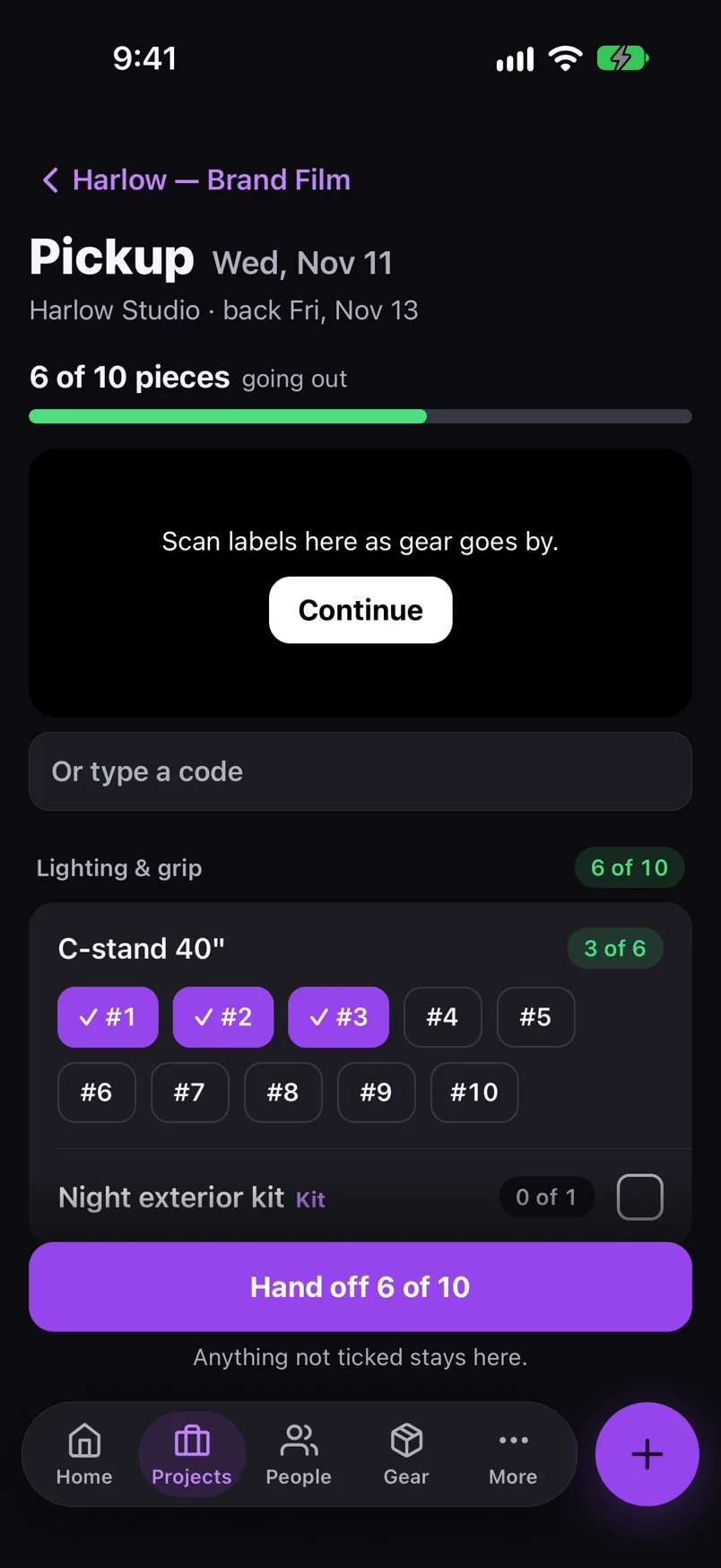
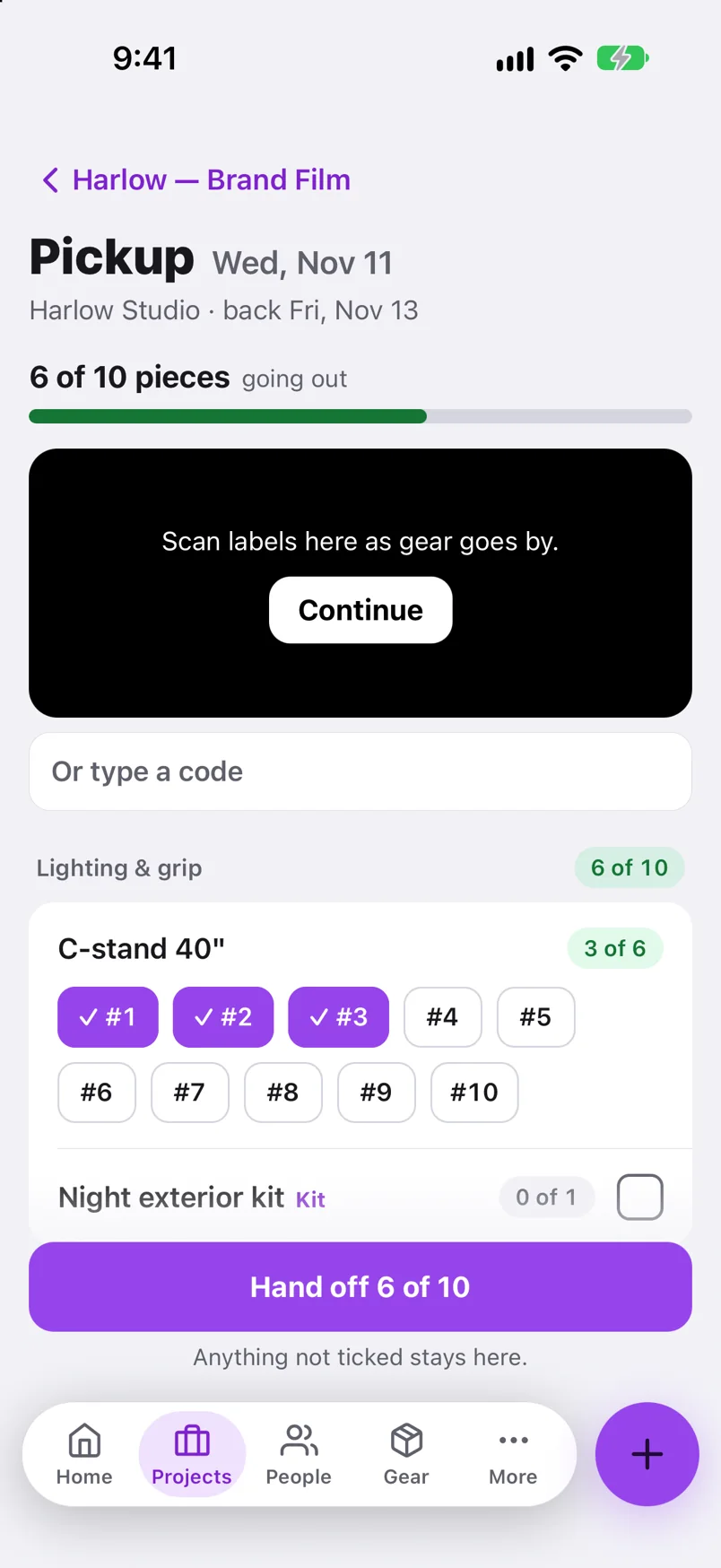
Ticking by hand and counting are free. The scan box and the camera are Pro.
Scan any label to find out where it is.
On iPhone, tap the scan button on the Gear tab and point at an Aestro label, a sticker or asset tag, or a maker's serial barcode. The item opens. On the web, the search on the Gear tab finds gear by name, serial, or code, so a handheld scanner works there too.
The Out & in tab shows everything of yours that's out on a project, late returns first, and an Activity log of every pickup and return. Scan a label into Find a piece and Aestro says who has it, or that it's on the shelf.
Before the first pickup.
Use this checklist as you review. Your checks stay on this page until you leave or reload.
0 of 6 checked
Building the list you'll pick up from is covered in the shoot gear list guide.
Know where every piece is.
Give your gear codes, print a sheet of labels, and run your next pickup with a scan instead of a clipboard.
Try Aestro freeExplore the demo first