
Rent gear from a vendor
How to put rented gear on its own project list, say who pays the gear owner, work with a vendor on Aestro from list to invoice, and mark the days you have it and when it went back.
Gear you rent in goes on its own list, with who pays for it.
A job often needs gear you don't own: a lens from a rental house, a light from another operator. Put it on its own gear list on the project, so it's clear what's yours and what has to go back. Each list says how its money works, so Aestro knows whether it belongs on your invoice, in your costs, or nowhere near your books.
Open the list's settings with the Manage gear list button, and choose one under Financial handling:
- My rental income. Your own gear, billed to your client on your invoice.
- I pay the gear owner. The rental is a cost on your project. Record what you actually paid as an expense.
- Client pays gear owner. The list stays on the project so everyone knows about the gear, but it's kept off your invoice, income, and expenses.
Rented-in lists and vendor gear lists are free.
Renting from someone who doesn't use Aestro.
- Make the list. On the project's Package tab, choose New gear list and name it after the vendor, like "Northside Rentals".
- Add their gear by hand. Choose Add gear, then Add an item by hand under the search results. Fill in Gear name, Category, Rental company or owner, Daily rate, and Quantity, then Add to package.
- Say how they're paid. The first time you add gear from them, Aestro asks once how they're paid. You pay them means you bill your client for it on your invoice. Your client paying them means it stays off your income and expenses. You can change it later.
- Check the list's handling. In Manage gear list, make sure Financial handling matches what you agreed.
Renting from a vendor who uses Aestro.
When the gear owner has an Aestro account, the list is shared between you. You choose the gear and the dates, they set the prices, and their invoice reaches you with the gear and rates you both approved.
- Start a vendor list. Choose New gear list, open More options, and tick Rent gear from a vendor.
- Pick the vendor. Under Choose a vendor, search your People or find someone by their Aestro handle.
- Build the list. Choose the equipment and quantities from their gear. The vendor sets rates, billable days, and discounts.
- Send it for review. The button reads Send to, the vendor's first name, and for review, like Send to Dana for review. The list locks while they check it. Nobody hears about the list until you send it.
- Approve any changes. The vendor accepts it as it is, or changes rates, days, or quantities and sends it back for you to approve.
- Get their invoice. Once you both agree, the vendor issues the invoice and you see it under Project costs.
Need to change an approved list? Propose changes reopens it, and both of you approve again before a new invoice. On the vendor's side, the request shows up with the dates and an estimate, and they can Accept it at their prices or send changes back.
Mark the days you have it, and when it went back.
Rented gear often comes for one day of a longer job. On a list of someone else's gear, Needed says when you have it: Whole project, or Or pick the days you have it on the calendar. When it goes back, choose Mark returned, and the list shows Returned.
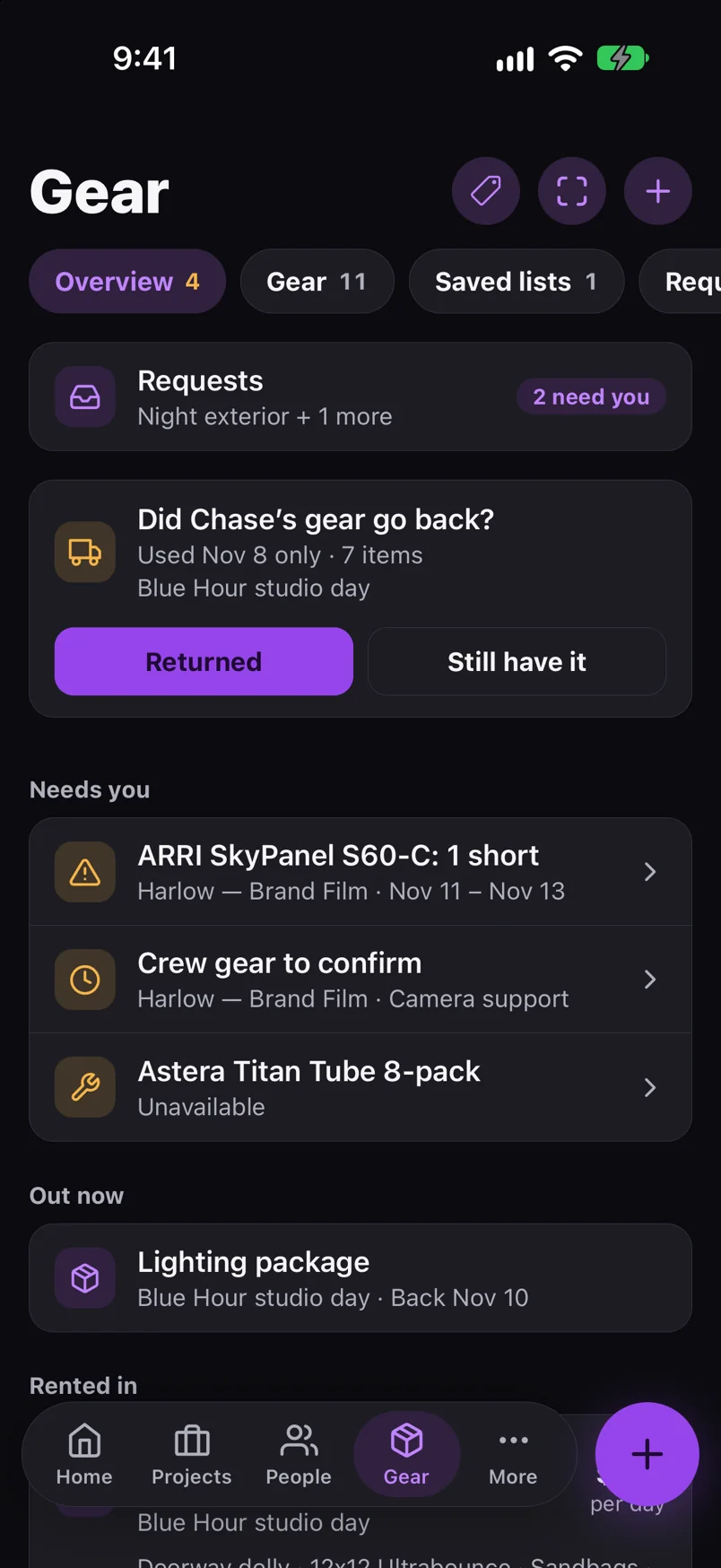
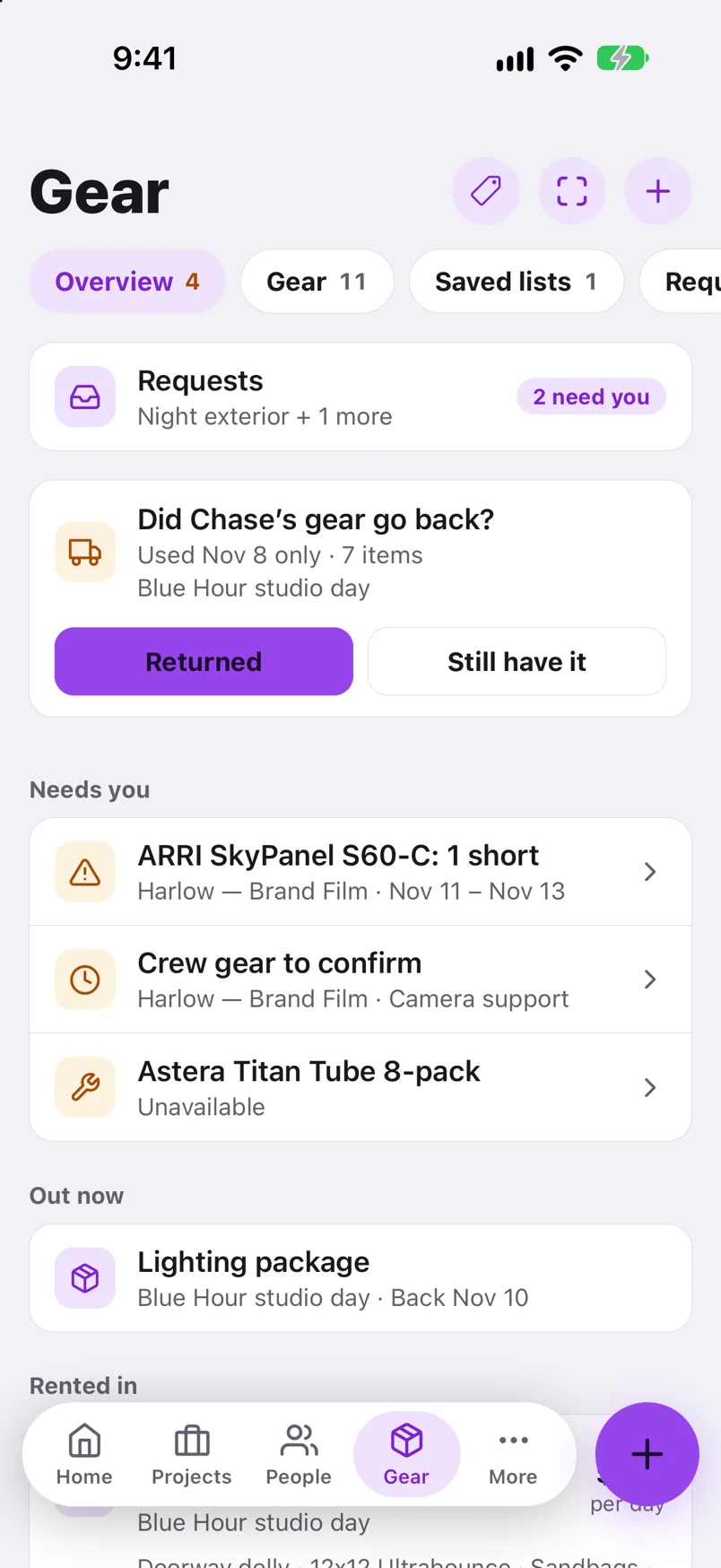
On iPhone, the list's Needed row has Change. The Overview on the Gear tab shows one card per rented-in list under Rented in, with Returned and Change days. Once the days are over, the card asks whether the gear went back, with Returned or Still have it. Tapped Returned by mistake? Undo brings the card back.
Before the job starts.
Use this checklist as you review. Your checks stay on this page until you leave or reload.
0 of 6 checked
How rented gear and your own gear sit on one invoice is covered in the gear rental invoice guide.
Keep rented gear straight.
Put each vendor's gear on its own list, agree the prices in one place, and mark it returned when it goes back.
Try Aestro freeExplore the demo first