
Sales tax and VAT on your invoices
How Aestro adds sales tax or VAT per invoice, what Prices include VAT changes, how Settings → Region decides which tax controls you see, and where your tax ID goes.
Tax is set on each invoice, and your region decides which controls you see.
Aestro doesn't add tax on its own. Every invoice starts with none, and you turn it on for the invoices that need it. The setting lives on the invoice, so one client can be charged tax and the next not.
Which version you see depends on Settings → Region. In Europe and the United Kingdom, the invoice has a full VAT / tax section with VAT treatments. Everywhere else it has a simpler section that adds a rate on top, called Sales tax, or IVA in Mexico.
Tax setup is free. Aestro does the math and shows the tax on the invoice and its PDF. It doesn't decide whether you owe tax, at what rate, or who collects it. That depends on where you and your client are and what you sell, so check your own rules or ask an accountant.
Add sales tax on top of an invoice.
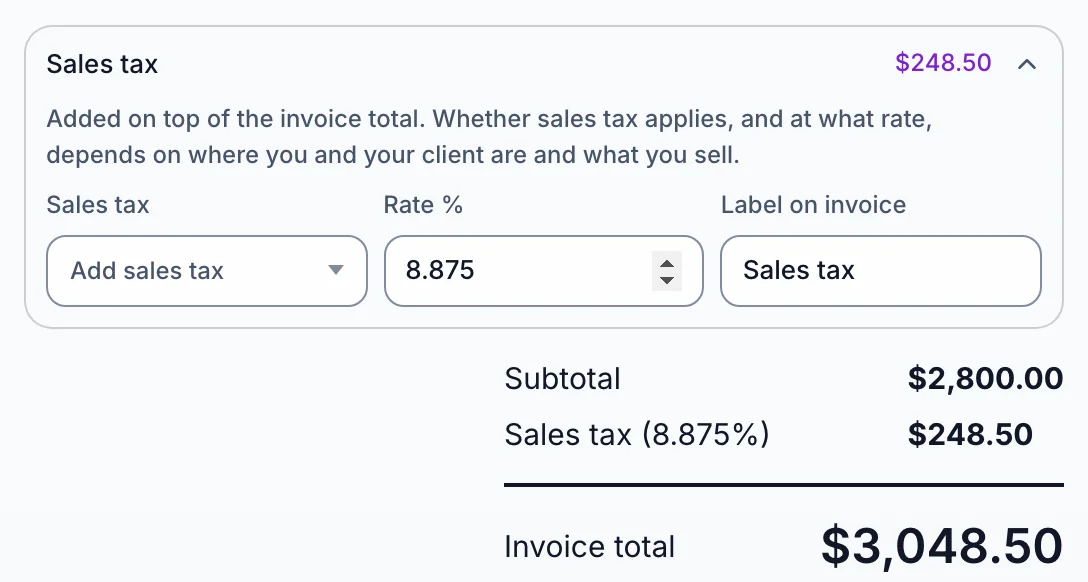
Outside Europe and the UK, open the project's Billing tab and find the Sales tax section under Discounts and fees, below the invoice's lines.
- Choose Add sales tax in place of No sales tax.
- Enter the Rate %. In Mexico it starts at 16% the first time you add IVA. Everywhere else it starts empty.
- Check the Label on invoice. It reads Sales tax (or IVA) unless you change it. Name it the way your invoices need to show it, for example GST.
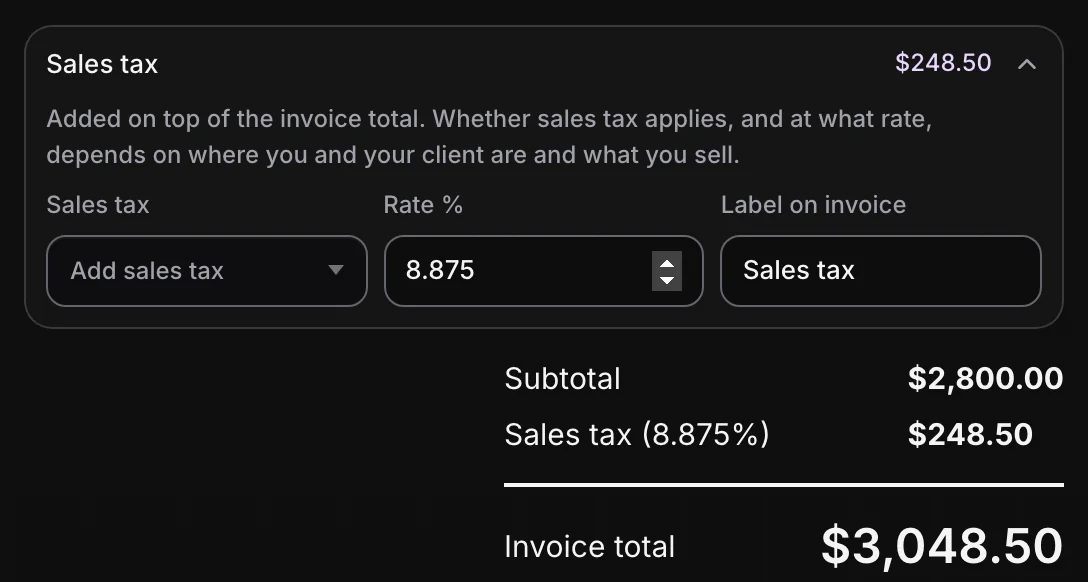
The tax is added on top of the invoice total, after any discount or fee. A $2,800 invoice with an 8.875% rate shows $248.50 of tax and a total of $3,048.50. The examples on this page are made up; they aren't rates to use.
Set the VAT treatment in Europe and the UK.
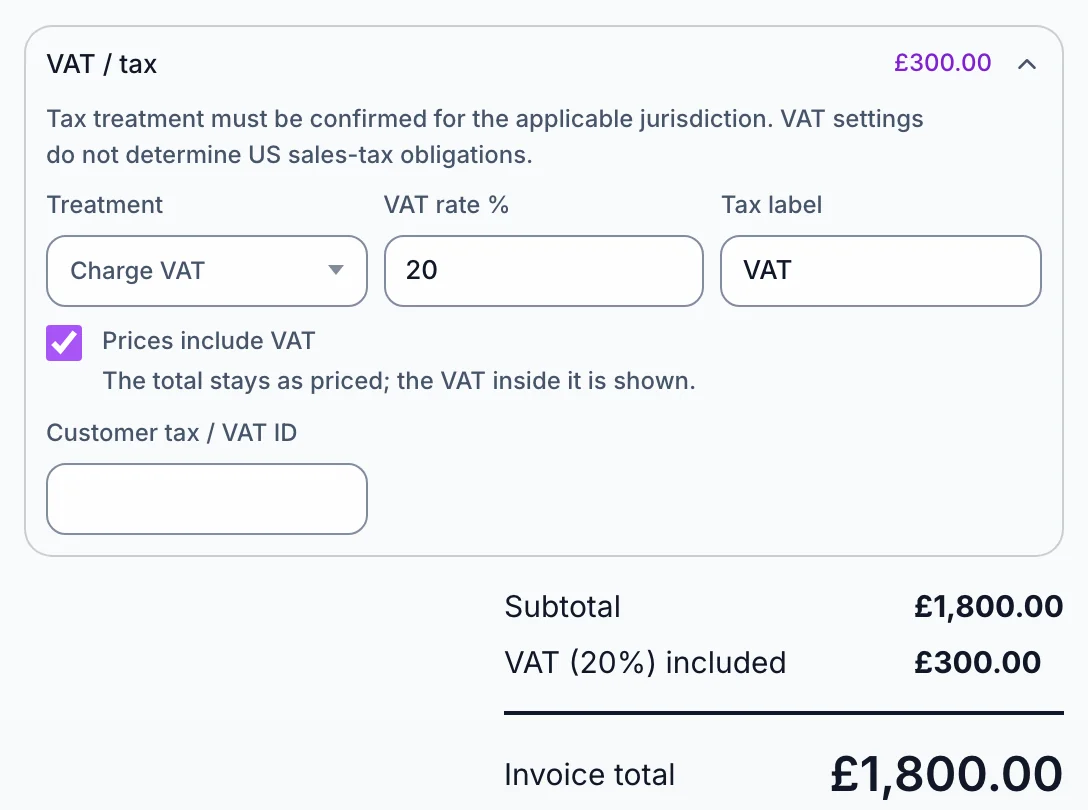
With your region set to Europe or the United Kingdom, the section is called VAT / tax and starts with a Treatment:
- No VAT / tax leaves tax off the invoice.
- Charge VAT adds VAT at the VAT rate % you enter, shown under the Tax label you choose.
- Reverse charge and Tax exempt charge no VAT and say so on the invoice. Add the wording you need under Required legal note or exemption reason, and it's shown on the invoice.
Customer tax / VAT ID puts your client's number on the invoice when you have it. The section notes that tax treatment must be confirmed for where the work is billed, and that these VAT settings don't decide anything about US sales tax.
When your prices already include VAT.
With Charge VAT chosen, tick Prices include VAT if the rates you typed are the full price your client pays. The total then stays as priced, and Aestro shows the VAT inside it. Leave it unticked and VAT is added on top of your prices.
The same £1,800 of work at 20% comes out two ways:
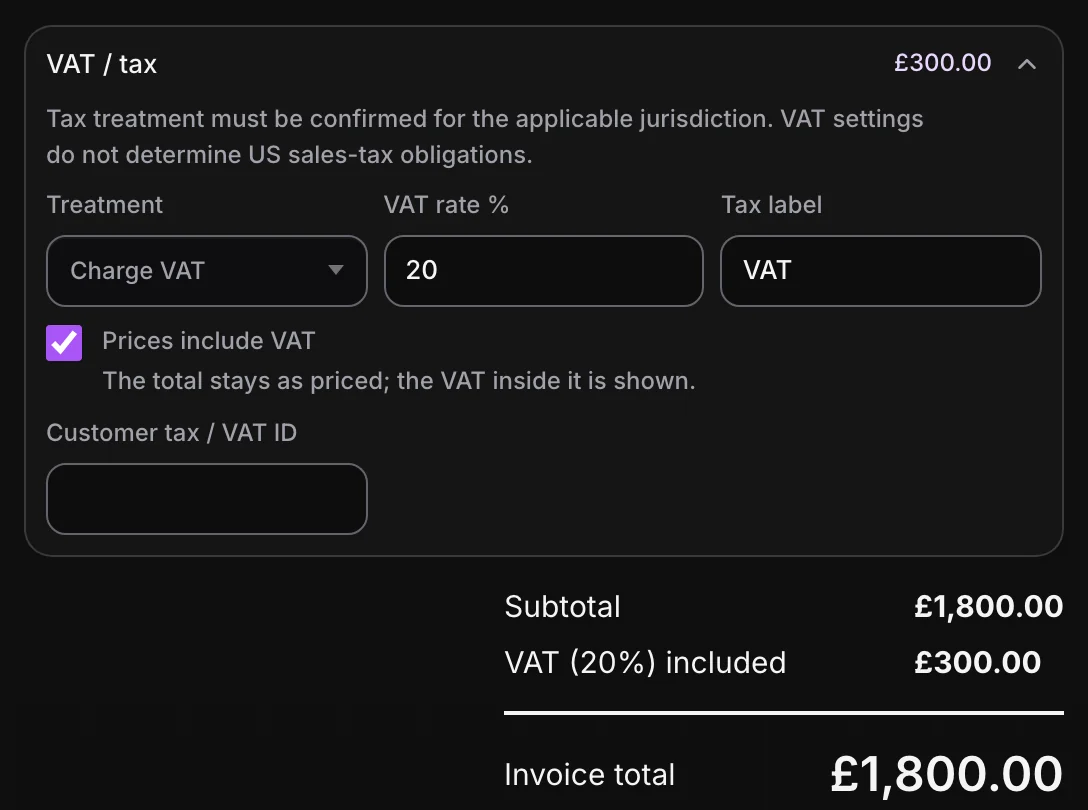
- Prices include VAT ticked: the total stays £1,800.00, and the summary shows VAT (20%) included at £300.00.
- Unticked: VAT of £360.00 is added, for a total of £2,160.00.
Set your region and tax ID once.
- Open Settings, then Region.
- Pick your Region. Changing it also sets your currency, date format, and the usual ways to pay, and it decides whether invoices show the VAT controls or the simpler sales tax ones.
- Fill in your tax number on the same page. It's called VAT ID in Europe, RFC in Mexico, and Tax ID everywhere else, and it's shown on your invoices.
An invoice set to reverse charge, tax exempt, or prices that include VAT keeps the full VAT controls even after you change region, so you can still see and change it. For what else belongs on an invoice, see how to invoice a freelance job.
Check the tax before you send.
Use this checklist as you review. Your checks stay on this page until you leave or reload.
0 of 6 checked
Set your region, then tax each invoice that needs it.
Pick your region in Settings, add your tax ID, and turn tax on for the invoices that need it. Aestro does the math on the invoice and its PDF.
Create an invoiceExplore the demo first