
Send an invoice and get paid onlineProfeature
How Aestro emails your invoice, gives your client their own page to view and pay it, and takes card, bank, and Apple Pay payments into your own Stripe account.
Aestro emails the invoice and gives your client a page to pay it.
On Free you download the PDF and send it from your own email. With Pro, Aestro sends it for you. Your client gets an email from "your name via Aestro" with the PDF attached and a link to their own page for the invoice. They don't need an account. On that page they can read the invoice, download it, and, if you've set up online payments, pay it by card, bank transfer, or Apple Pay.
Replies to the email come to you, not to Aestro. You see when the page was opened, and when they pay, the invoice is marked paid and you both get a receipt.
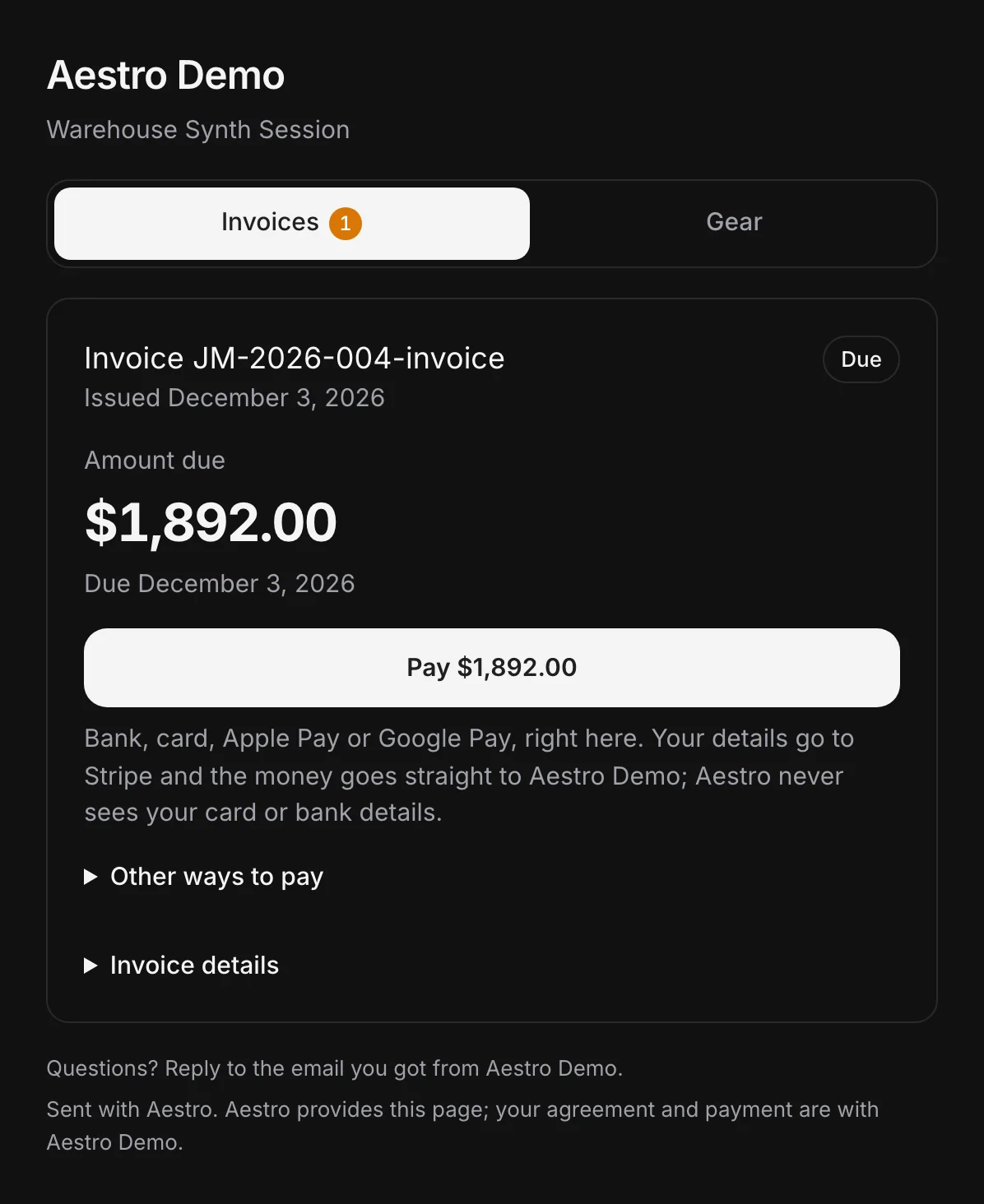
Send it from the invoice.
Open the project, go to Billing, pick the invoice, and look at the status panel at the top. It shows where the invoice stands, Draft, Sent, then Paid, with the one action that makes sense next.
- Check the client's email. Aestro sends to the email on the project's client in People. If there isn't one, the send window asks you to add it first.
- Choose Send to client. The window tells you who it's going to and what they'll get.
- Decide on reminders. If the invoice has a due date, you can tick Send reminders for me. The reminders guide covers what they say and when.
- Keep a copy if you like. Email me a copy, with a link to preview what they see sends you the same email.
- Choose Send. The invoice moves to Sent, and the panel shows who it went to and Not opened until they open it.
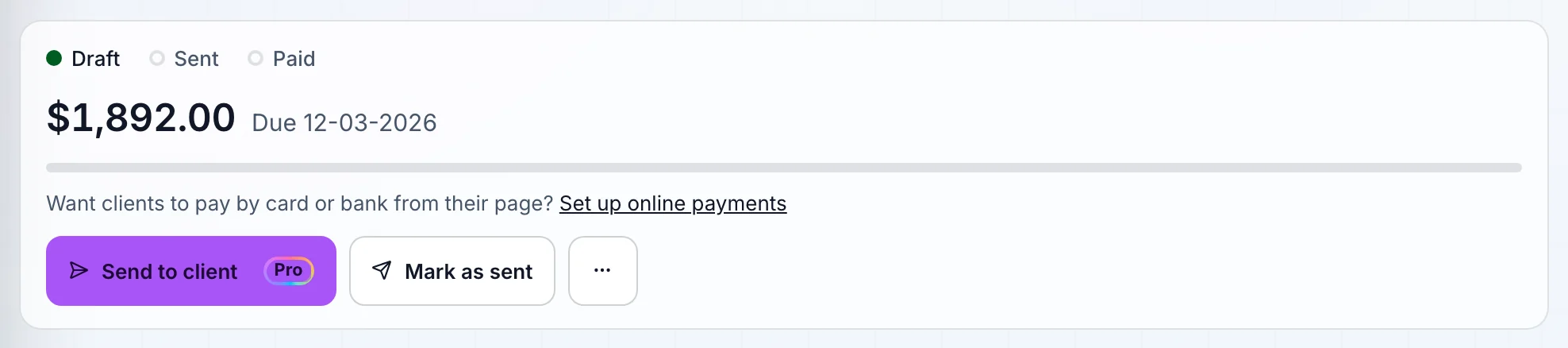
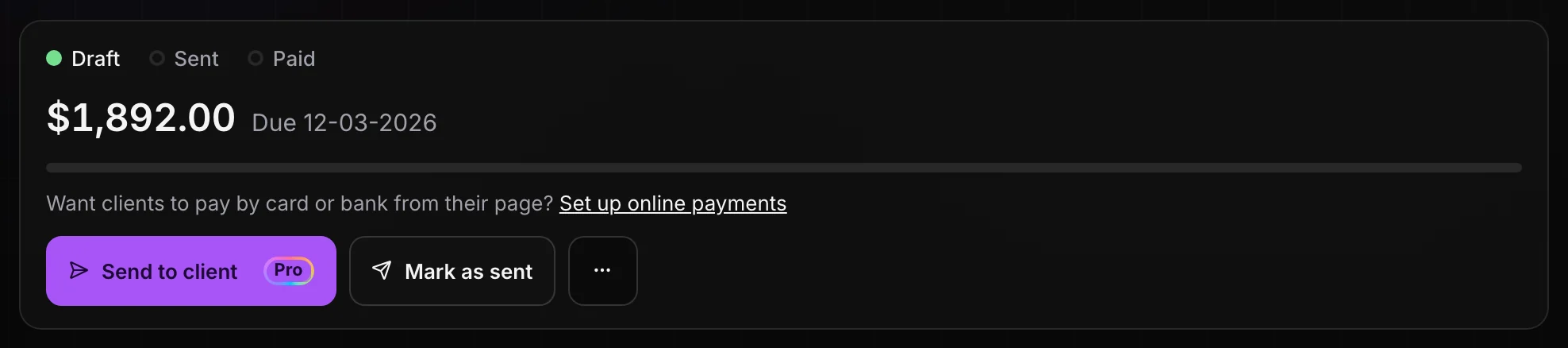
Changed something after sending? The main button becomes Send update. Your client gets the new version, and the earlier copy is marked as replaced, so nobody pays from an old one.
Prefer your own email? Copy the link.
In the panel's ••• menu, Copy client link makes the same page without emailing anyone. Paste the link into your own email or a text. Anyone with the link can open the page, so send it only to your client. Because nothing was emailed, the invoice stays a draft until you choose Mark as sent.
Before either, Preview what your client sees in the same menu opens their page exactly as it will look.
Let clients pay by card, bank, or Apple Pay.
Online payments go through Stripe, into your own Stripe account. Aestro doesn't hold the money. You set it up once:
- Open Settings, then How clients pay you.
- Under Online payments, choose Set up payments. Aestro shows a checklist of Stripe's steps and what each one asks for.
- Finish Stripe's setup. Stripe checks your details, and the card says You're set up when it's done. Until then, nothing changes for your clients.
Stripe asks for your business type, identity details, and the bank account it pays you into. Those are your choices to make, and Stripe's fees come out of each payment as Stripe sets them.
When the money comes in.
A payment made on the client's page marks the invoice paid on its own, stops any reminders, and sends a receipt to you both. A bank transfer can take a few days to clear; the invoice shows it as processing until it does.
Paid some other way? Choose Record payment, enter the amount, date, and method, and the panel shows what's left. If your client tells Aestro they've paid outside the page, you'll see a note in the panel asking you to record it.
Before you send.
Use this checklist as you review. Your checks stay on this page until you leave or reload.
0 of 5 checked
Send your next invoice with Aestro.
Make the invoice on the project, preview your client's page, and send it. Set up online payments once and every invoice after that has a Pay button.
Create an invoiceExplore the demo first