
Automatic payment remindersProfeature
How Aestro emails friendly, firm, and final reminders on a schedule you approve, how to pause, skip, or send one now, and how to send your own reminder draft on Free.
Aestro follows up on a schedule, and stops when you're paid.
When you send an invoice with Aestro, it can email your client reminders for you. They start friendly and get firmer only if the invoice stays open. Each one comes from you, links to your client's page for the invoice, and replies come to you.
The schedule counts from the due date:
- Coming up goes 3 days before it's due.
- Due today goes on the due date.
- Past due goes a week after.
- Firm goes two weeks after. It asks your client to arrange payment this week, or reply if something is holding it up.
- Final reminder goes 30 days after. It asks them to pay or reply within the next 7 days. Then Aestro stops.
Reminders go out on weekdays only. One that lands on a weekend goes on Monday. If you send an invoice late, Aestro skips the stages already behind it instead of sending several at once. A final reminder never goes before a firm one, and never within a week of the one before it.
Turn them on when you send the invoice.
- Give the invoice a due date. A date you pick, terms like Net 30, or a payment schedule all count. Without one, the reminders option doesn't show.
- Choose Send to client in the invoice's status panel. Sending is covered in Send an invoice and get paid online.
- Tick Send reminders for me. The window spells out the schedule above before you agree to it.
- Choose Send. The invoice now shows a Reminders timeline under who it went to.
Sent it without reminders? The panel says Reminders are off. Choose Turn on next to it.
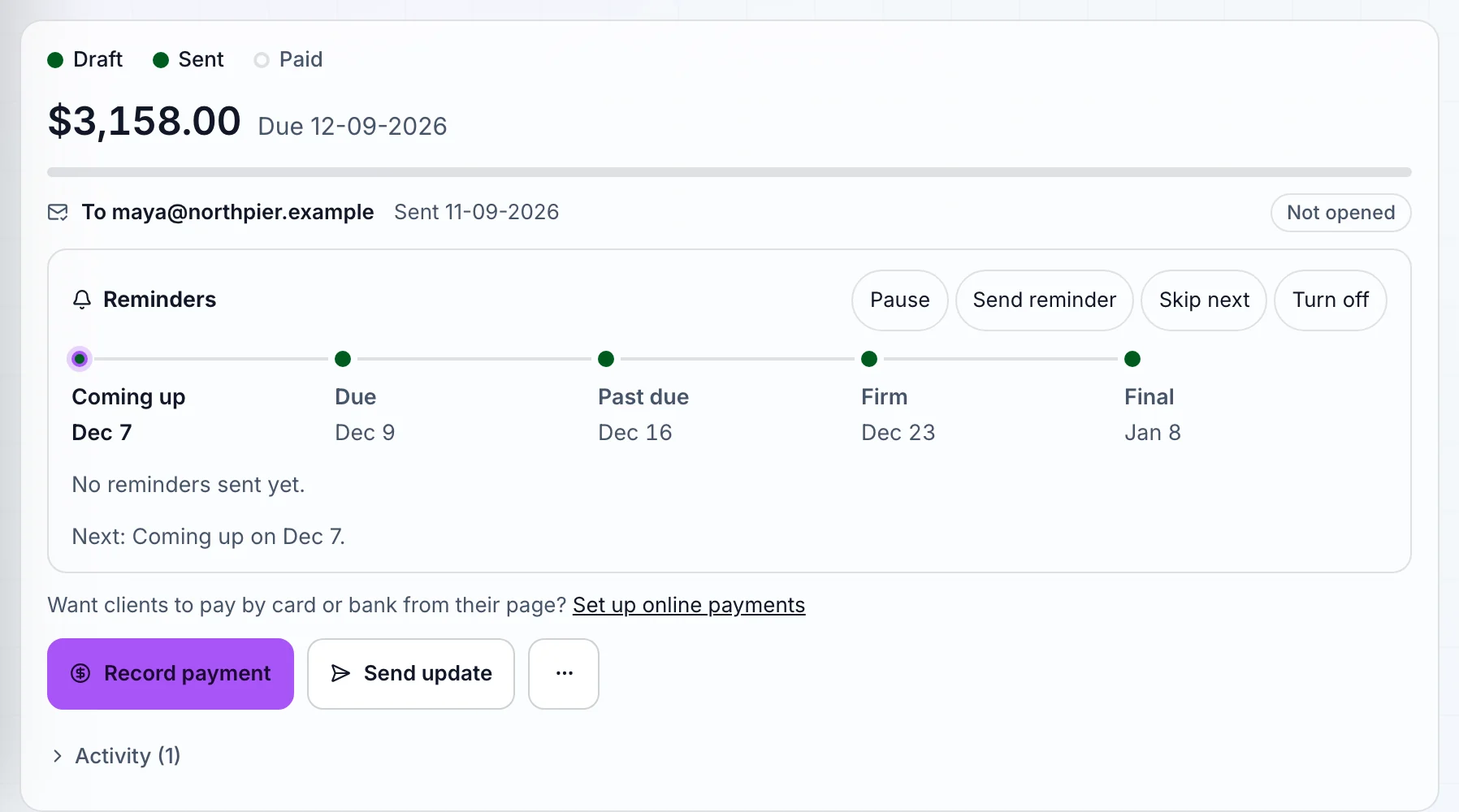
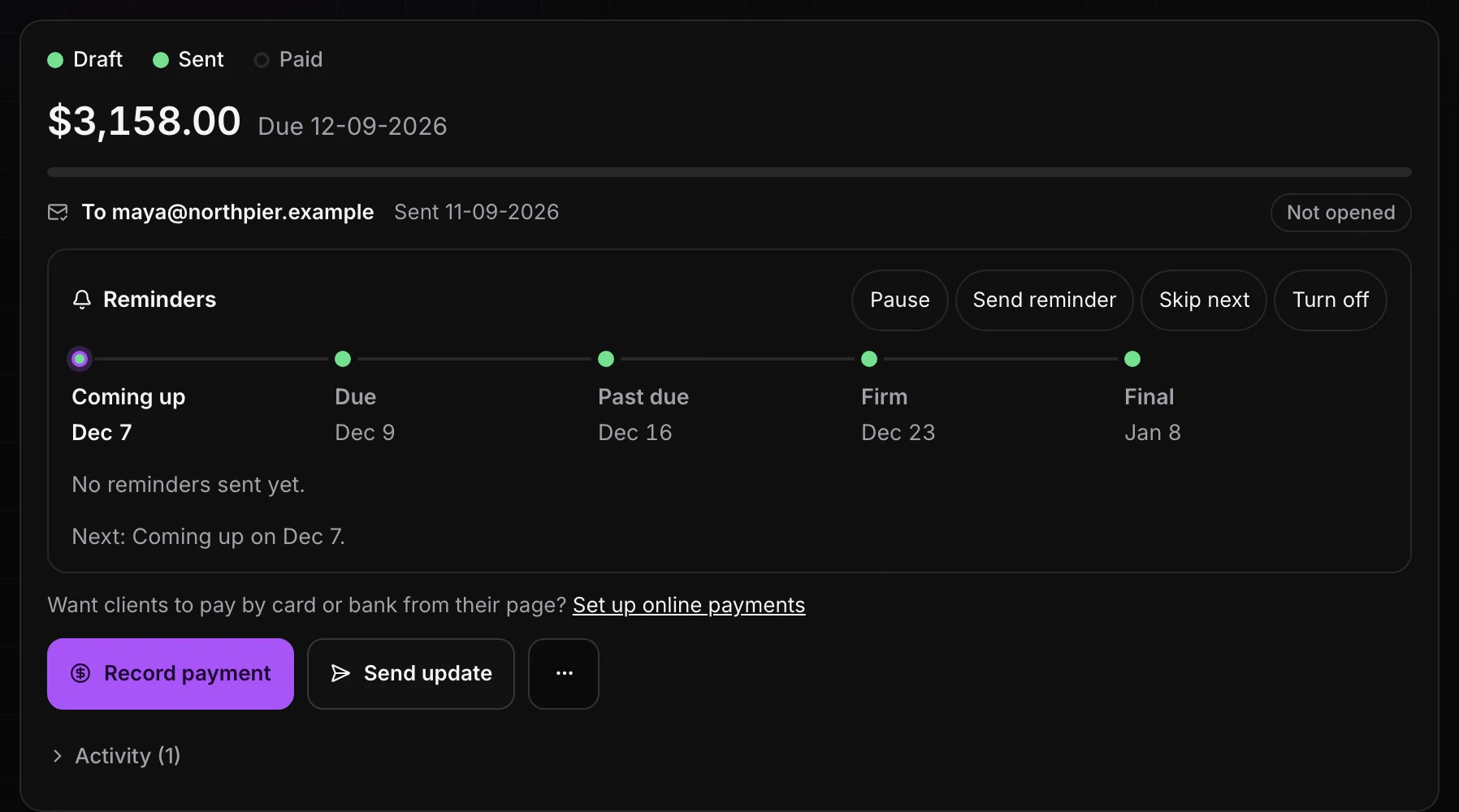
Change the plan from the timeline.
The Reminders timeline on the invoice shows each stage with its date, and a line saying what's been sent. Its buttons cover the usual changes:
- Pause holds everything through a date you pick under No reminders through. It starts a week out, for the client who says they'll pay next week. Resume starts them again early.
- Send reminder emails your client the reminder that fits today, after you confirm. You can send one a day at most. Sometimes the button reads Send now instead: that sends the next one on the track, when its day has come and it's only waiting.
- Skip next drops the next reminder so it never goes. The track marks it Skipped.
- Turn off stops reminders for this invoice. Turn on brings them back.
The day before a final reminder goes, you get a note in Activity: Final reminder to your client goes tomorrow. That's your chance to skip it if you've already talked. Every reminder sent is also listed in the invoice's Activity.
What stops or holds them.
- The invoice is paid. A payment on your client's page, a payment you record that covers the balance, or Mark paid in full all stop them.
- Your client says they paid. If they choose I've sent payment on their page, reminders pause for a week so you can check and record it. If it's still open after that, they resume.
- A bank payment is on its way. Reminders wait while it clears.
- The email bounced or was marked as spam. Reminders stop and the panel tells you to reach your client another way.
- All of them have gone. The timeline says so. Anything after the final reminder is up to you.
- You leave Pro. Reminders stop until you're back on Pro.
On an invoice split into payments, reminders follow the next unpaid part and its due date, so each part gets its own. See Payment plans and deposits.
On Free, open a reminder draft in your own mail app.
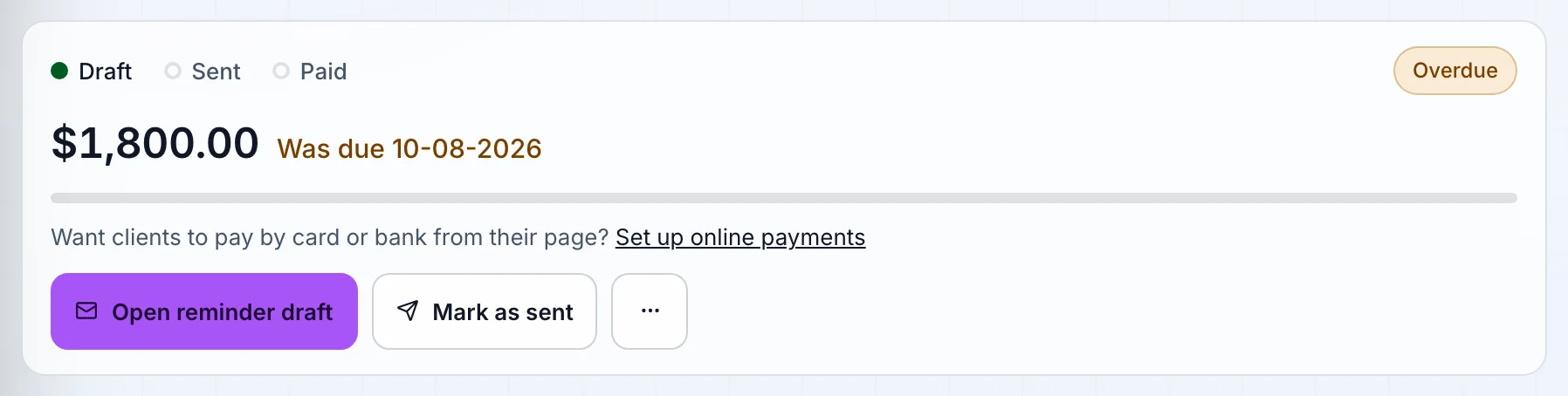
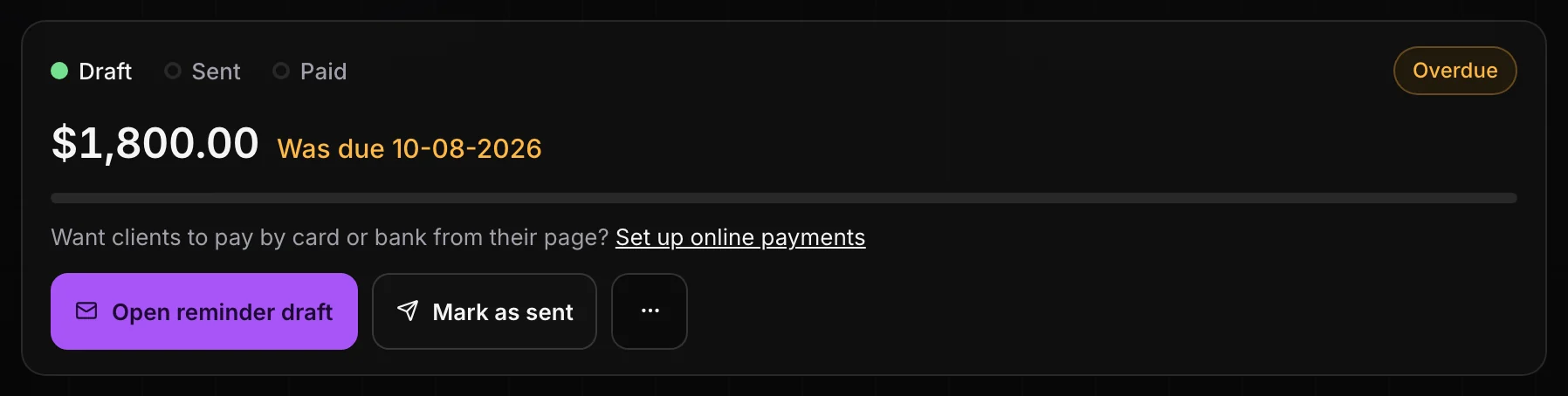
Automatic reminders are part of Pro. On Free, once an invoice is overdue, the main button in its status panel becomes Open reminder draft. It opens a new email in your own mail app, addressed to your client, with the subject "Reminder: invoice" and its number, and a short note with the amount still owed and the due date.
The draft says the invoice is attached, so attach the PDF before you send. Read it over and change the wording to suit the client. Aestro notes in the invoice's Activity that you opened a draft, and when you get paid, choose Record payment.
For what to say at each stage, and what to do after a final reminder, read what to do when a client pays late.
Before you turn them on.
Use this checklist as you review. Your checks stay on this page until you leave or reload.
0 of 5 checked
Let Aestro do the following up.
Give the invoice a due date, send it with Aestro, and tick Send reminders for me. The timeline on the invoice shows what went and what's next.
Create an invoiceExplore the demo first