
Payment plans and deposits
How to split one invoice into a deposit and later payments or monthly parts, record each payment as it arrives, and what your client sees on their page for each part.
Split one invoice into payments with their own due dates.
Bigger jobs are often paid in parts: a deposit to book the dates, the rest on delivery, or a few monthly payments. In Aestro you keep one invoice and give it a payment schedule. Each part has a name, a share of the total, and a due date. The invoice's due date becomes the next unpaid part's date, so overdue means the part that's late, not the whole job.
Payment schedules and recording payments are free. What changes with Pro is who does the chasing: the client's page shows each part, the Pay button asks for the next one, and reminders follow each part's due date.
Want a client to agree to the price and pay a deposit before you start? A quote with a deposit does that. A schedule suits work that's already booked.
Set up the schedule.
- Open the menu. In the invoice's status panel, choose •••, then Split into payments.
- Start from a preset. 50% now, 50% later makes a Deposit due on the invoice date and On delivery due 30 days after. 3 monthly payments makes three equal parts, 30 days apart.
- Adjust the rows. Each row has a Name, a % of total, and a Due date. Change any of them, add a row with + Add a payment, or remove one with its ×. You need at least two.
- Check the total. The line under the rows says what the parts add up to. It has to be 100%.
- Choose Save schedule. The parts show in the status panel, each with its amount, due date, and where it stands.
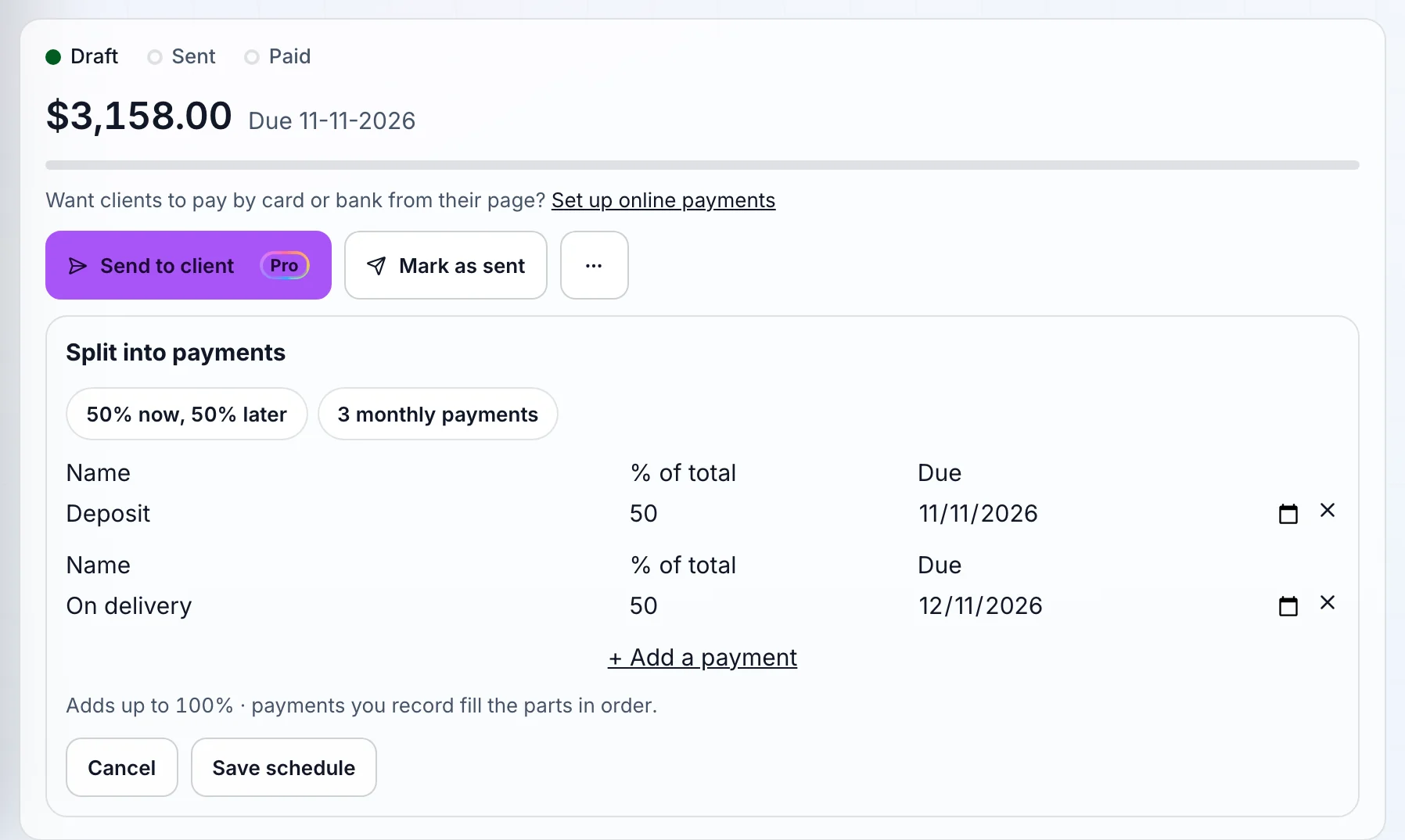
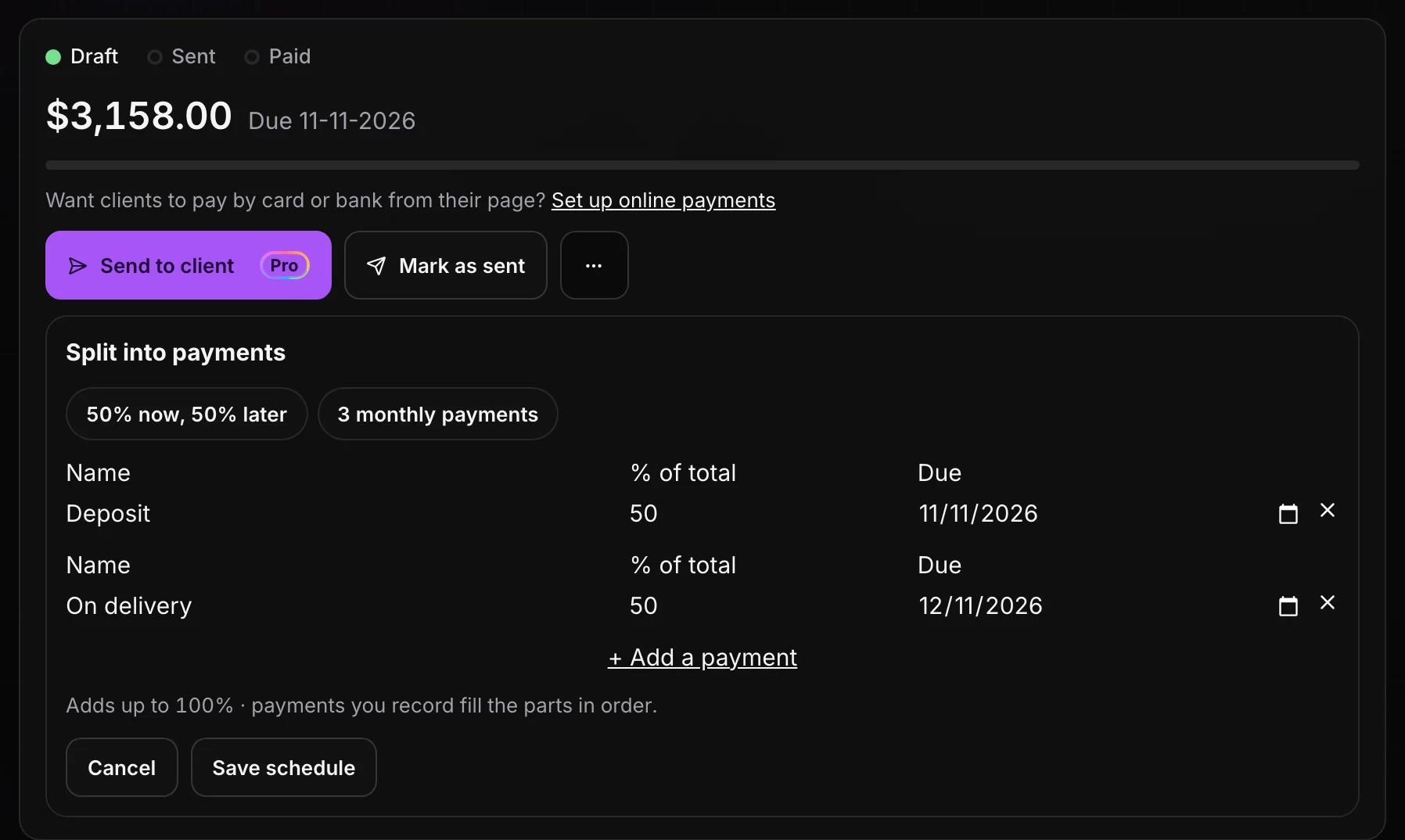
To change it later, the menu item reads Edit payment schedule, and the form has Remove schedule to go back to one payment.
Record each payment as it arrives.
When money comes in some way other than your client's page, like Zelle, a check, or a bank transfer, choose Record payment. It's the main button once the invoice is sent, and it's in the ••• menu before that.
- Pick the amount. Full is what's still owed, Half is half of that, and Other amount takes any figure up to the balance.
- Add the details. Date paid, the Method, and a Note (optional) such as a check number.
- Choose Record. The button shows the amount, so you can check it before you save.
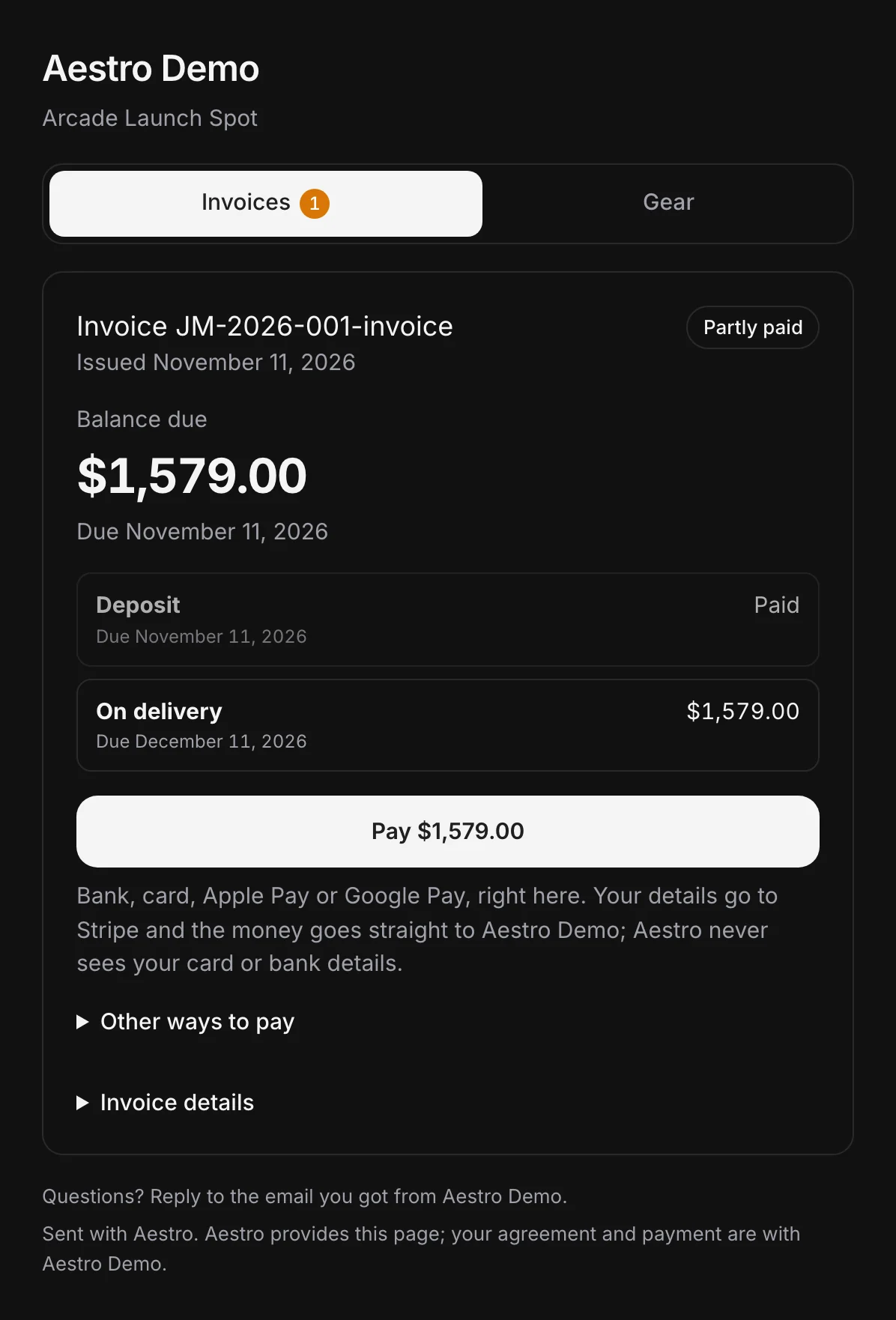
Payments fill the parts in order. A $1,579 payment on the schedule above marks Deposit as Paid; a smaller one leaves the part showing what's left. Until the last part is covered, the invoice reads Partly paid, with how much of the total is in. Each payment is listed under the parts, and its × removes one entered by mistake.
Payments made on your client's page are recorded for you. If a client paid in full some other way and you don't need the detail, Mark paid in full in the menu closes the invoice.
What your client sees with Pro.
When you send the invoice with Aestro, your client's page lists each part with its due date and either what's left on it or Paid. If you've set up online payments, the Pay button asks for the next part, not the whole balance. After a part is paid, the next one takes over, and reminders move to its due date.
Changing a plan after it's sent.
Once your client has a copy sent with Aestro, or once a payment is recorded, the schedule is locked, so it can't drift from what your client was told. To change it, choose Revise invoice on the invoice and make the change. If you sent it with Aestro, send the update: your client gets the new version, and the earlier copy is marked as replaced. If you didn't, choose Done revising and send the new PDF yourself.
If a client asks to move a date, agree the new date first, then revise. For what to do when a part is simply late, see what to do when a client pays late.
Before you save the schedule.
Use this checklist as you review. Your checks stay on this page until you leave or reload.
0 of 5 checked
Bill the big jobs in parts.
Make the invoice on the project, choose Split into payments, and record each payment as it arrives. The invoice always shows what's next and what's left.
Create an invoiceExplore the demo first