
People: contacts, imports, and contact cards
Keep everyone you work with in People: add them in seconds, import work contacts from your iPhone, link Aestro accounts, and share contact cards with a link.
People is the contact list for all your jobs.
Everyone you work with goes in People once: clients, producers, crew, rental houses. When you start a project or add someone to one, you pick them from here instead of typing their details again. Each card keeps their role, company, email, phone, rates, and the projects you've done together.
A card can be your own notes about someone, or it can be linked to their Aestro account. A linked card takes their name, photo, and contact details from their profile, so it stays up to date. Your notes stay yours either way.
Add someone in a few seconds.
On the web, open People and choose Add person. Only the name is needed. Add a Role / title, Company, Email, and Phone if you have them. When a phone number matches someone on Aestro, the card offers to link to their account. You can also type their Aestro username.
On iPhone, tap Add person in People and pick one of three ways:
- New person to type in whatever you know.
- Find on Aestro to look someone up by @username, email, or phone.
- From your Contacts to bring in work contacts from your phone.
On a person's card on the web, Add to Project puts them on a job. Default rate and Role rates hold what you usually pay them, like "Gaffer - $750/day", and a plain day rate fills in when you add them to a project.
Import work contacts from your iPhone.
If your crew and clients already live in your phone's contacts, bring them in at once. Aestro suggests who looks like a work contact, and nothing is added until you confirm it.
- Start the import. In People, tap Add person, then From your Contacts, then Continue.
- Allow Contacts. iPhone asks whether to share all your contacts or only some. Either works.
- Confirm your email. The first time, choose Email me a code and enter the 6-digit code. Importing handles other people's details, so Aestro checks the account is yours.
- Pick people. Filter by Work contacts, Has company, On Aestro, or Has email or phone. Select shown picks everyone in the filter.
- Review and import. Anyone who Might already be saved gets a choice: merge into the existing card, or Add as a new person. Then tap Import to add them.
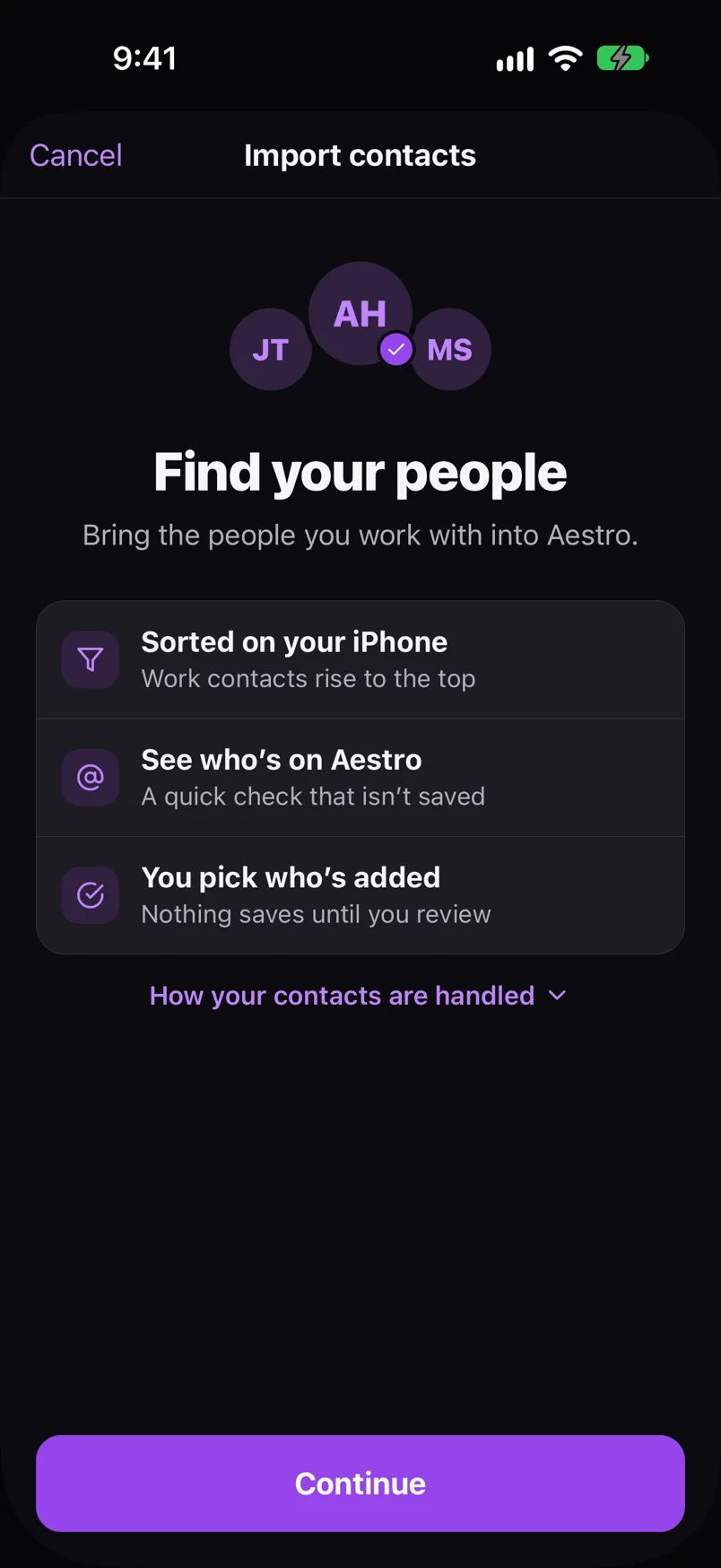
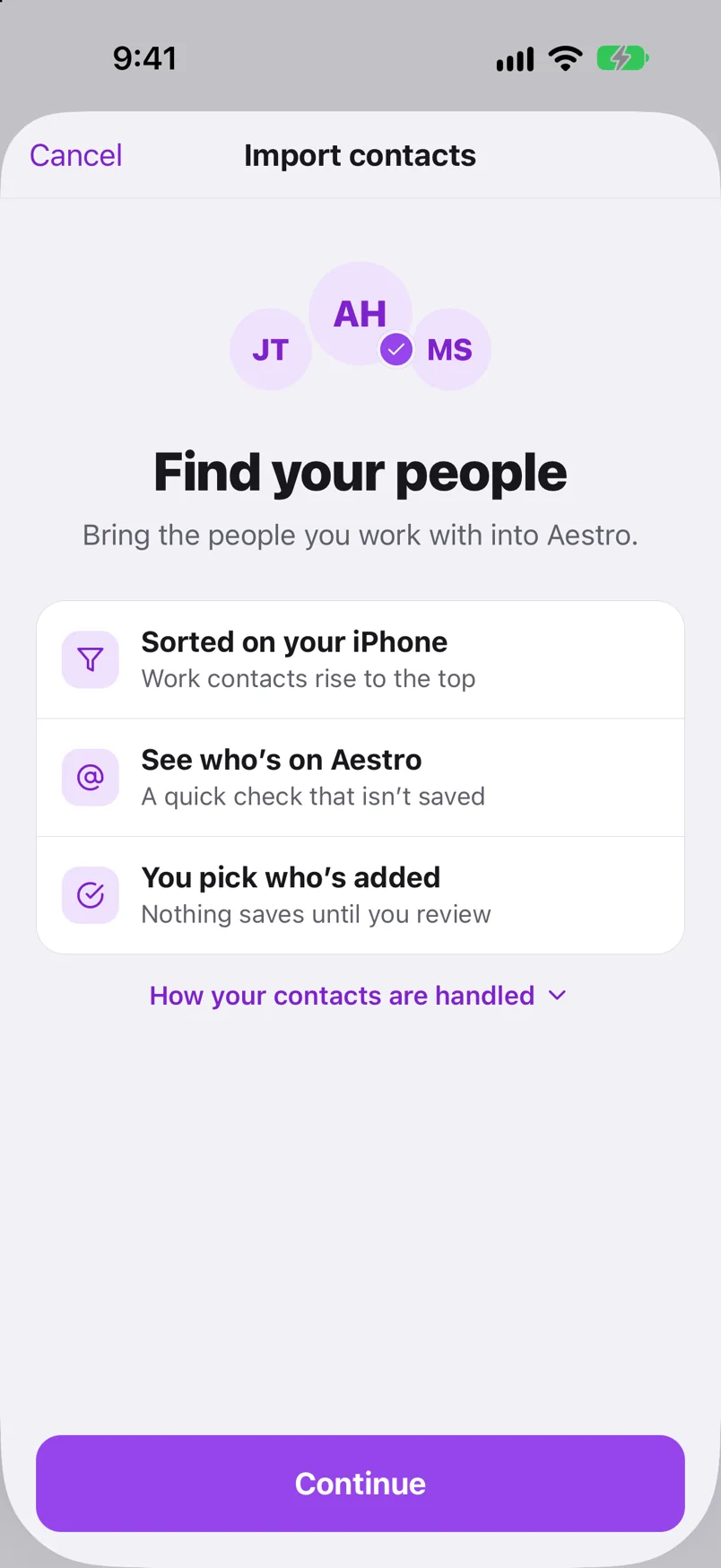
Aestro reads only names, companies, job titles, emails, and phone numbers. To show who's on Aestro, emails and phone numbers are checked with Aestro. The check isn't saved, and nobody is told.
Share a contact card.
A contact card is a link to someone's details that you can send to anyone. On the web, open a person, then the More contact actions menu, and choose Share contact. For someone linked to Aestro it reads Share profile and shares their public profile instead. The link is copied for you to paste.
Whoever opens it sees the name, role, and contact details, with Save to your People and Add to phone contacts. On iPhone the link opens the app. To stop a link working, choose Revoke contact card from the same menu.
Use them on your projects.
From People, a contact goes onto a job as the client, crew, or a vendor. On the project they can stay a contact, or you can invite them to join and add their gear and invoices. The invite guide covers that step, and the projects guide covers the project itself.
Keep People tidy.
Use this checklist as you review. Your checks stay on this page until you leave or reload.
0 of 6 checked
Bring your contacts into Aestro.
Import your work contacts on iPhone, or add people as you go. Every project picks from the same list, so you only type someone in once.
Get started with AestroExplore the demo first