
Projects in Aestro: a quick tour
Start a project with just a name, find your way around its tabs, keep its status current, and put the client and the people you work with on it.
Start a project with just a name.
A project is one job: a shoot, an edit, an event, a gear rental. Its invoices, gear, people, and files all live on it. Only the name is needed. Everything else can come later.
- Choose Start project. It's at the top of Projects on the web. On Home, it's New project. On iPhone, tap Project on Home.
- Name it. Something like "Harbor Lights music video" is easier to find later than "Shoot".
- Pick the client if you know it. Client · optional shows people you've worked for recently. Someone else searches your People, or adds a new contact as you type.
- Add what you have. Under Add if you want: Dates, Your role, Gear list, Notes, and Type of work. With Gear list on, the project opens on its Package so you can add gear right away.
- Choose Create project.
Each tab holds one part of the job.
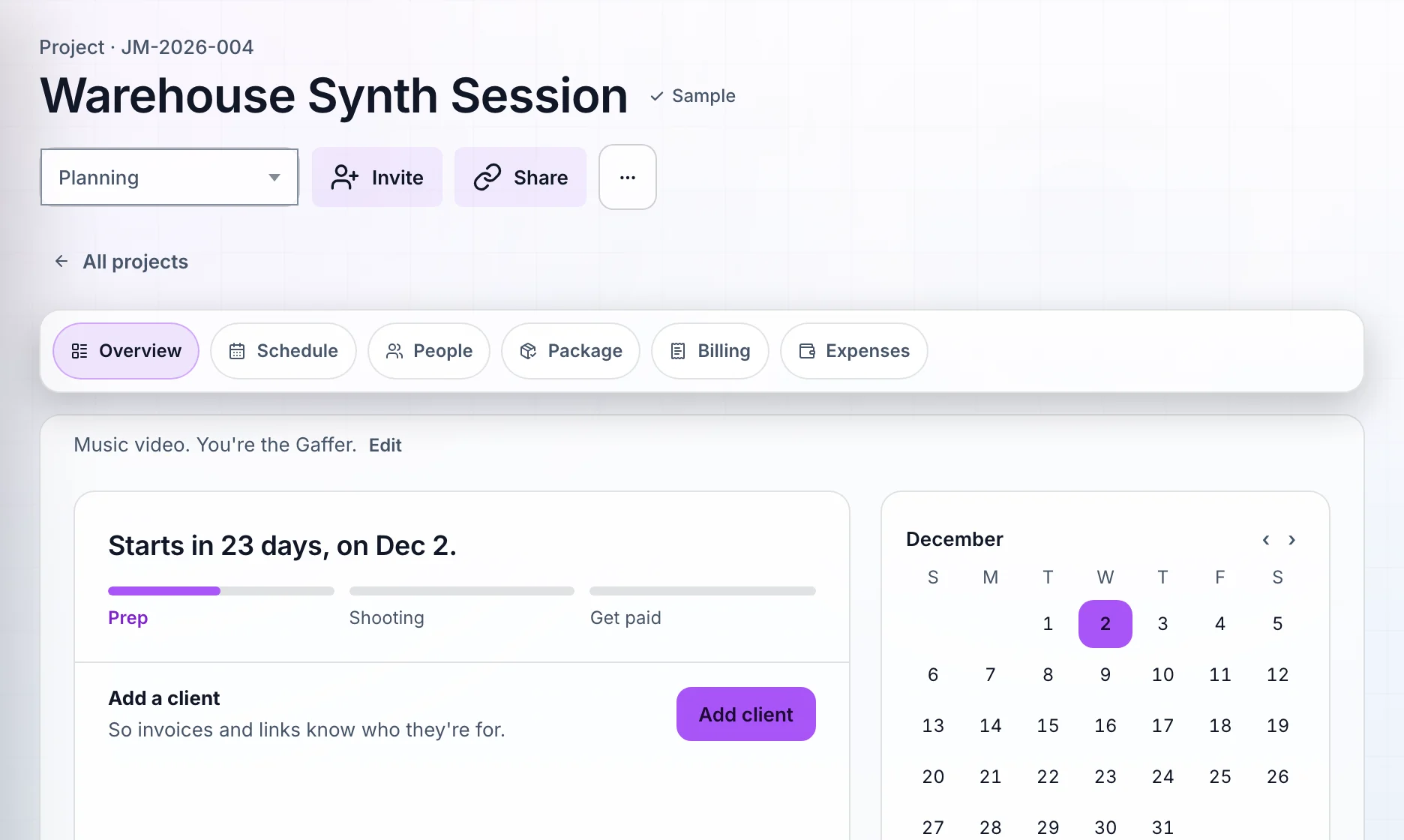
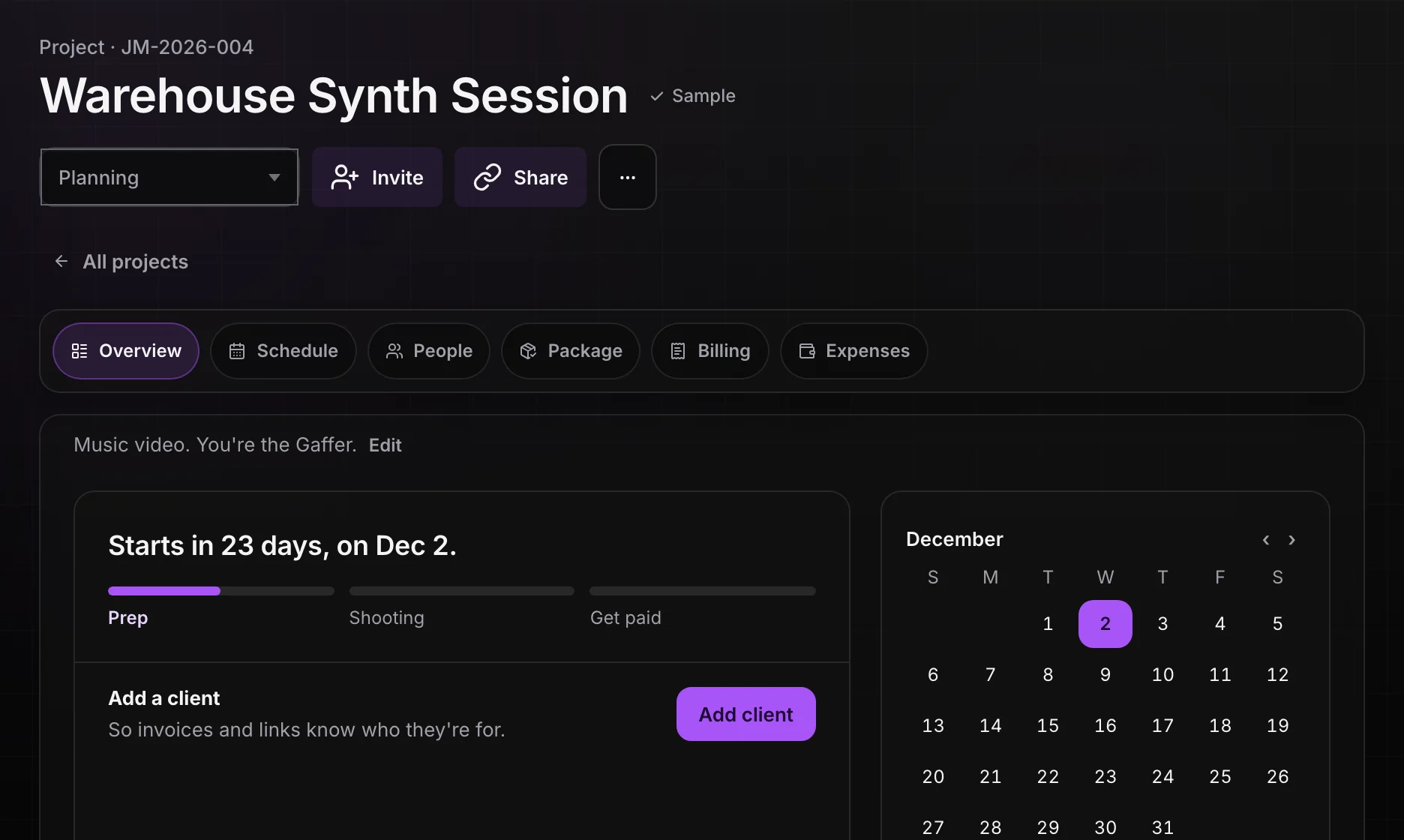
- Overview. The job at a glance: money, gear, people, deliveries, notes, and recent activity. Each card opens its tab.
- Schedule. The project's dates. A job can have more than one set of dates, like a prep day and two shoot days.
- People. The client, your crew, and vendors on this job.
- Package. Gear lists for the job, from your own gear and anyone else's. The gear list guide covers building one.
- Billing. Your invoices for the job, plus invoices from crew and vendors and gear costs.
- Expenses. Receipts and costs for this job.
- Deliveries. Files you deliver to the client.
On iPhone, open a project to see its overview, with People, Package, Billing, and Schedule below.
Keep the status honest.
The status menu at the top of the project has five steps: Planning, Active, Working on edits, Waiting for payment, and Complete. The Projects list filters by them, so a quick look tells you which jobs still owe you money.
New projects start as whatever you pick under New projects start as in Settings. The More project actions menu at the end of that row holds Duplicate project and Rename project. Duplicating copies the details, people, draft invoice items, and gear lists, and leaves out dates, invitations, and payment history.
Put the client on People.
The client is who the job is for and who your invoices bill. Pick one when you start the project, or open People and choose Add a client. To swap them later, pick the client and choose Change client from Edit. Anyone already on the job can become the client with Make client.
Clients don't need an account. They get your invoices by email and open their own page to view them. Add their email to their card so sending works when you're ready.
Bring in the people you already work with.
Everyone on a project comes from your People, the contact list for your whole workspace. On iPhone, From your Contacts brings in work contacts from your phone in one go, so you're not typing them in job by job. The People guide covers adding, importing, and sharing contact cards.
Before the job starts.
Use this checklist as you review. Your checks stay on this page until you leave or reload.
0 of 6 checked
Start your first project.
Give it a name, add the client and dates if you have them, and keep the job's gear, invoices, people, and files together from day one.
Start a projectExplore the demo first