
Invite crew to a project
How to invite crew and vendors to a project from People, what the invite looks like to them, and what they can do once they join with a free Aestro account.
Inviting someone gives them their own view of your project.
When you invite crew to a project, they join it from their own Aestro account. It's free for both of you, and they don't need Pro. Once they join, they can add the gear they're bringing, send you their invoice, and add receipts, all on your project.
They see the project, not your workspace. Your other projects, your invoices to the client, your rates, and your settings stay yours. You see only what they add to this project.
Adding someone to a project doesn't have to mean inviting them. You can keep a person on the job as a contact only, so their name and number are there for the shoot, and nothing is sent.
Invite them from the People tab.
On the web, open the project and go to People. You can invite several people at once.
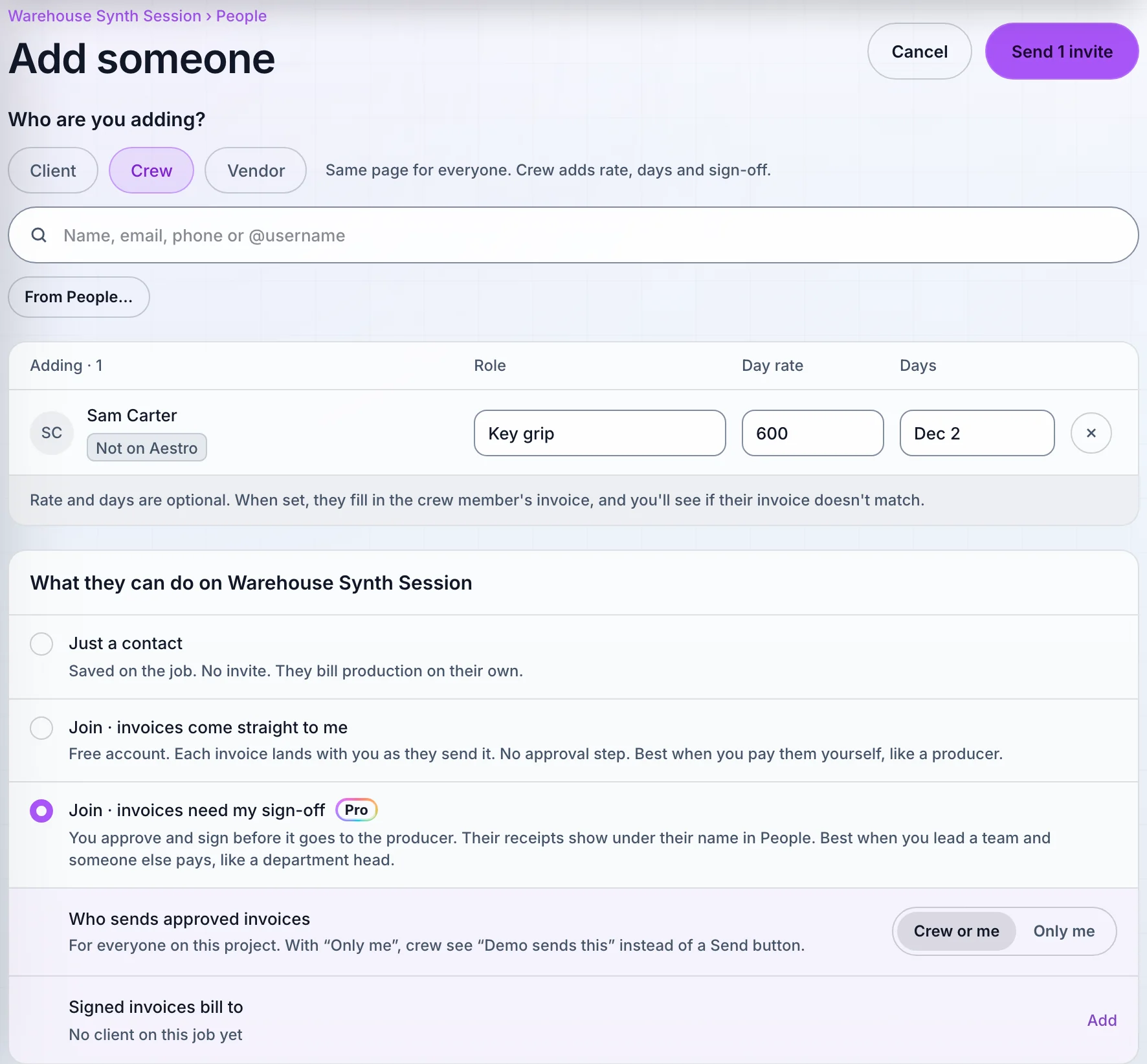
- Choose Add someone. Under Who are you adding?, pick Crew. Pick Vendor for a rental house or anyone billing you for gear.
- Find each person. Search by name, email, phone, or @username. People you've worked with show up first, and From People… opens your whole list. Someone not in People yet is saved there as you add them.
- Fill in the role, and the rate if you know it. Day rate and Days are optional. When you set them, they fill in that person's invoice, and you'll see if what they send doesn't match.
- Choose what they can do. Just a contact sends no invite. Join · invoices come straight to me fits when you pay them yourself. Join · invoices need my sign-off fits a department head whose crew bill the production. Sign-off needs Pro on your side.
- Choose Send invites. The button counts the people, like Send 3 invites. Anyone missing an email gets a prompt to add it first.
Want someone to see the project without adding gear or invoices, like a producer or an agency? Use Invite at the top of the project. Under Project access, Viewer can view the project and Client review can review it. Neither can change gear.
What the person you invite sees.
Someone already on Aestro gets a notification in their app. Anyone else gets an email titled "You're invited to" your project, with an Accept invitation button. On an iPhone with Aestro installed, the link opens the app.
If they don't have an account, the link opens a page about the project with Accept project, Sign in, and Create account. A free account is all they need. They have to accept with the email you invited, so if they use a different one, invite that address instead.
Signed in, they land on an invite card with your name, their role, the rate and dates you set, and who their invoices bill. They can look around before deciding. Nothing is shared until they join.


They choose Join project, or Not now to turn it down. In the iPhone app the same choice reads Accept and Decline. You hear when they accept.
What they can do once they join.
Your project shows up in their Projects list. Their tabs are Overview, Schedule, People, Package, and Invoices. Your Expenses and Deliveries stay with you, and the schedule is yours to edit.
- Gear. In Package they add what they're bringing from their own gear. If you asked them for items, they answer with Confirm all requested or Can't bring request. The gear list guide covers building the list itself.
- Invoices. In Invoices they make their invoice for the job and send it to you, with any receipts on it. The crew invoices guide walks through both sides.
- Leaving. They can choose Leave project at any time. Gear of theirs still on your list shows as needing a replacement.
Resend, check, or take someone off.
Pick a person in People to see their Access. Until they join it reads Invited with the date and "hasn't joined yet", next to Resend. Once they join it reads Joined · can add their gear, invoices and receipts.
To take someone off, choose Remove from project. If they have gear on the list, choose Keep on the list or Take them off. With Let them know in their app on, they get a notice. An invoice they already sent stays on record, and they stay in your People for next time.
Before you invite.
Use this checklist as you review. Your checks stay on this page until you leave or reload.
0 of 6 checked
Bring your crew onto the job.
Start a project, add your crew in People with their role and rate, and send the invites. They join free and add their gear and invoices to your project.
Get started with AestroExplore the demo first