
Crew invoices and department head sign-off
How crew send their invoices on your project, how a department head checks and signs them before they reach the client, and how receipts and payments are recorded.
Choose how each person's invoice reaches you.
When crew join your project, they make their invoice for the job right there, from their own free account. What happens next depends on one setting per person. Pick someone in People and look at Their invoices:
- Contact only. No invite. They bill the production on their own, outside Aestro.
- Come straight to me. Each invoice lands with you as they send it, with no approval step. This fits when you pay them yourself, like a producer. It's free.
- Need my sign-off. You check it and sign before it goes to the client. This fits a department head, like a gaffer whose electricians bill the production. Sign-off is part of Pro on your side. Your crew don't need Pro.
To set the starting point for everyone you add, open People settings and choose under New crew start on. You can still change one person from their page.
How crew make and send their invoice.
On the web, the crew member opens your project and goes to Invoices.
- Choose New invoice. Their rate and days fill in if you set them on People. Gear they brought comes in from the gear list.
- Add receipts. Under Receipts on this project, Add a receipt takes a photo and the store, date, and amount. Leave Put it on this invoice ticked to be paid back on it.
- Choose Prepare to submit. Aestro checks it over: the total, the gear lines, the receipts, and whether there's a due date.
- Send it. With sign-off, they sign and choose Sign & send to you. Otherwise the button reads Send to you. Either way, you get a notification.
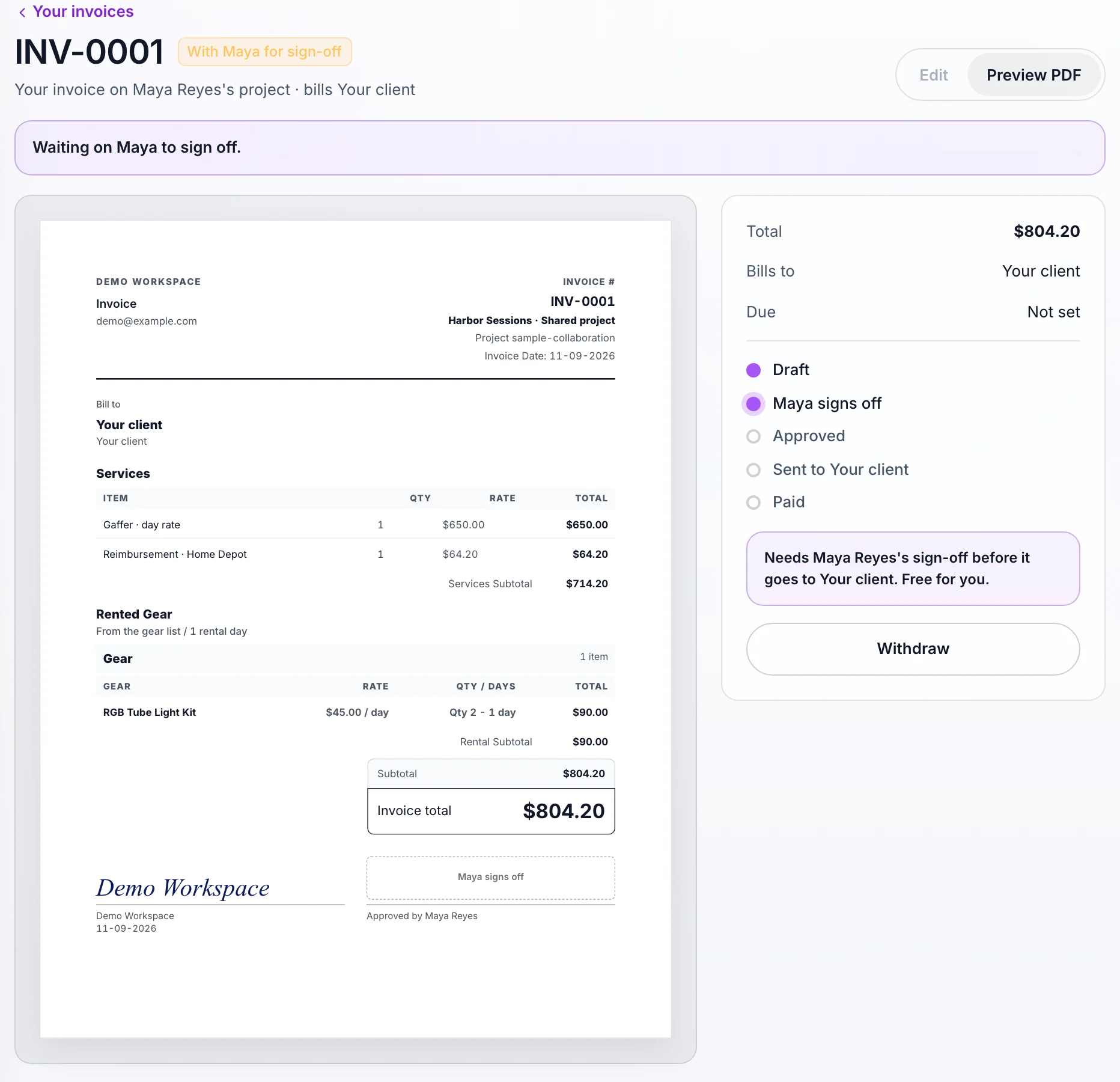
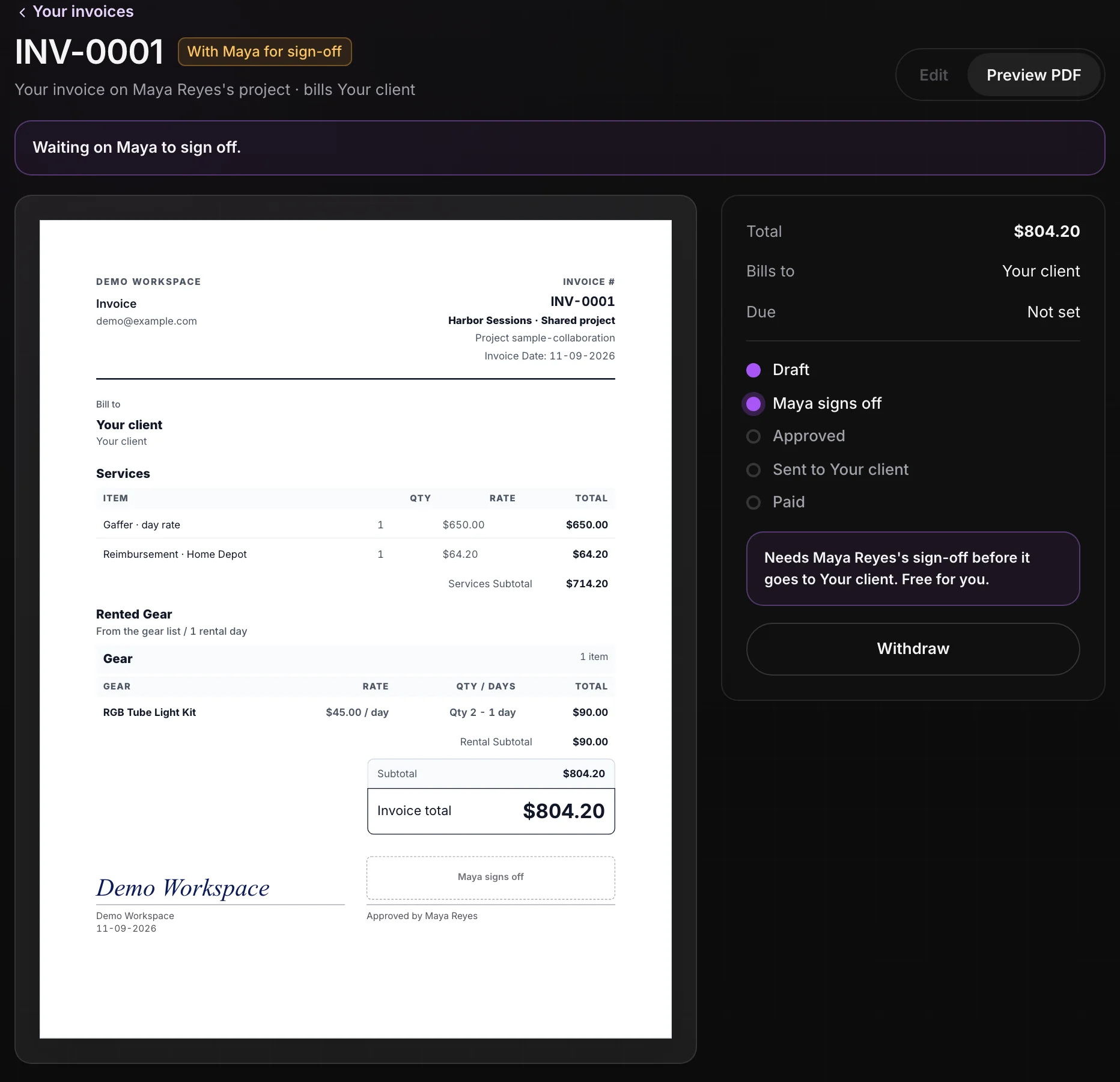
While it waits, they can choose Withdraw to make it a draft again. If you send it back, they see your note and Fix and send again.
Sign off as a department head.
When crew are on sign-off, a Crew sign-off strip at the top of People shows what's waiting on you. Once crew have sent invoices, they also gather under Billing, in Crew invoices.
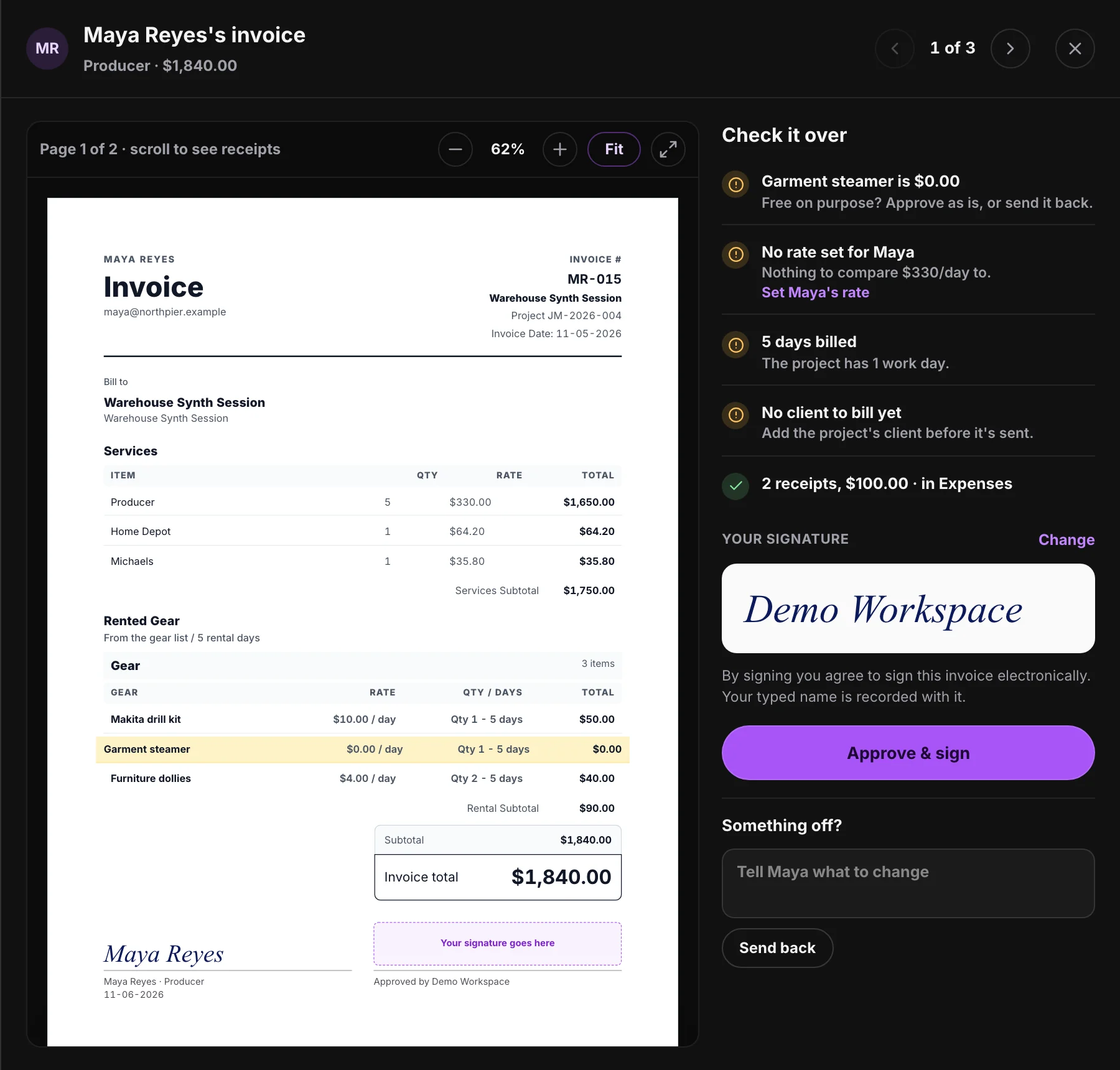
- Choose Review & sign. The invoice opens next to Check it over: their rate against what you set, the days, the gear against the list, and each receipt.
- Approve it, or send it back. Sign and choose Approve & sign. If something's wrong, write it under Something off? and choose Send back.
- Send it on. Choose Send to the client, or Send all approved on the strip to send every signed one at once.
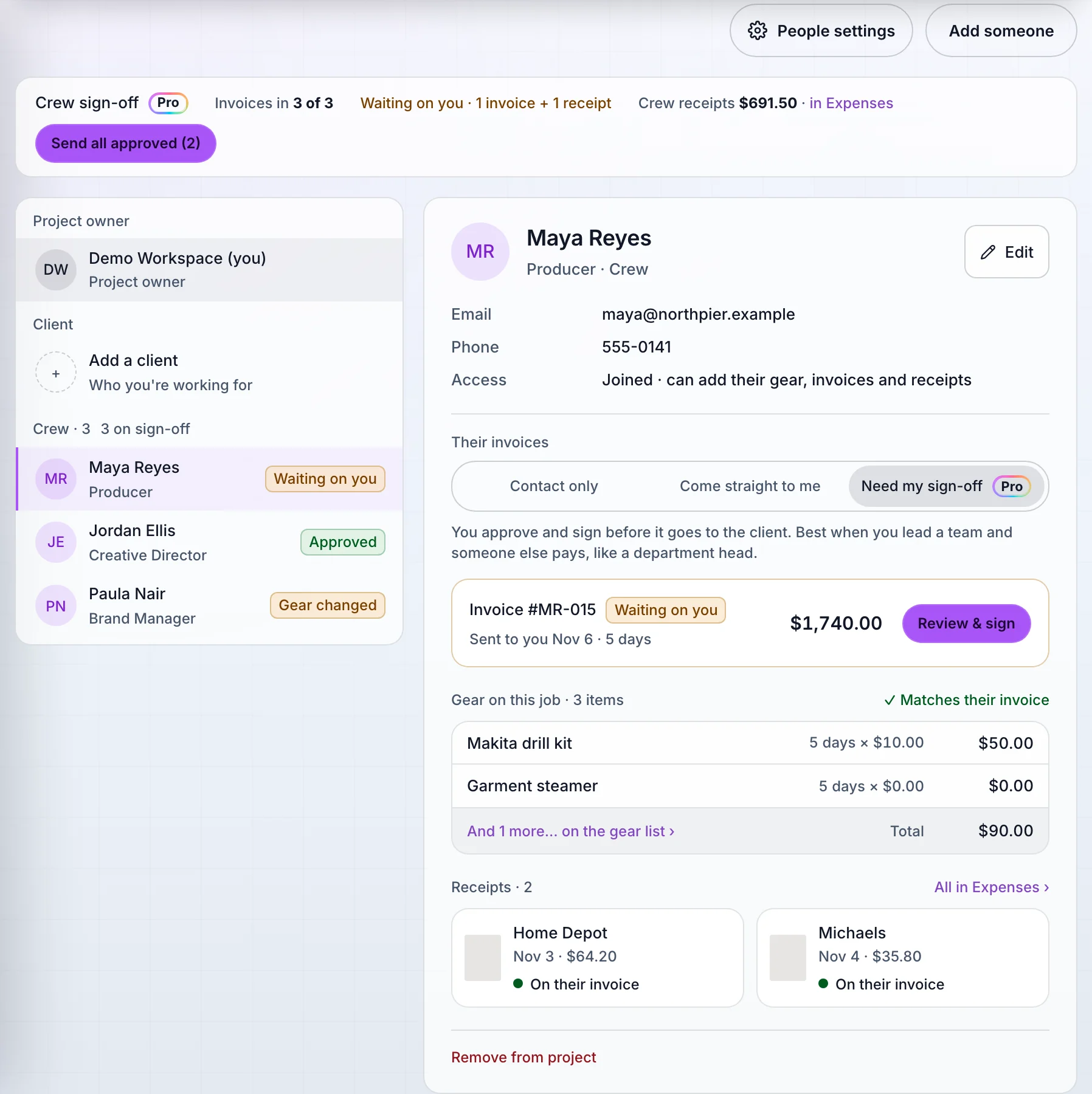
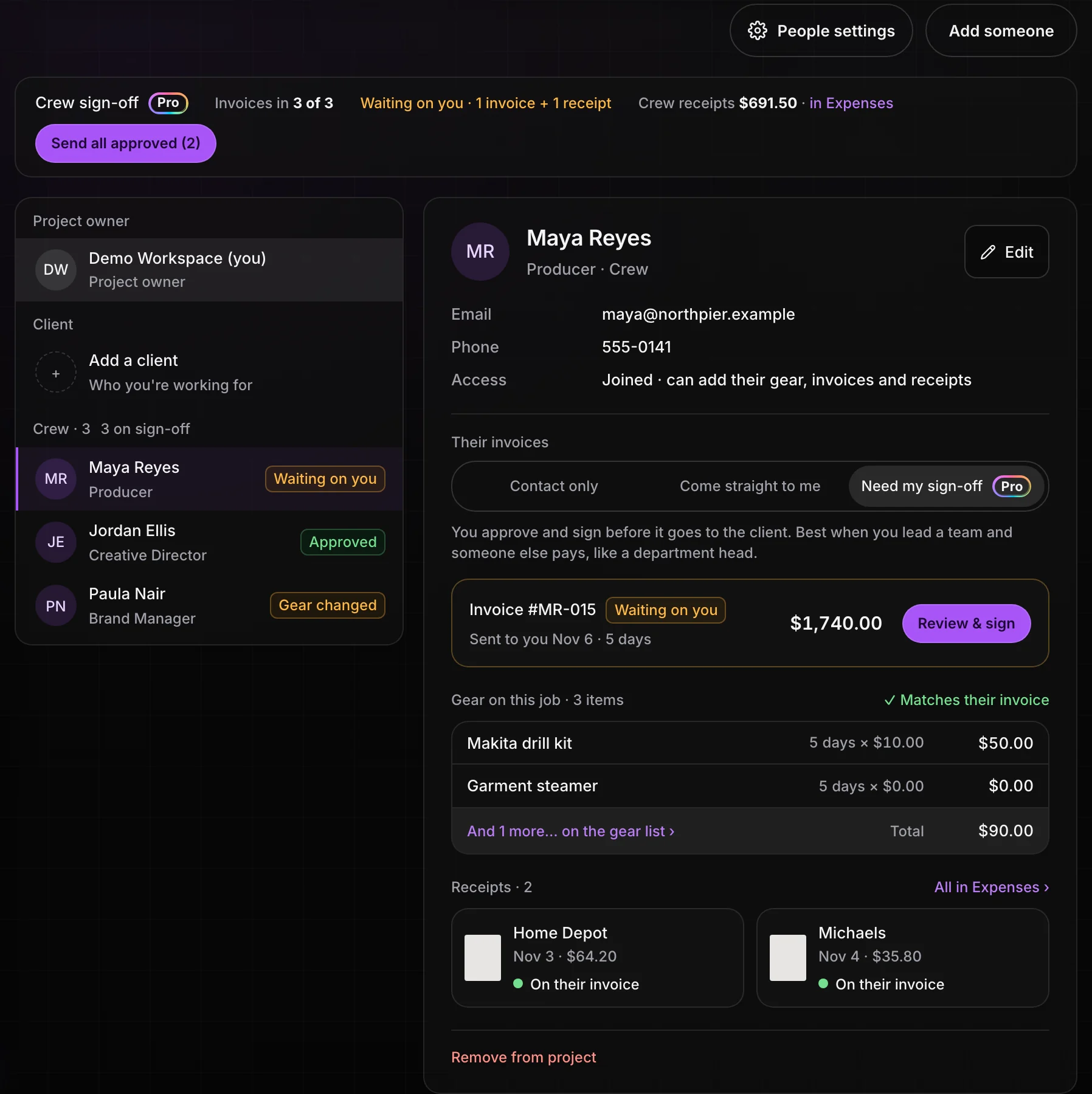
In People settings, Who sends approved invoices decides who can send once you've signed. With Crew or me, either of you can, and the client gets it once. With Only me, crew see that you send it. Signed invoices bill to is the project's client.
The client gets an email with a link to the invoice. Their page shows the total, the due date, a PDF, and "Approved by" with your name, plus both signatures. They don't need an account. If the crew member changes anything after you sign, your sign-off is cleared.
Receipts, vendor bills, and gear that changes.
Turn on Receipts need my check in People settings, and a crew receipt counts toward the project's expenses only after you choose Confirm receipt. Crew receipts show on the person's page and in Expenses.
A vendor on Bill me sends their bill to your Expenses, and you can pass it through on your own invoice. If you change the gear list after someone invoiced, their invoice shows Gear changed, and they choose Update my invoice from the gear list. A sent invoice stays as it is.
To nudge crew who haven't invoiced, set Nudge crew who haven't sent an invoice to 3 days after wrap. They get a reminder in their app.
Who marks it paid.
The client pays each crew invoice the way it says. Crew invoices don't take online payments, so payment is recorded by hand once it arrives. In the iPhone app, once an invoice is sent, Mark paid shows on it for the crew member and on their page for you. The client's page then shows Paid.
A vendor who bills the client directly is the one the client pays, so only that vendor can mark their invoice paid or email it again.
For your own records across jobs, the pay tracking guide covers checking each payment against what you were owed.
Before wrap.
Use this checklist as you review. Your checks stay on this page until you leave or reload.
0 of 6 checked
Get your crew's invoices in one place.
Invite your crew, choose whether their invoices come straight to you or need your sign-off, and send every approved invoice to the client together.
Get started with AestroExplore the demo first