
Shared projects: gear and invoices together
A shared project is your project with more people on it: everyone's gear on one list, vendor lists agreed step by step, and every invoice on the job in one place.
A shared project is your project with more people on it.
There's nothing special to set up. Any project becomes shared when you invite someone and they join. You stay the owner. The people you invite add their own gear to the job and bill for it, on the same project, from their own accounts.
It's built for two things: putting everyone's gear on one list, and getting everyone's invoices sorted out at the end. You keep every tool you'd have on a solo project. Your invoice to the client, its status, Send, and Mark paid all work the same.
If you haven't invited anyone yet, start with the invite guide.
Each person sees their part of the job.
- You, the owner. Everything: every tab, every gear list, your invoice to the client, and every invoice that comes in from the people on it.
- Crew who joined. Overview, Schedule, People, Package, and Invoices. The schedule is read-only. They see their own invoices, which only they and you can see. You handle the client's contact details.
- Vendors. Overview, Gear, and Invoices, with only the gear they supply. In People, What vendors see lets you write a Summary for vendors and tick which people they can see.
- Viewers and client review. They can open the project but can't change gear.
For someone who only needs to look, Share at the top of the project makes a read-only Project summary link. It shows project details, people, and gear lists, and leaves out rates, billing, and private notes.
Put everyone's gear on one list.
Crew. On your gear list, Request from a crew member asks for items. They answer with Confirm all requested or Can't bring request, and can change single items after that. Anything they add from their own gear is confirmed on its own.
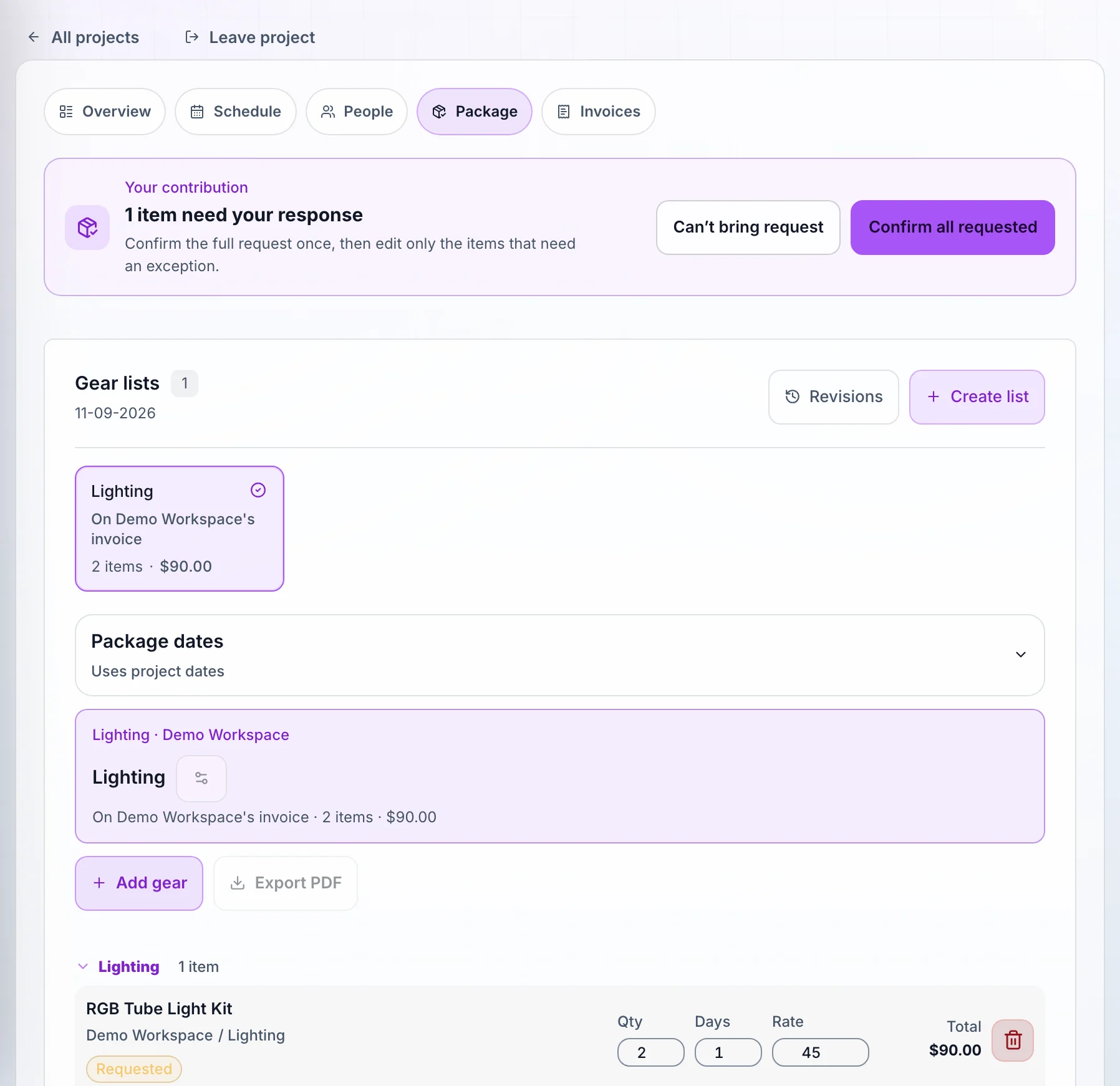
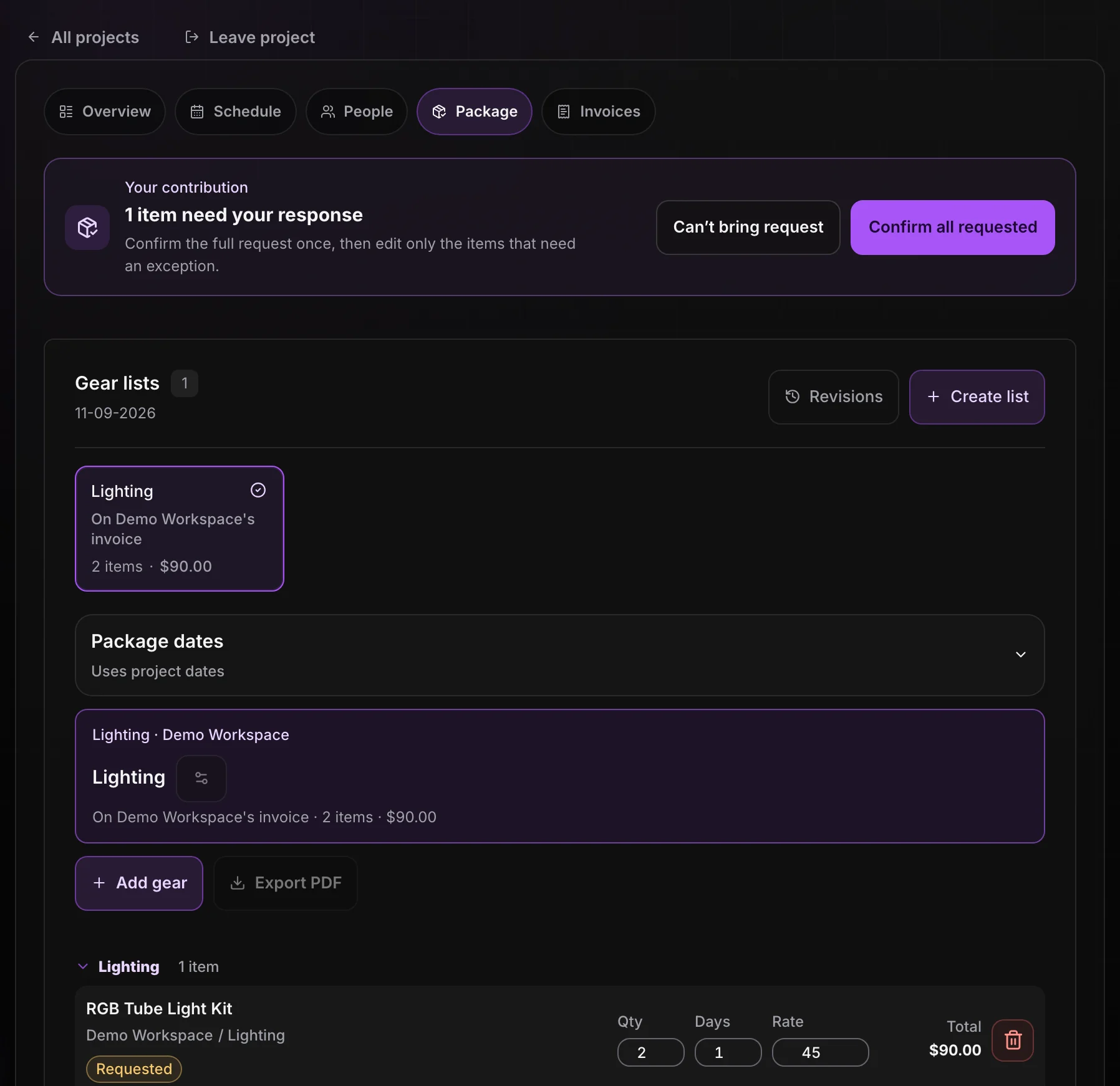
Vendors. A vendor's gear goes on a list of its own, and the two of you agree on it in four steps:
- You finish the list. Choose the gear, quantities, and dates. The vendor sets the rates, billable days, and discount. When it's ready, choose Send to the vendor for review.
- They check gear and prices. They choose Accept, or change rates, days, or quantities and send it back with a note.
- You approve any changes. What changed lists them. Choose Approve this revision, or Propose changes to send it back again.
- They invoice you. Once you both agree, they choose Create invoice, and the agreed gear carries onto it.
The gear list guide covers what to write for each item and how to group the list.
What locks, and when.
Locks only cover what's been agreed. Everything else on the project stays open.
- During review. A vendor list locks for whoever is waiting. You can't edit while they check prices, and they can't edit while you look at their changes.
- After both approve. The approved gear and rates stay as agreed and carry into the vendor's invoice. They can add other charges on top.
- After the invoice is issued. The vendor chooses Lock and issue invoice, and its gear and amounts are locked. To change them, either side chooses Propose changes, you both approve again, and the vendor issues a replacement. Earlier invoices stay in the history.
- Crew gear. A crew member's lines turn read-only once the invoice that bills that list is paid or locked.
- Your own invoice. Once you send it with Aestro, its gear and rates stay as your client has them until you revise it.
See every invoice on the job in one place.
Your project's Billing tab has views next to your own invoice. Crew invoices appears once crew or vendors bill on the project and holds everything they send. Project costs holds gear you pay an owner for, and External rentals holds gear the client pays its owner for directly.
Who bills whom is set per person in People, under Their invoices. Crew can be Contact only, Come straight to me, or Need my sign-off. Vendors can Bill the client, Bill me, or need your sign-off. With Bill me, their bill lands in your Expenses and you can pass it through on your invoice. Sign-off is part of Pro. The crew invoices guide goes through each one.
Before the shoot.
Use this checklist as you review. Your checks stay on this page until you leave or reload.
0 of 6 checked
Put the whole job's gear in one place.
Invite the people bringing gear, build the list together, and see every invoice from crew and vendors next to your own on the project's Billing tab.
Get started with AestroExplore the demo first