
Expenses and receipts
Log expenses in Finances, file them to a project, and keep the receipt with each one. With Pro, Aestro reads the receipt and fills in the vendor, date, and amount.
Expenses live in Finances, filed to a project when they belong to one.
Every expense you log goes in Finances, on the Expenses tab. Give it a project and it also shows on that project's Expenses tab, next to receipts your crew added on a shared project, with a total for the job.
Free and Pro both track expenses and keep the receipt with each one. The difference is typing. On Free you attach the photo or PDF and type the details in. With Pro, Aestro reads the receipt and fills in the vendor, date, and amount for you to check.
Add an expense on the web.
- Open Finances, then Expenses, and choose Add expense. From Home, Log a receipt opens the same form.
- Fill in the basics. Expense title, Amount, and Date.
- Attach the receipt. Choose Attach receipt or drop the file on it. A PDF, JPG, or PNG works.
- Open More details for the rest: Category, Business use, Project, Gear, and Vendor. Business use is a percentage: 100 when it's all for work, 50 for something you use half the time for work.
- Choose Save expense.
For something that charges you every month or year, like software or storage, use Add subscription instead. It tracks the Cadence and the Next renewal. Subscription totals are a forecast, so record each actual charge as its own expense.
Scan a receipt with Pro.
On the web, choose Scan a receipt and pick the file. Aestro reads it and fills in the amount, vendor, and date, and sometimes the category and project. It then says Filled in from the receipt. Check the highlighted fields. Check those against the receipt, fix anything it got wrong, and save. If it looks like a receipt you already saved, Aestro tells you before you save a second copy.
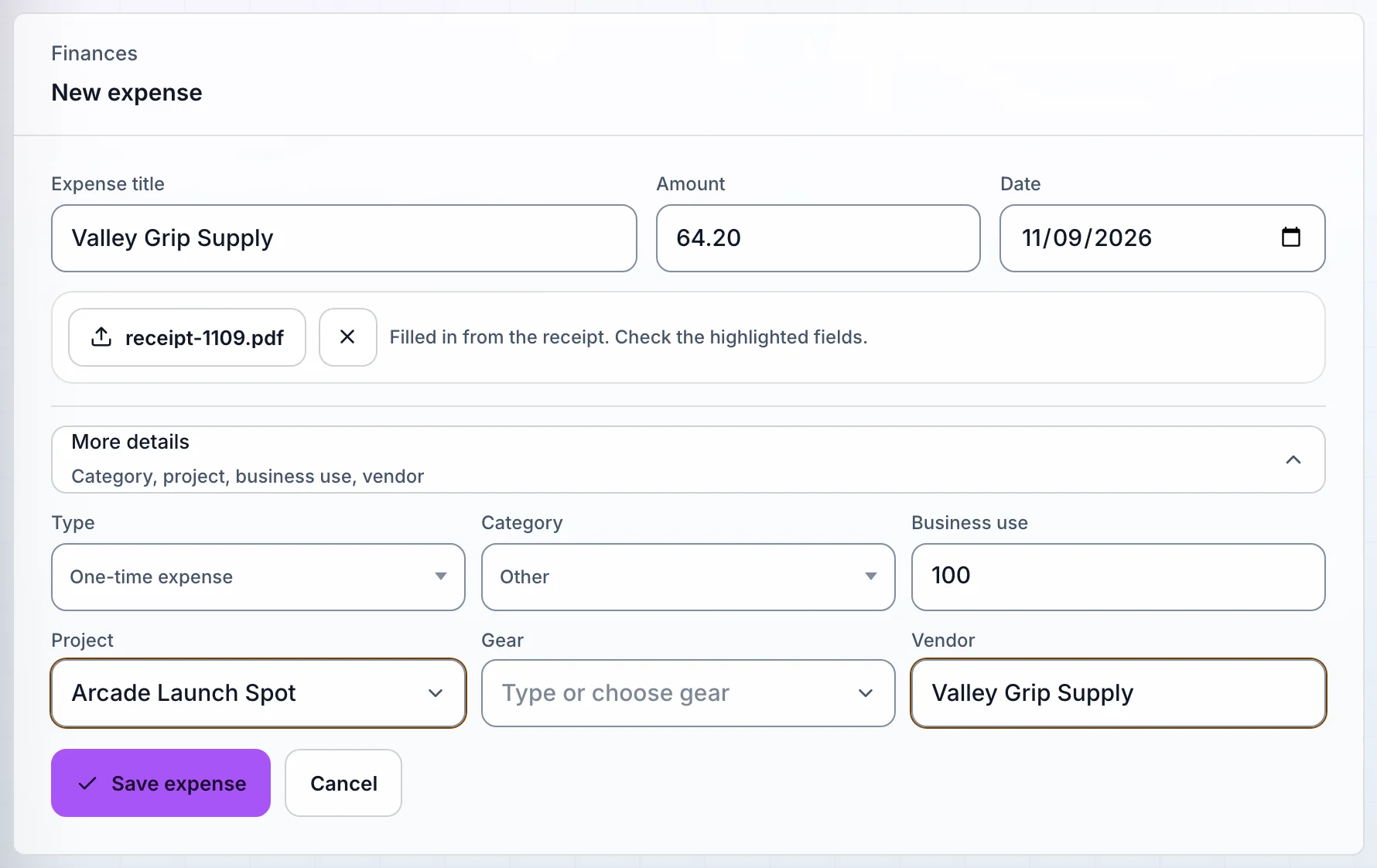
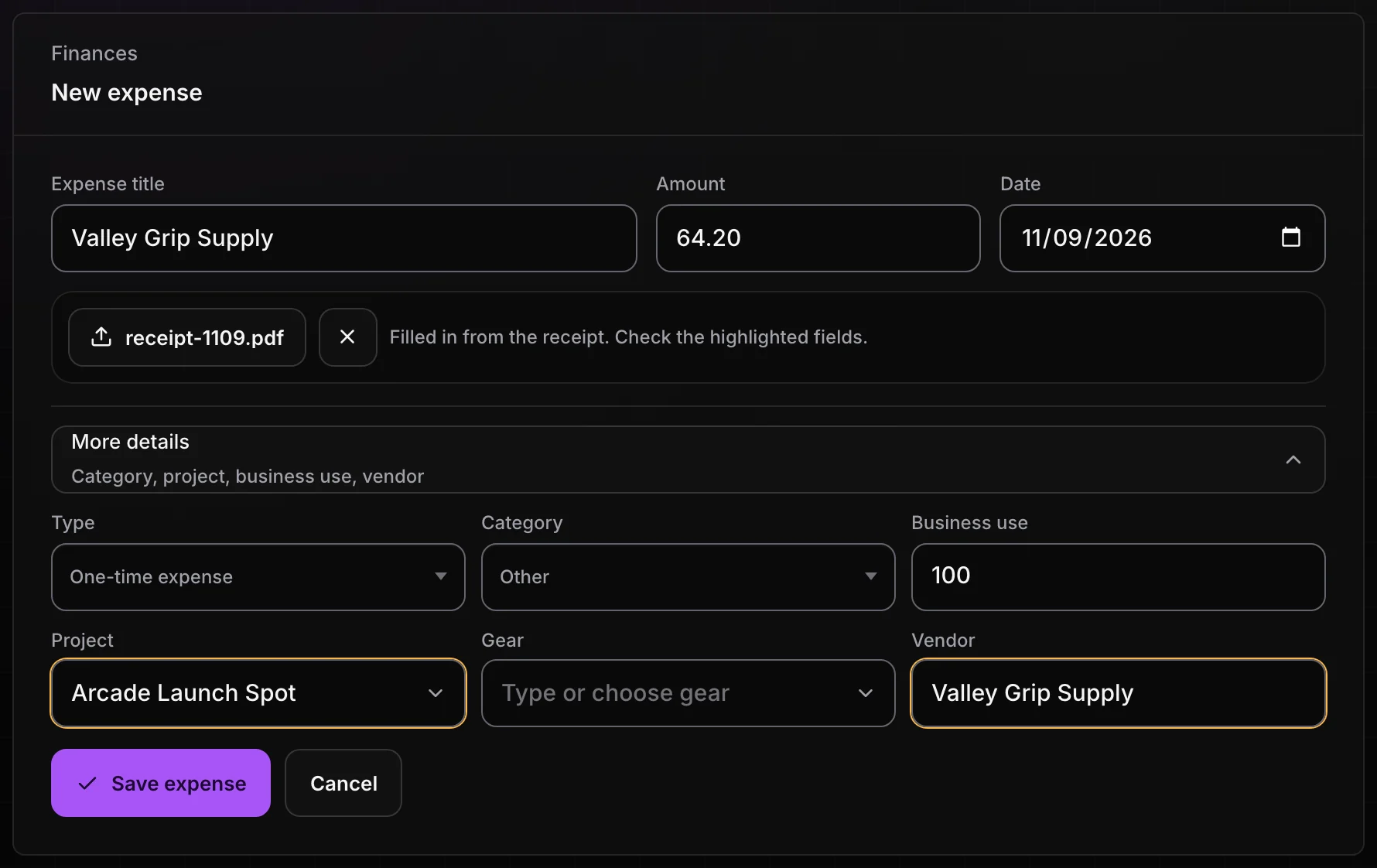
On Free, the same button attaches the file and tells you Receipt attached. Aestro Pro fills in the details from it. Type the details in and save.
On iPhone, tap Receipt on Home, or Add receipt in More then Expenses:
- Scan receipt takes or picks a photo and fills the form. Nothing saves until you tap Save.
- Scan several receipts reads up to 10 photos at once and puts them in To review on Expenses, to check one by one.
- Choose a PDF or file is for a receipt that came by email, an invoice, or a screenshot. Save the email as a PDF first.
On Free, the phone keeps the photo with the expense and you type the total and where it's from.
Bill an expense to your client.
If the client is paying you back for something you bought, put it on their invoice. Choose Add line item and set its Type to Expense charge, with the amount you're passing on. It shows on the invoice as its own line, apart from your labor and gear.
The invoice line and the expense in Finances are separate records. The expense records what went out. The invoice line records what you're asking the client to pay back. Keep both, so the money out and the money back in each show where they belong.
Check your expenses before tax time.
The Expenses tab flags anything missing a receipt, title, date, amount, or business-use figure under Needs review. Business share is the work part of a purchase. It isn't the same as a tax deduction; ask whoever does your taxes what counts.
Use this checklist as you review. Your checks stay on this page until you leave or reload.
0 of 6 checked
Log your next receipt in Aestro.
Add the expense, attach the receipt, and file it to the job. On iPhone, snap it on the way out of the store.
Get started with AestroExplore the demo first