
Make a rental agreement for your gear
Aestro writes an equipment rental agreement from any invoice with gear on it: choose custody, payment, deposit, insurance, and restricted uses, then download the PDF.
Aestro writes a rental agreement from the invoice's gear.
When an invoice has gear on it, Aestro can make an equipment rental agreement as a PDF. It's free. The agreement pulls in you as the owner, the renter from the invoice, the project, the rental dates, and every item with its quantity, then adds the terms you choose: who looks after the gear, when payment is due, deposits, loss and damage, insurance, and what the gear can't be used for.
The PDF has ten numbered sections, from the equipment schedule to signatures, plus a short data summary. You can add an optional issue record page for writing down anything that goes wrong during the rental.
It's a sample template, and Aestro doesn't give legal advice. Read it before you use it. If your terms are different, or you need a contract for your services rather than your gear, use your own document. With Pro you can send your own PDF to sign; see Get documents signed.
Make the agreement from the invoice.
The agreement only appears on an invoice with gear. To get gear onto one, set a gear list on the project's Package tab to My rental income and choose the invoice under Billed on. The gear rental invoice guide covers the invoice itself.
- Open the invoice. On the project's Billing tab, open the invoice, then open Invoice details.
- Find Rental agreement. It shows the invoice number and the renter. If it says No renter selected, set the client on the invoice first.
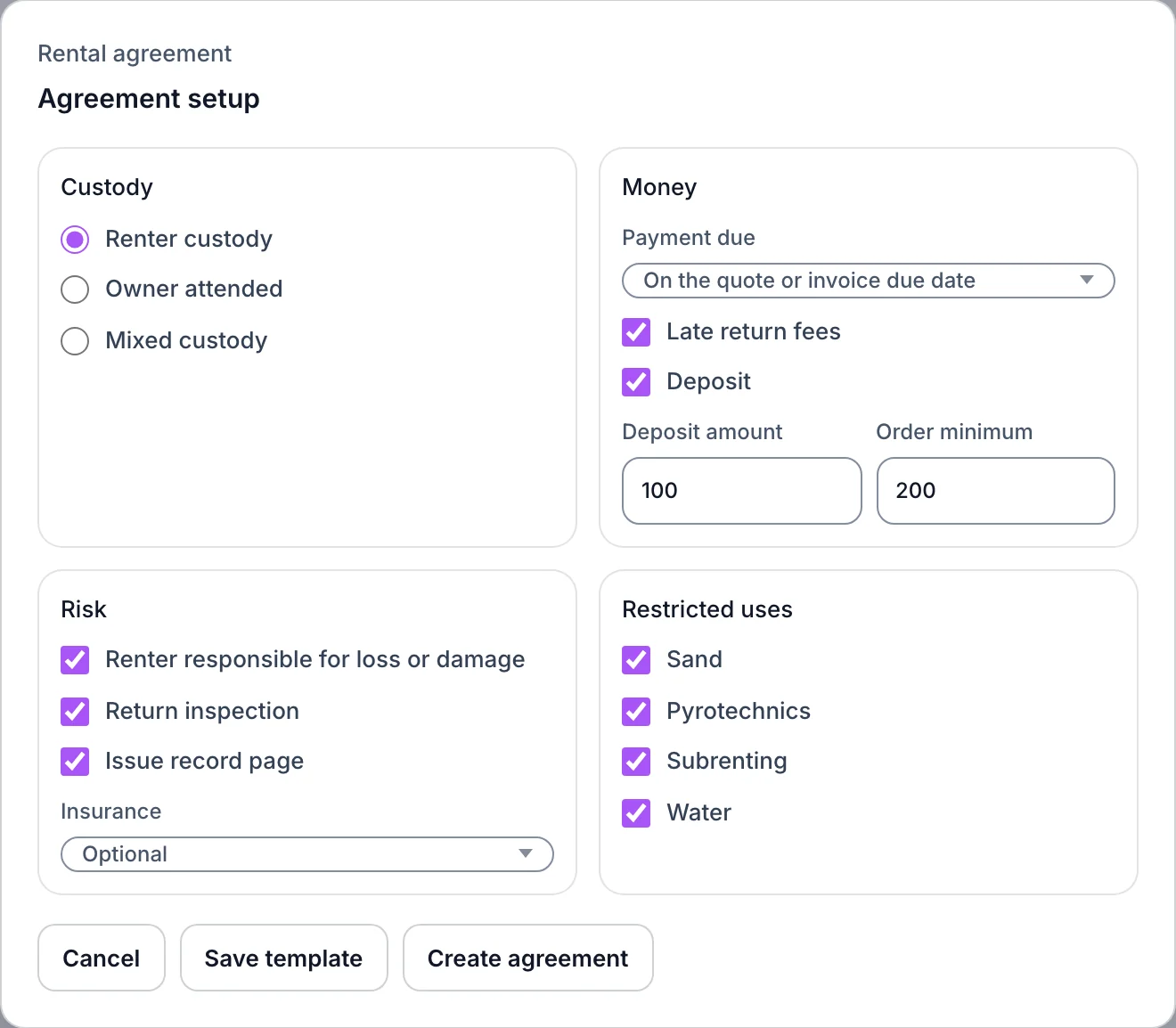
- Choose Create PDF. The Agreement setup window opens with your saved choices.
- Set the terms for this job. The next section explains each one.
- Choose Create agreement. Aestro saves the agreement and downloads the PDF, named after the invoice, like INV-1042-rental-agreement.pdf.


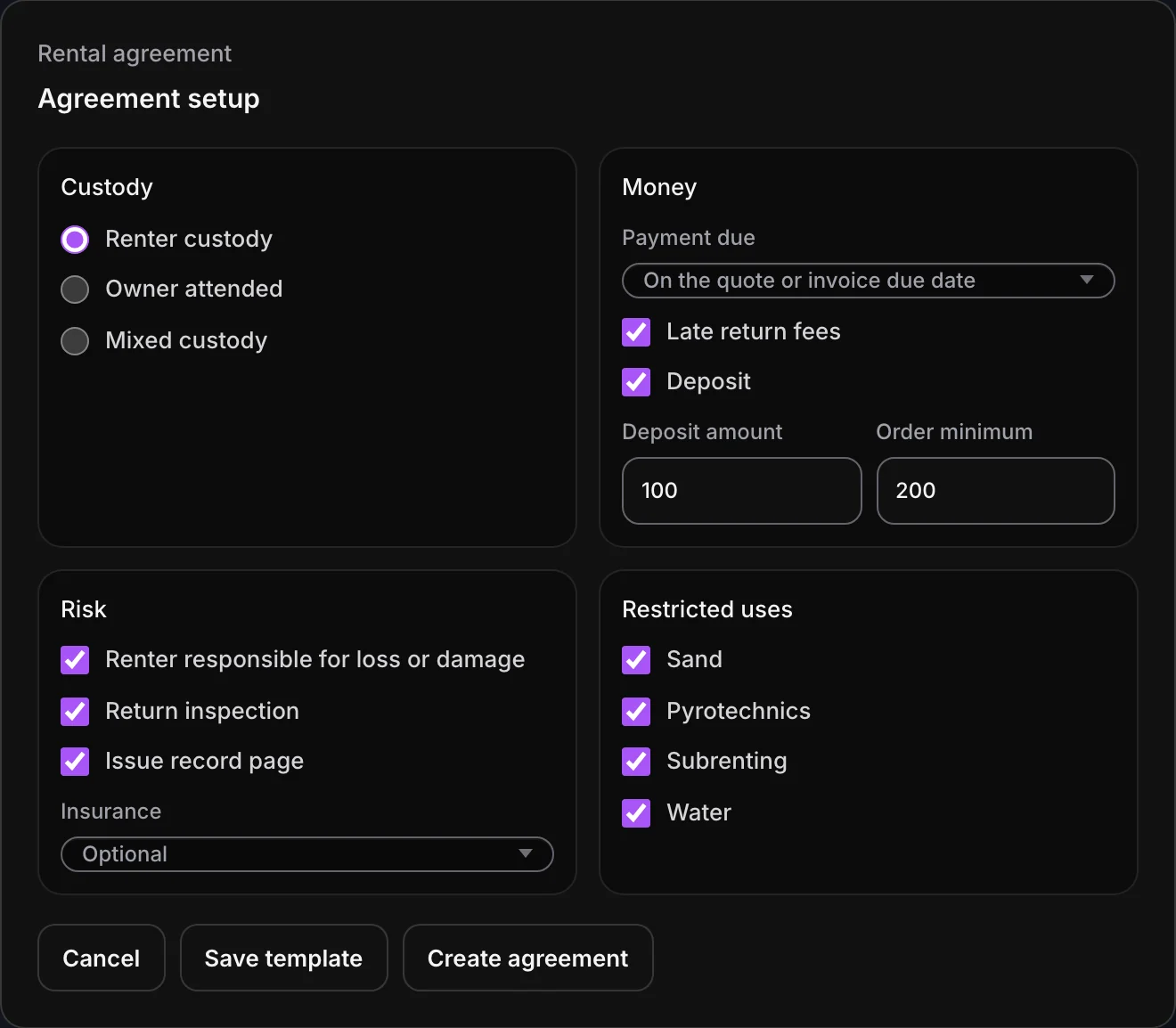
The choices in Agreement setup.
Custody says who looks after the gear during the rental: Renter custody when the renter takes it away, Owner attended when you stay with it on set, or Mixed custody when it's some of each.
Money sets Payment due: Before equipment is released, When equipment is returned, After equipment is returned (with the number of calendar days), or On the quote or invoice due date. Tick Late return fees or Deposit to include them, and set the Deposit amount and the Order minimum it applies above.
Risk covers Renter responsible for loss or damage, a Return inspection, the Issue record page, and Insurance: Optional, Required over threshold, or Always required.
Restricted uses lets you rule out Sand, Pyrotechnics, Subrenting, and Water.
Preview it, then get it signed.
Choose Preview on the Rental agreement row to read the agreement before you make it. The preview has PDF to download it and Refresh to see changes after you edit the invoice.
On Free, download the agreement and collect signatures your own way: print it for pickup, or send the PDF and ask for it back signed. Keep the signed copy with the job.
With Pro, choose Request signature in the preview. You sign first, your client signs on their own page, and you both get the signed copy with a certificate page. On iPhone, Request signature on agreement is in the invoice's actions; making and previewing the PDF is on the web.
Before the gear goes out.
Use this checklist as you review. Your checks stay on this page until you leave or reload.
0 of 6 checked
Make your first rental agreement.
Put your gear on an invoice, choose Create PDF, set the terms once, and save them as your template for every rental after.
Get started with AestroExplore the demo first