
Get documents signedProfeature
Send your own PDF, a rental agreement, or a quote to sign online: place fields, add co-signers and an order, and everyone gets the signed copy with a certificate page.
You sign first, then Aestro sends it to everyone else.
With Pro, you can send three kinds of document from Aestro to be signed online: your own PDF, like a deal memo or a usage license; the rental agreement Aestro makes from an invoice with gear; and a quote, which your client accepts on their own page. On Free, download the agreement and collect signatures your own way.
For a PDF or an agreement, you sign it before it goes. Your client gets an email with a link to their page for the project, and co-signers get a link to a page of their own. Nobody needs an Aestro account to sign. When the last person signs, everyone gets the signed copy by email, with a certificate page at the end.
Aestro gives you the signing tool and a record of who signed what. It isn't a party to your agreement and doesn't give legal advice, so whether a document works for your job is between you and the people signing it.
Rental agreement. On an invoice with gear, open Invoice details, find Rental agreement, and choose Preview. In the preview, choose Request signature. Type Your full name, tick that you agree to sign electronically and that you've reviewed the template, and choose Sign and send. You sign first and your client signs last. A code check is there too, off to start: Ask them to confirm a code sent to their email before signing (for bigger jobs). Making the agreement itself is free; the rental agreement guide covers it.
Quote. In the invoice's status panel, choose Send as a quote. Your client finds it on the Quotes tab of their page, chooses Accept, agrees to accept electronically, and types their full name. A quote has no fields to place.
Send a PDF to sign, in two steps.
On the web, open the project. The Documents to sign card is on the Overview tab. The PDF can be up to 5 MB.
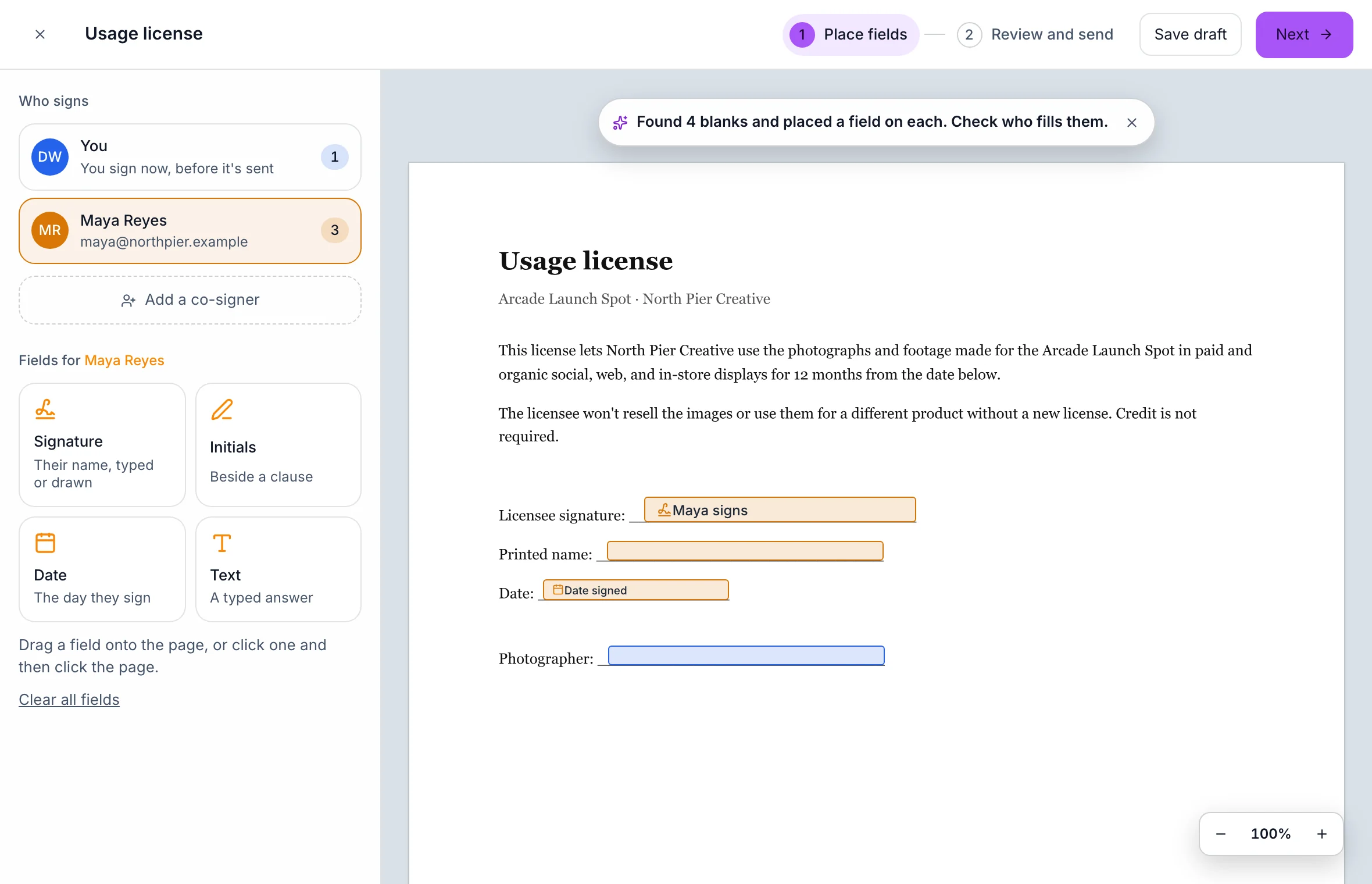
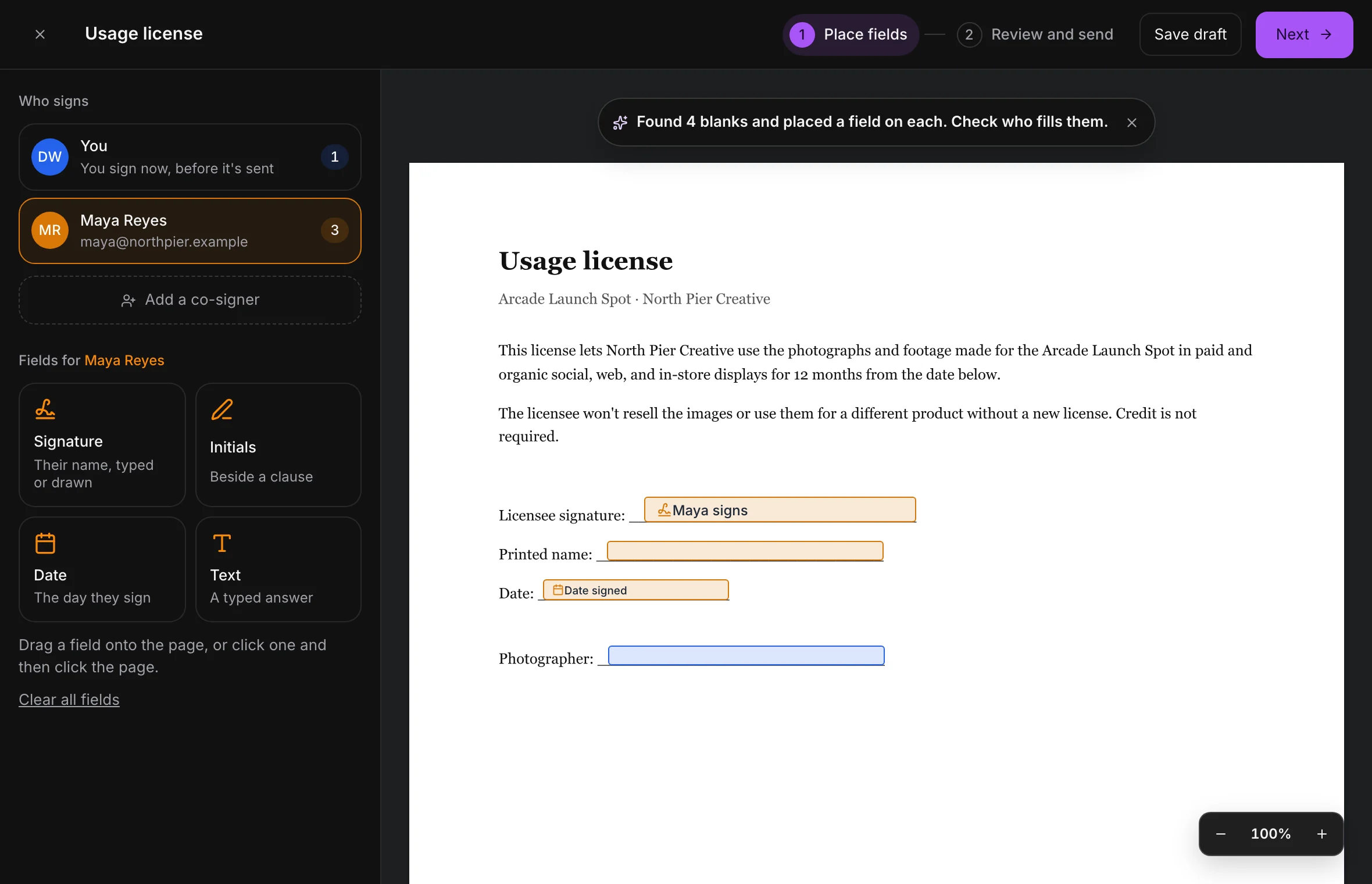
- Choose Send a PDF to sign and pick the file. Aestro opens it full screen and starts Looking for blanks to fill…. Lines like "________" get a field each, and Aestro tells you how many it found so you can check who fills them.
- Pick who you're placing for. Under Who signs, choose You, your client, or a co-signer. Each person has their own color on the page.
- Place the fields. Drag Signature, Initials, Date, or Text onto the page, or click one and then click where it goes. Click a field to move it, change its type or person, duplicate it, or remove it. A text field asks What goes here and can be Required or optional.
- Choose Next. On Review and send, check Going to, add a Note (optional) if they should know something first, and sign: type your Full name, or switch to Draw.
- Tick the boxes and choose Sign and send. You agree to sign electronically and confirm you've reviewed the document. The code and reminder boxes are covered below.
On iPhone, open the project and find Documents to sign, then Send a PDF to sign. The phone places fields for you and your client, finds blanks the same way, and ends with Sign and send. Co-signers, signing order, and drafts are on the web.
Add co-signers, set the order, and finish later.
Choose Add a co-signer under Who signs and enter their full name and email. You can add up to five. Give each one their own fields, the same way you did for your client.
With a co-signer added, tick Sign in this order, one after another and use the arrows to set who goes first. The next person gets their email only when the one before them has signed. Until then their page says Not your turn yet. Leave it unticked and everyone gets the link at once.
On the review step, two boxes are ticked to start:
- Ask each signer to confirm a code sent to their email. Before signing, each person asks for a 6-digit code and types it in. It shows the signature came from their inbox. Codes work for 15 minutes.
- Remind anyone who hasn't signed after 3 days, and again after 7. Aestro sends the reminders and stops once that person signs.
Not ready to send? Choose Save draft, or close the window and choose Save draft when it asks. Your fields and signers stay with the project. Your signature isn't saved, so you sign again when you send. The draft shows in Documents to sign with Continue and Delete.
What the people signing see.
Your client opens the Documents tab on their page and chooses Review and sign. A co-signer does the same on their own page. Aestro first asks whether they're the person it was sent to, so a forwarded email doesn't end with the wrong person signing. Then it walks them through each place they need to fill, counting what's done.
The first time they reach a signature, they choose Adopt your signature: type their name or draw it. It goes everywhere they sign, with their typed name recorded beside it. They can Finish later, or Decline to sign with an optional reason. A declined document can't be signed, and you'd send a new one.
The signed copy and its certificate page.
When the last person signs, Aestro adds a Signature certificate page to the end of the document and emails the signed copy to everyone. The pages before it stay as you sent them, with each person's signature and entries placed on them. The certificate records:
- The document's title and ID, and a SHA-256 fingerprint of the file as it was sent.
- For each signer: the name they signed as, their email, the date and time, their IP address, and their browser.
- Whether they drew their signature, and whether they confirmed a code sent to their email.
- Which version of the consent wording they agreed to, and what they typed into text fields.
Back in Documents to sign, each document shows Waiting, Signed, Declined, or Cancelled, with a line like "opened, not signed yet". With co-signers, each person has their own line. Once it's signed, use View signed copy or Download. To stop a document before it's signed, choose Cancel this copy; its link then tells people it was cancelled. On iPhone, More then Documents lists everything you've sent to sign.
Before you sign and send.
Use this checklist as you review. Your checks stay on this page until you leave or reload.
0 of 7 checked
Send your first document to sign.
Open a project, choose Send a PDF to sign, place the fields, and sign it. Aestro sends it on and tells you when it's signed.
Get started with AestroExplore the demo first