
Your public gear page and rental requests
What renters see on your public gear page, how they pick dates and send a request, how you approve or change it, and how to share a project's gear without your rates.
Your public gear page lets anyone ask to rent your gear.
Every Aestro account has a gear page at its own link, aestro.app/u/ followed by your username and /gearlist. A producer picks their dates, adds the gear they want, and sends you a request. They don't need an account. Nothing is booked or charged until you approve it.
The page is on by default and shows only the gear you've listed. New gear is listed unless you untick List on public request page when you add it, and any item can be switched to Private later in your Gear library. The page and its requests are free.
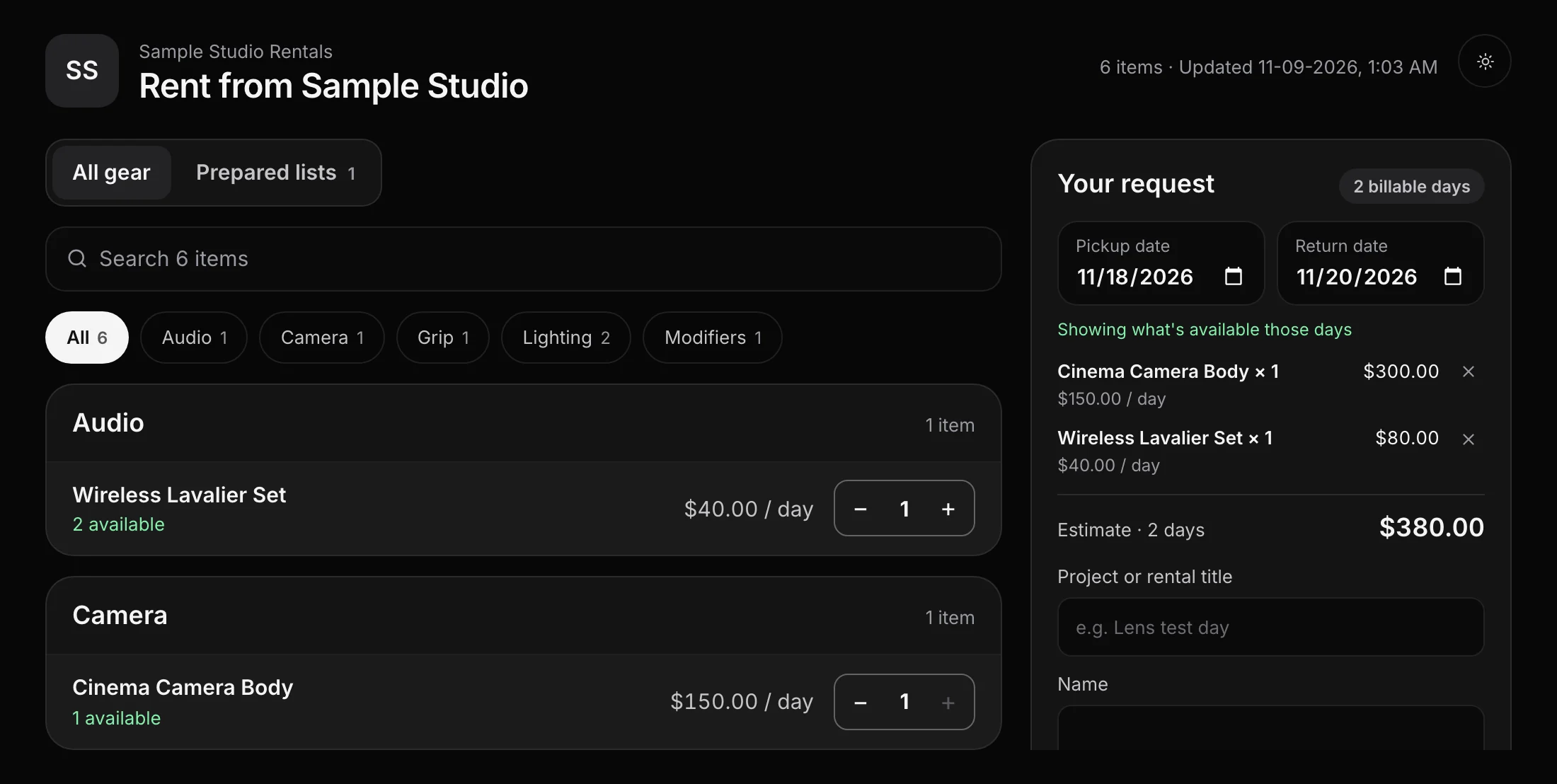
What visitors see, and what they don't.
Rates are shown. Each item on the page carries its day rate, and the request adds up an estimate for the days picked. An item with no day rate shows Rate TBD, and the request tells the renter that some items need a custom rate from you.
- They see: your listed gear and kits by category, the day rate, how many are free on their dates, each item's description, what's in each kit, and any saved lists you've published.
- They don't see: private or archived gear, serial numbers, replacement values, codes, your projects, or who has your gear.
Gear that's already booked shows as booked for those days, so nobody asks for something you can't give them. With Pro, your gear photos show beside each item.
Saved lists work as ready-made packages. On the Saved lists tab, turn on Show on public gear list and the list appears under Prepared lists. Every item on it has to be on your public list too. A renter chooses Use this list, then changes quantities or adds gear before sending.
How a renter sends a request.
- Pick the dates. Pickup date and Return date sit in the request panel. Availability updates for those days.
- Add the gear. Add puts an item in the request, and + and − change how many. Kits go in with Add kit.
- Fill in who it's for. Project or rental title, Name, Email, and Phone #, plus an optional Message.
- Send it. Send request sends it to you. The renter gets Follow this request, a private link that shows where their request stands.
Trying your own page? Enter your own email and the button changes to Send to myself.
Answer the request from your Requests tab.
New requests land on the Requests tab of your Gear library, marked Your turn, with the dates, the gear, and whether everything is free those days.
- Approve it. Approve as a rental project makes a new project with the gear on its own list, ready to bill. To put it on a job you already have, open Add to a project you have and choose Approve into that project.
- Or send changes. Send changes lets you change quantities or rates, take items out, or add gear, with a note. It's then the renter's turn: they choose Accept changes or Decline on their request page.
- Or decline. Decline asks for an optional reason and releases the gear held for those dates.
A box under the buttons emails the renter your decision; leave it ticked unless you'd rather tell them yourself. On iPhone, requests open from Requests on the Gear tab, with Approve request and Send changes instead.
Put your gear where renters can find it.
List the gear you rent out, share your page, and answer requests with a project that's ready to bill.
Make your gear pageExplore the demo first