
Quotes your client accepts onlineProfeature
How to send an invoice as a quote with an open-until date and an optional deposit, what your client sees when they accept or decline, and how to turn the deposit into an invoice.
Send the invoice as a quote, and your client accepts it online.
A quote in Aestro is the invoice you've built, sent as a price to approve instead of a bill to pay. Aestro emails your client a link to their page, where they read it, open the PDF, and choose Accept or Decline. Accepting means typing their full name, and Aestro records who accepted and when.
Nothing is billed until you send the invoice. If you asked for a deposit, your client can pay it on the same page right after they accept, when you've set up online payments. If you haven't, Aestro makes the deposit invoice for you to send.
Quotes are part of Pro. On Free there's no online accept: send the PDF from your own email and get the go-ahead in writing.
Send a quote from the invoice.
- Build the invoice. Add the lines, rates, and gear as you would for the bill. The quote shows your client the same lines and total.
- Open the menu. In the status panel, choose •••, then Send as a quote.
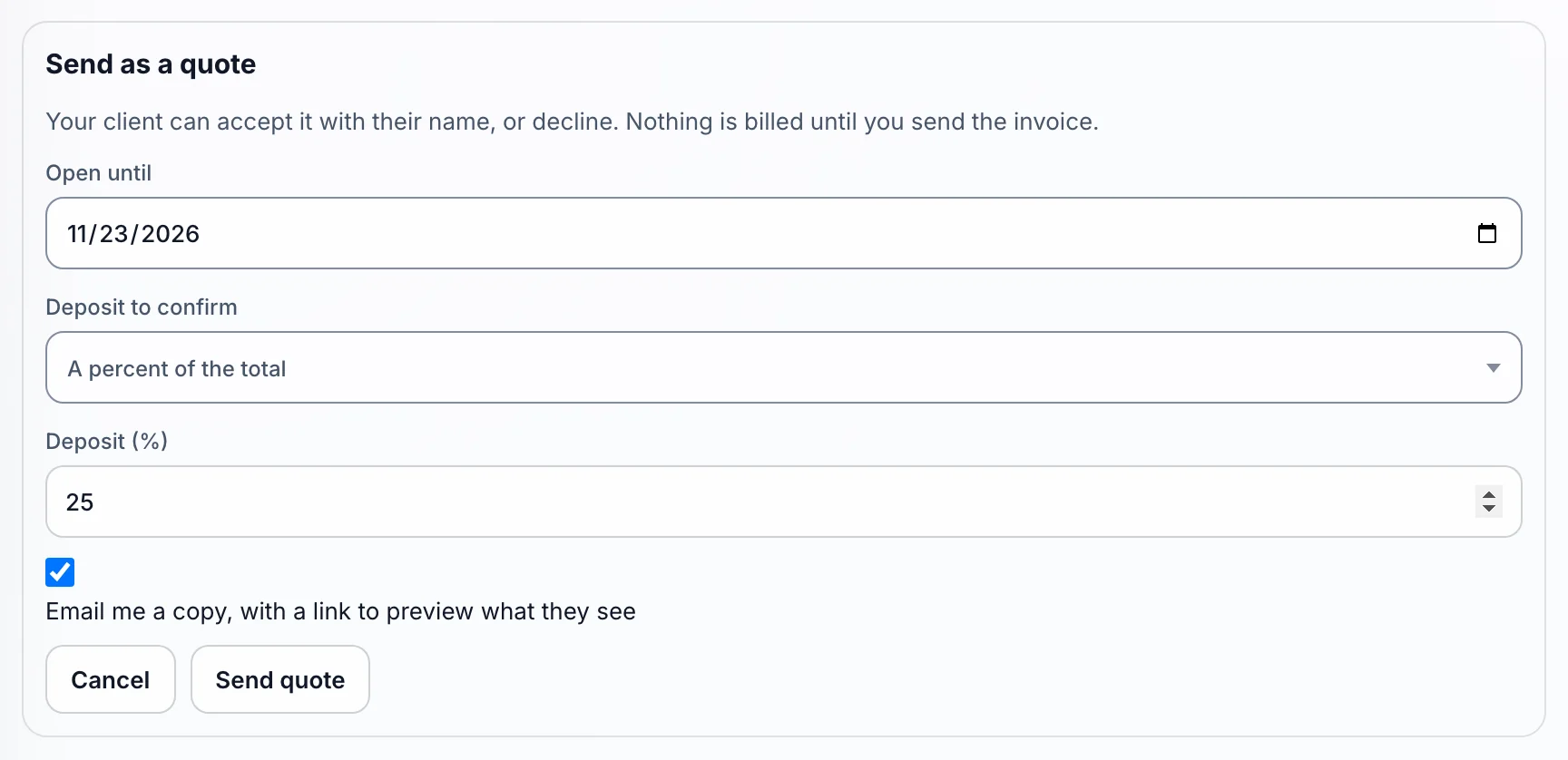
- Set Open until. It starts two weeks out. After that date the quote expires and can't be accepted.
- Choose a Deposit to confirm. Pick No deposit, A percent of the total, or A fixed amount. A fixed deposit has to be less than the total.
- Choose Send quote. Tick Email me a copy, with a link to preview what they see first if you want your own copy.
The panel then shows Quote sent with its open until date. Need to take it back? Cancel quote on that line means your client can no longer accept it, and their link says it was cancelled.
What your client sees.
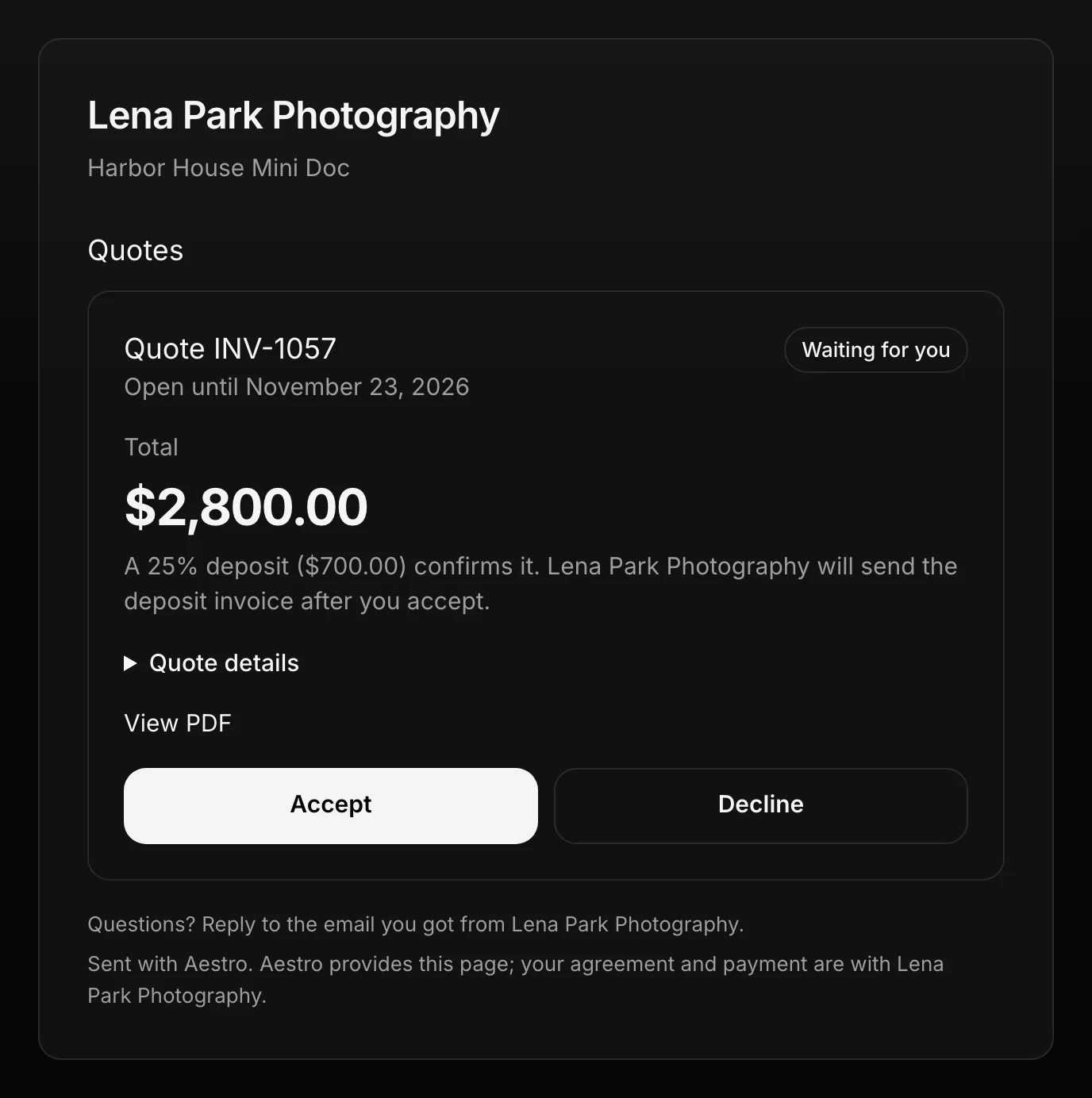
Your client gets an email with a Review the quote button. Their page lists it under Quotes, marked Waiting for you, with the total, the deposit if there is one, and the lines under Quote details.
- To accept, they choose Accept, read the note about accepting electronically, tick I agree to accept electronically., type their name under Type your full name to accept, and choose Accept quote.
- To decline, they choose Decline, can add a Reason (optional), and choose Decline quote.
If they open the page from a link that wasn't emailed to them, Aestro first sends a 6-digit code to their email to confirm it's them.
After they accept or decline.
The status panel updates on its own. It reads Quote accepted by your client's typed name and the date, or Quote declined with their reason if they gave one. A quote nobody answered reads Quote expired after its date.
If you asked for a deposit:
- With online payments set up, your client sees Pay the deposit amount right after accepting. When they pay, the panel shows the deposit paid online, and the payment is recorded on the invoice.
- Without online payments, the panel shows the deposit still to collect, with Create deposit invoice. That makes a separate invoice for just the deposit, ready for you to check and send. Your original invoice still has the full total, so account for the deposit on it before you send it.
When the work is booked, send the invoice itself with Send to client, as in Send an invoice and get paid online. Prefer to bill in parts from the start? Split the invoice into payments instead.
Before you send a quote.
Use this checklist as you review. Your checks stay on this page until you leave or reload.
0 of 6 checked
Get the yes before the work starts.
Build the invoice on the project, send it as a quote, and ask for a deposit to confirm. Your client accepts on their own page.
Create a quoteExplore the demo first