
Showcase your work on your profile
How to put your best delivered photos on your public profile, choose which deliveries show on your gallery page, and what Free and Pro each show.
Showcase puts your best delivered work on your public profile.
Your public profile is the page people see at your Aestro address, with your work and a way to book you. Showcase is the part that shows the work. You fill it from deliveries you've already made, so there's nothing to upload twice.
It has two parts:
- The wall: your best photos, at the top of your profile, in the order you choose.
- Your gallery page: the deliveries you choose, as cards on your profile and on a page of their own. Each card opens the delivery itself, photos, films, and all. A delivery isn't on it until you put it there.
The wall keeps web-size copies, 2048 px on the long edge, that stay after the delivery's files are deleted. A delivery on your gallery page keeps its web-size copies too: at its delete date only the full files go, and the link stays up, view only.
Free shows the first 12 photos on your wall and one delivery on your gallery page. Pro shows every gallery, and up to 2,000 photos on the wall.
Add photos to your wall.
- Open the delivery and select photos. In the delivery's Files tab, click the photos you want.
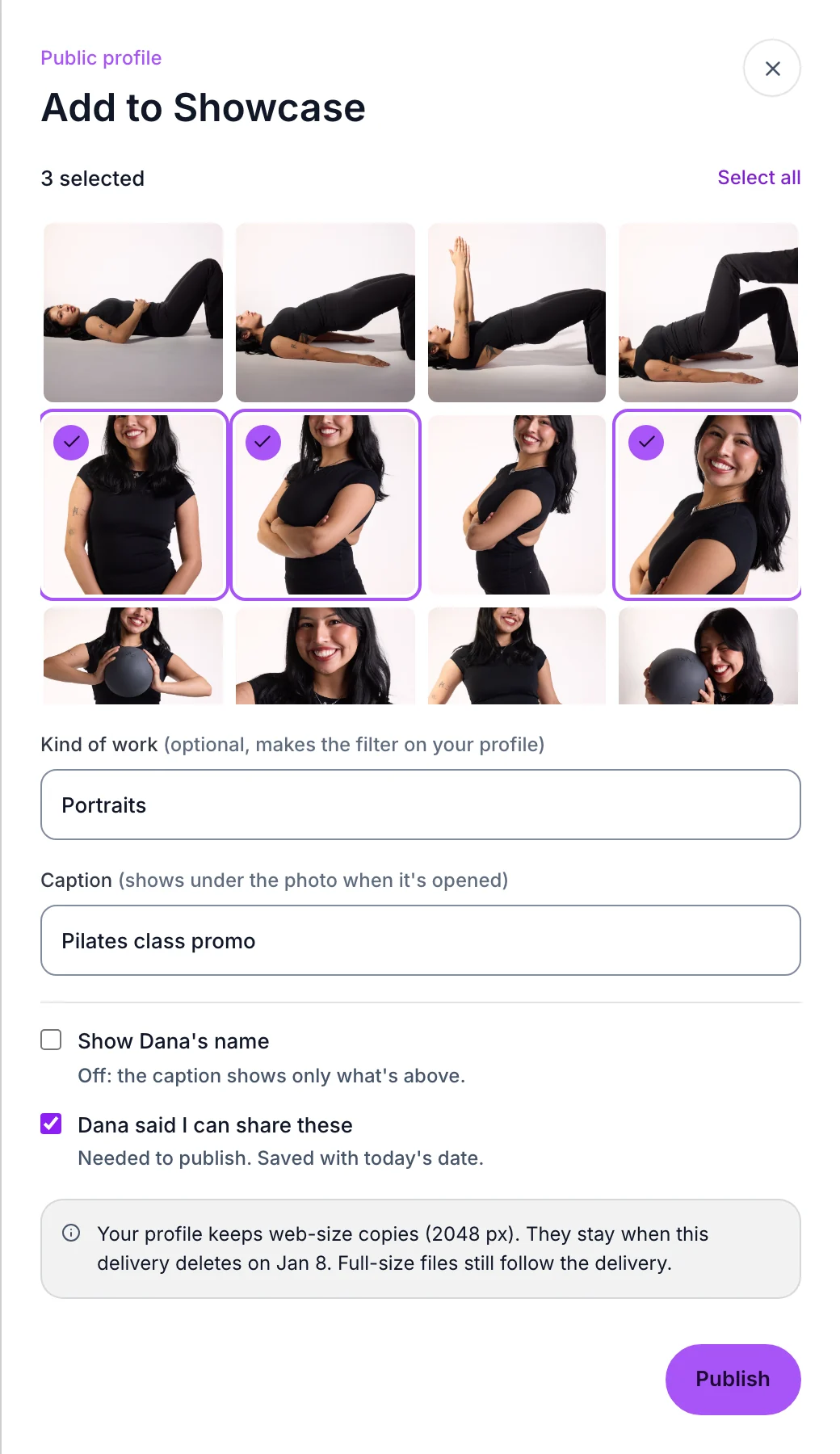
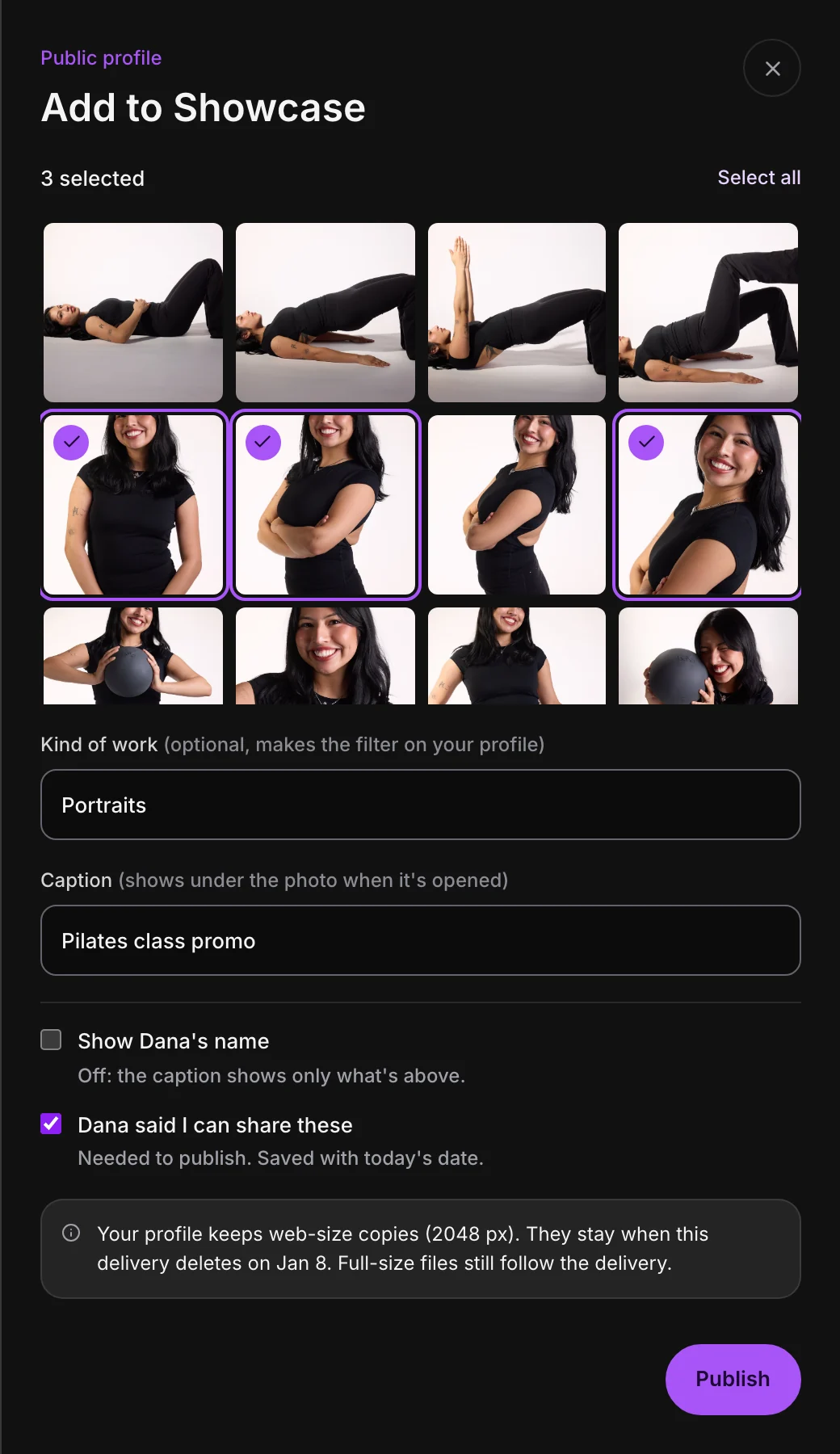
- Choose Add to Showcase in the bar that appears. The window shows the photos from this delivery; Select all takes every one.
- Add a kind of work, if you like. Kind of work is optional, like Portraits or Events, and makes the filter on your profile. Caption shows under the photo when it's opened.
- Decide on your client's name. Show Dana's name adds it to the caption. Off, the caption shows only what you typed.
- Confirm you can share them. Dana said I can share these is needed to publish, and it's saved with today's date.
- Choose Publish. The photos go to the front of the wall. View on your profile opens it, and Manage showcase takes you to the settings.
Put a delivery on your gallery page.
- Find the delivery on Deliveries. Hover its card and click +, which says Show on my gallery page. Or open the delivery, go to Settings, then General, and turn on Show on my gallery page.
- Check who can open it. Visitors open the delivery's own link, so Who can open it has to be Anyone with the link. Turning the gallery page on can turn the link on for you.
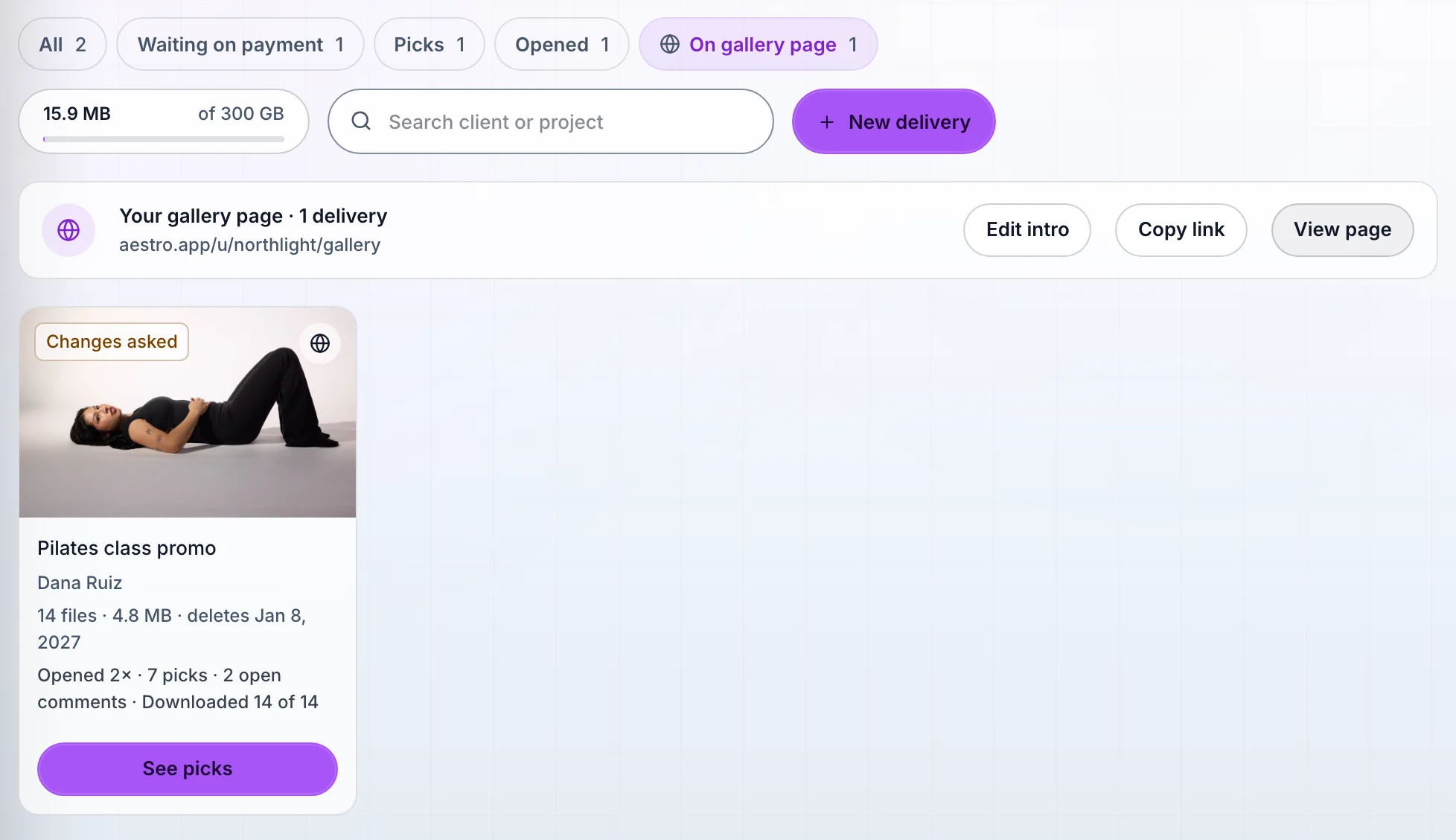
- Order the page. The On gallery page filter on Deliveries shows every delivery on it, in the order visitors see. Drag a card to move it. Edit intro adds a line about you, Copy link copies the page's address, and View page opens it.
A globe on a card means it's on your gallery page. Click it to take the delivery off. Visitors who open a delivery from the page get All galleries to go back.
The gallery page needs a username for its link. If you haven't picked one, Aestro asks you to pick one in Settings › Public profile.
Arrange it in Settings.
Open Settings, then Showcase under Public profile. View profile opens what visitors see.
- Gallery page: its link with Copy link and View, and an Intro under your name. Open Deliveries takes you to the On gallery page filter to pick and order the deliveries.
- Wall: select photos to give them a Kind of work, Hide them, Move to front, Move to end, or Take out. Where they came from lists each batch you added, with Edit caption and Take all out. On Free, photos past the first 12 are faded: they're kept, ready for Pro.
- Galleries from before: if you made Showcase galleries before the gallery page, they're listed here and still show after your deliveries.
To deliver the files in the first place, see delivering files to a client. Pricing the shoot? The photography invoice guide covers how to say what the client can do with the images.
Before you publish.
Use this checklist as you review. Your checks stay on this page until you leave or reload.
0 of 5 checked
Show the work you've delivered.
Pick your best photos from any delivery and they go on your public profile, in web size, even after the delivery's files are deleted.
Start a deliveryExplore the demo first