
Deliver files to a client
How to put photos, videos, and any other files on a project, share them on your client's own page, and what Free and Pro each give you for picks, approvals, PINs, and space.
A delivery is a set of files on a project, with its own page.
Photos, videos, PDFs, audio, RAW files, or a whole folder of everything: Aestro keeps them together as one delivery, and your client opens them on one page. Every delivery belongs to a project, so the files sit next to the invoice and the rest of the job.
Free and Pro both deliver files. The difference is who gets them to your client and how long they stay.
- Free: 25 GB of files, kept 60 days, on a link you copy and send yourself.
- Pro: 300 GB, kept as long as you need. Aestro emails your client their own page, and you can add a PIN, picks, comments, approvals, and a log of who opened and downloaded what.
Drop the files in. Pick the project while they upload.
You can start from Deliveries under Business in the sidebar, or from the project's own Deliveries tab. Both open the same delivery.
- Drop files or a folder. Drag them anywhere on Deliveries, or use Choose files or Choose a folder. They start uploading right away.
- Answer "Which project is this for?" Pick a project from the list, or make a New project in the same step. The files keep uploading while you choose. If you'd rather decide later, choose Later; the delivery waits under Needs a project.
- Keep the tab open until it finishes. The bar shows how many files are up and how much is left. Pause stops it for now, and Resume carries on.
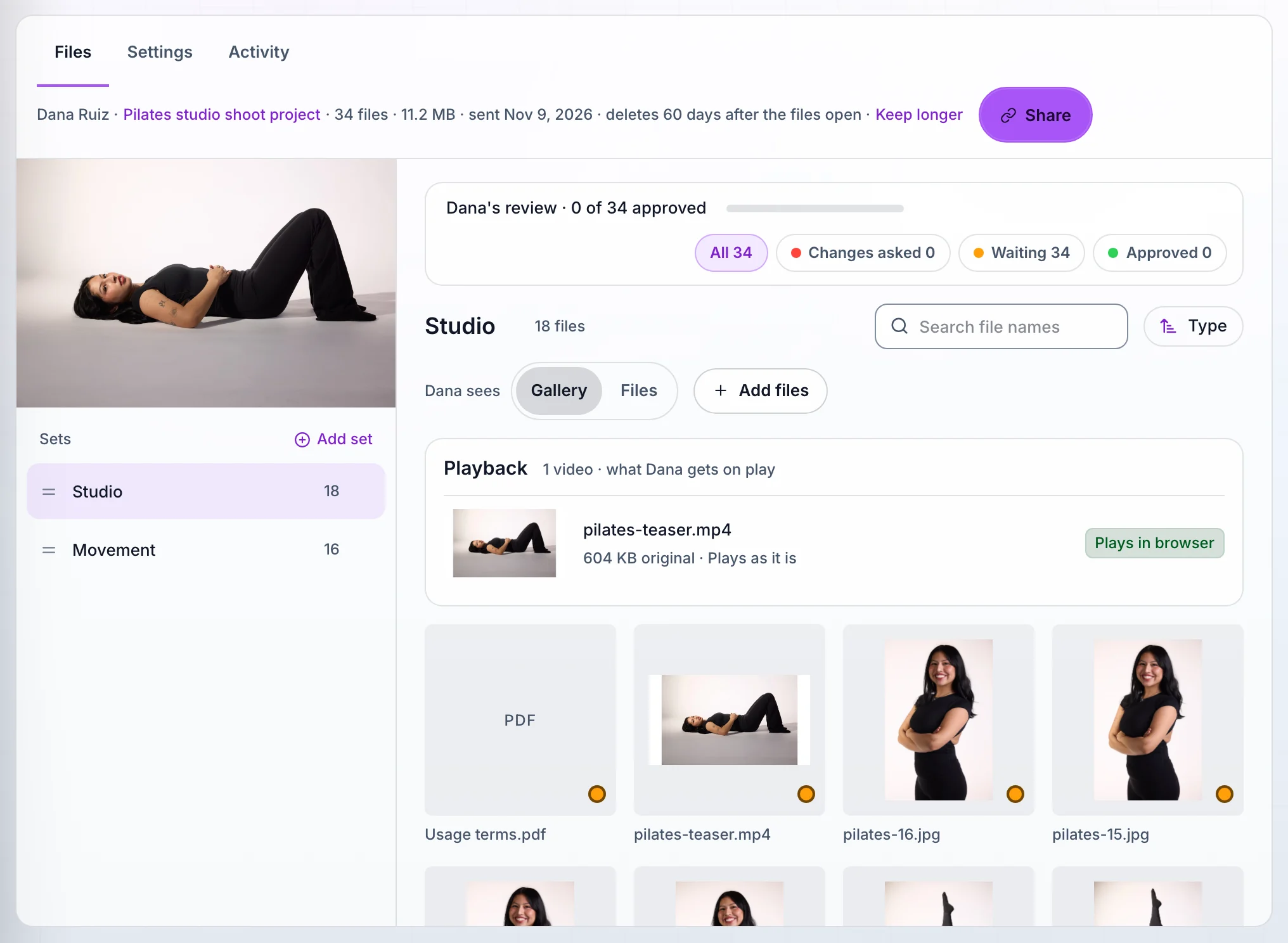
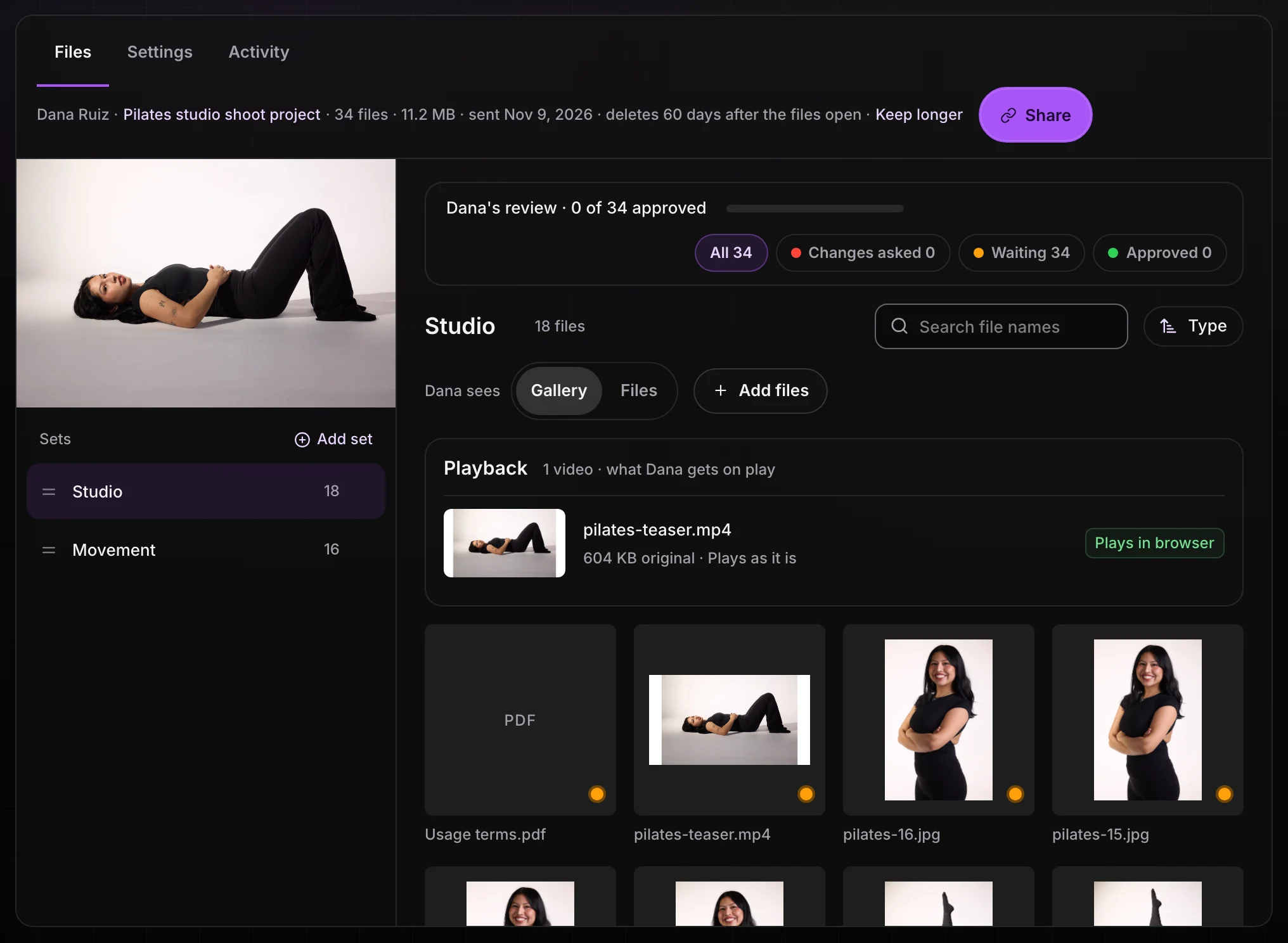
- Sort the files into sets. Each folder you drop becomes its own set. Add set makes another, and you can drag files between them. Switch between Gallery and Files to see them as a grid or as folders, and set what your client sees first in Settings, under Opens as.
- Choose the cover. The first photo you add is the cover. Change cover picks another, and Set focus point keeps the important part in frame on a computer and a phone.
Starting from scratch instead? New delivery asks for the project first, then you add files.
Share it from the Share window.
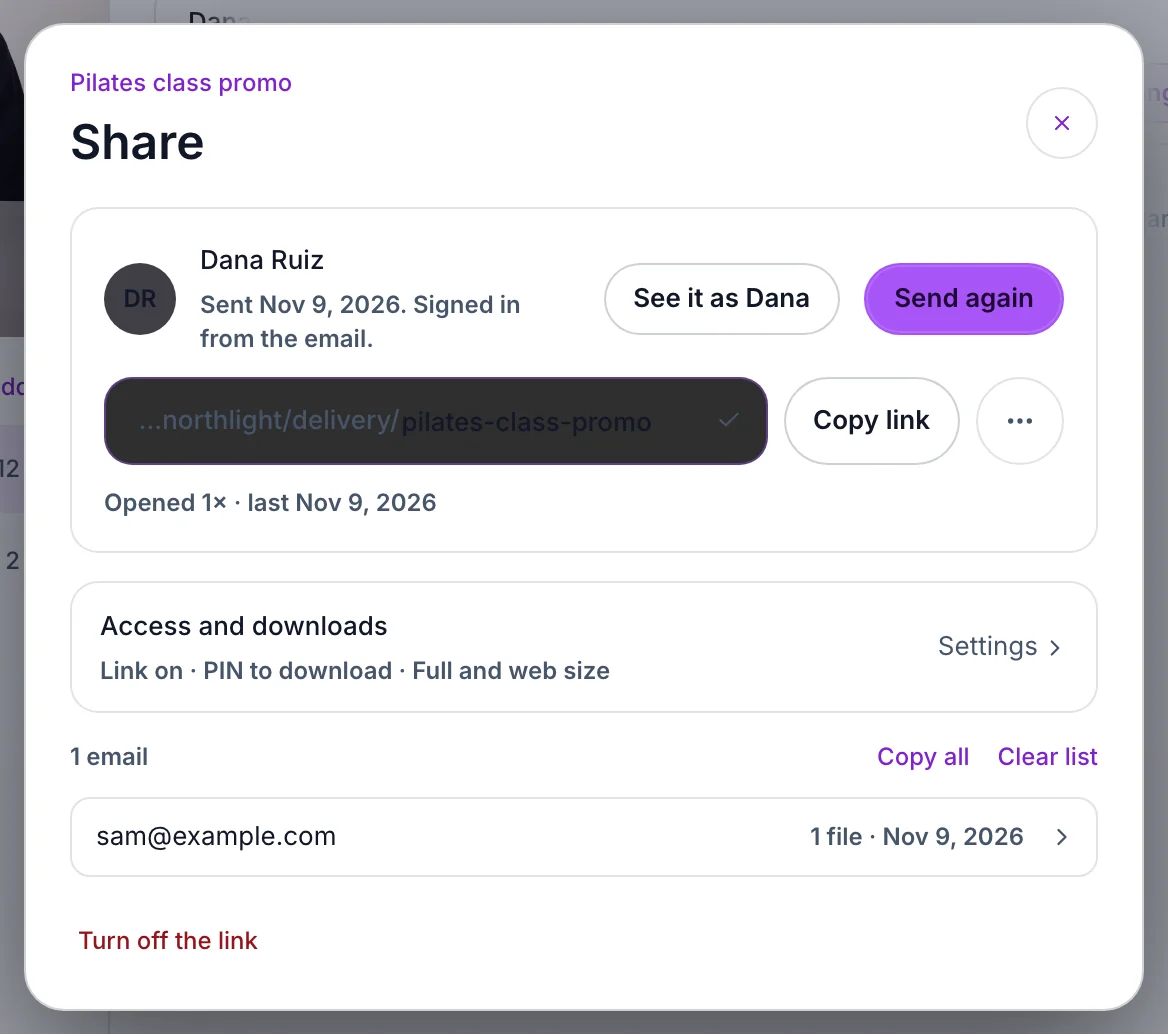
Share in the delivery's top row opens one window for the link: who it goes to, the address, and a summary of who can get in and what they can download.
On Free, you send the link yourself. Choose Turn on the link, then Copy link and paste it into your own email or a text. The window shows Not opened yet until someone opens it, then how many times it's been opened. Files are kept 60 days from when you turn the link on.
On Pro, Aestro sends it.
- Choose Send to your client. The button carries their first name, like Send to Dana. Aestro sends to the email on the project's client in People.
- Decide when the full files open. Right away, when an invoice is paid, or When I unlock them. The watermarks guide covers the paid option.
- Add a PIN if you want one. Require a PIN stops anyone who only has the link. The PIN goes in your client's email.
- Write a note, or don't. Note to Dana is optional. The email preview beside the form shows what they'll get, with an Open delivery button.
- Send it. Your client gets the email and is signed in to their page from it. Back in Share, See it as Dana shows you their view, and Send again sends it once more.
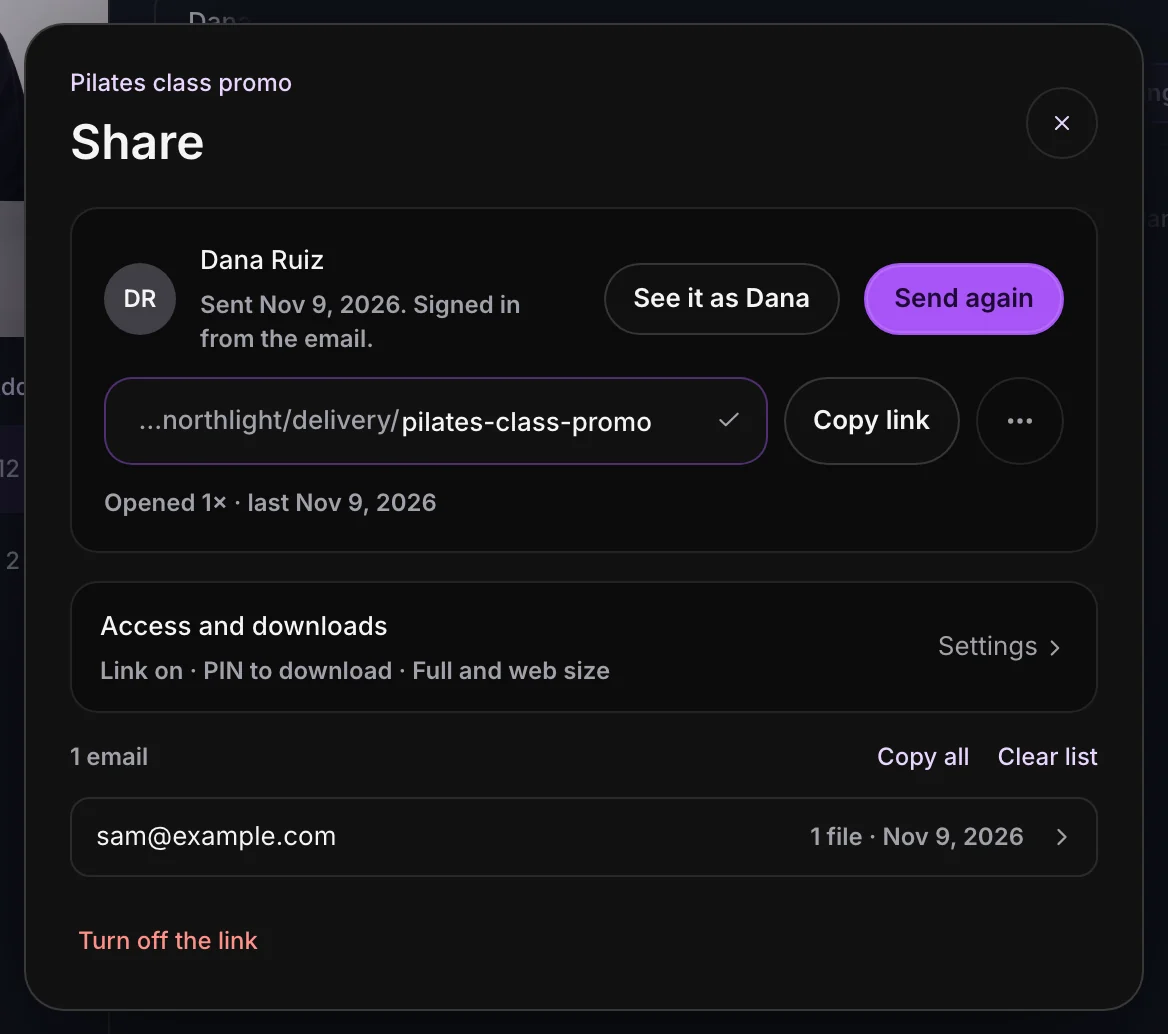
The rest of the window:
- Access and downloads sums up who can get in and which sizes they can download. Choose it to open the delivery's Settings at Access, where Who can open it is Anyone with the link or Only Dana (everyone else is asked if they're Dana), and where the PIN is.
- The ••• menu next to the link has Open the link and Make a new link. With Pro and a username in Settings › Public profile, Name the address gives the link a name you choose. A name can be guessed, so turn on the PIN with it.
- Turn off the link at the bottom stops it working for everyone.
Who opened it, what they downloaded, and at which size are in the activity and downloads guide.
Picks, comments, approvals, and new versions.
With Pro, your client can do more than download. Turn each one on or off in the delivery's Settings tab, in its own section: Picks, Comments, and Approvals. On Free, those sections show what Pro adds.
- Pick favorites. Your client hearts files, adds a note to any of them, and chooses Send my picks to Lena. You see them under Activity, then Picks. Copy file names gives you a list to paste into your editing app, and Select these in Files selects them in the delivery.
- Comment. Your client comments on a file, a spot on a photo, or a moment in a video. Open the comments from Activity, answer them, and use Reply and mark done to close one. Comment before paying lets them comment on the previews while the files are locked.
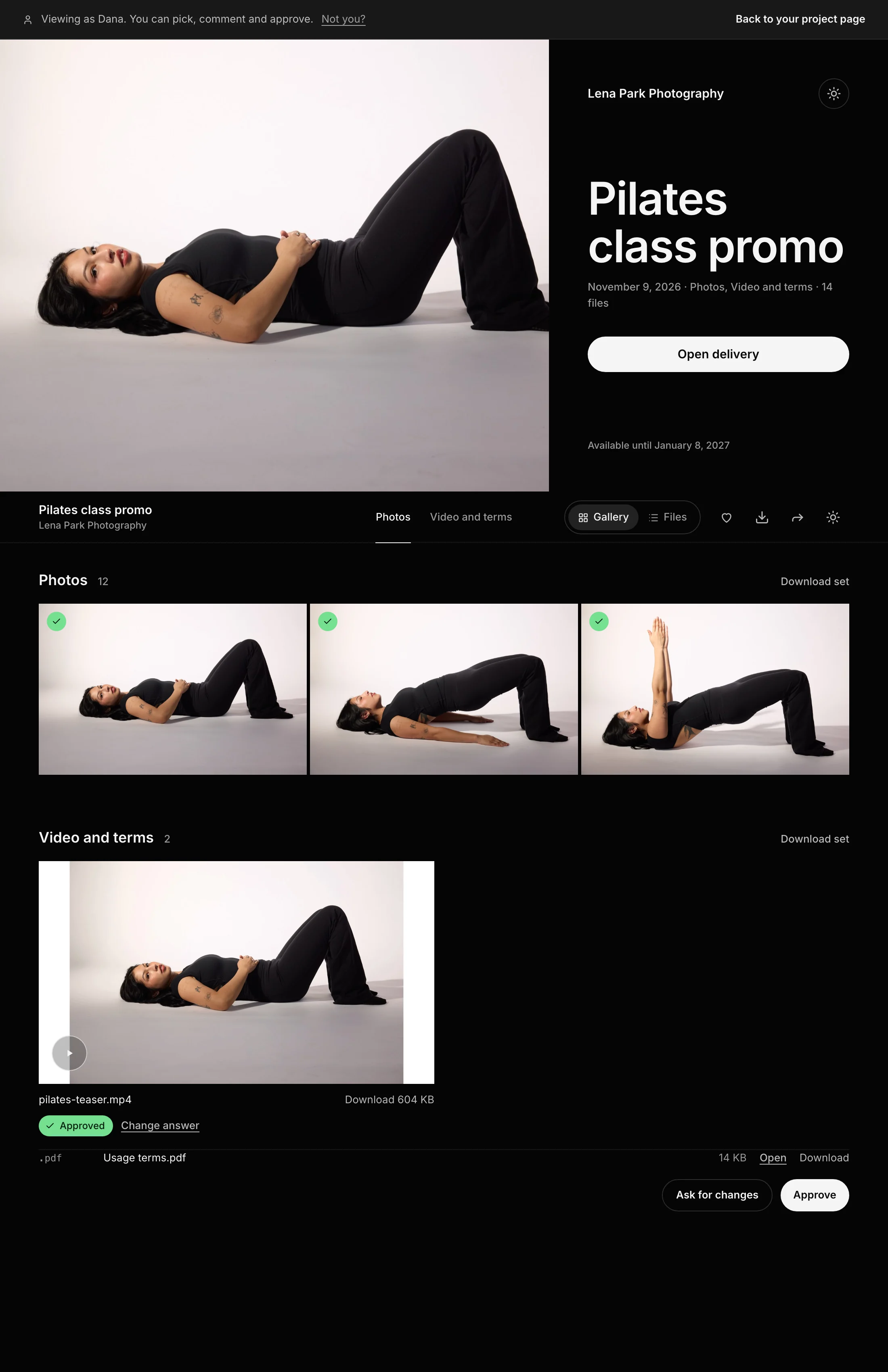
- Approve files. Your client chooses Approve or Ask for changes on each file, or approves them all at once. A dot on each file shows you where it stands.
Fixed a file? Select it and choose New version, or drop files with the same names into the delivery and Aestro asks whether each one is a New version or a New file. Versions shows every version of a file, lets you compare them, and Put back as current restores an older one. On Free the same button is Replace: the new file takes the old one's place, and Free keeps no history.
Downloads, and how long the files stay.
Your client gets everything with Download all. A big delivery comes in parts, so a dropped connection only restarts one, and they can download one set at a time instead. Photos come in Full size for printing or Web size for posting. Videos and other files download as you uploaded them. On a phone, zips don't open well, so your client opens a photo and saves it to their Photos instead.
The bar at the top of Deliveries shows how much of your space you've used. On Free that's 25 GB, and each delivery deletes 60 days after its link goes on. On Pro it's 300 GB, and the delivery's top row says when it deletes, with Keep longer next to it. The same choice is in Settings, under Keep the files.
- Choose Keep longer.
- Pick 30 more days, 60 more days, or 90 more days, each with its new date. Or pick Don't delete automatically, and the files stay until you delete them.
- Save it. The top row shows the new date, or that it's kept until you delete it.
The Deleting soon filter on Deliveries shows what's close to its date. A delivery on your gallery page keeps its web-size copies after the full files delete, view only. That and the rest of your Showcase keep your best work up after the job.
Deliver your next job with Aestro.
Drop the files, pick the project while they upload, and share one page with your client. Free keeps 25 GB for 60 days; Pro sends it for you and keeps it as long as you need.
Start a deliveryExplore the demo first