
See who downloaded what, and set download sizesProfeature
How to see who opened a delivery and what they downloaded at which size, put a PIN on downloads, and choose whether clients get full size, web size, or both.
See who opened the delivery and what they took.
Once you've sent a delivery with Aestro, every open and download goes into its log. You see who it was, what they downloaded, at which size, and when. It answers the questions that come up after a job: did the client get the files, did they take the full size, did someone else have the link.
Open the delivery from Deliveries and go to its Activity tab. The side column sums it up:
- Picks shows each person who picked favorites, how many, and whether they've sent them or are Still picking.
- Comments shows how many are open and how many in all.
- So far counts the opens, how many of the files were saved, and how many people. Under it is who it was sent to and when, and the last activity.
The cards on Deliveries show it too. A delivery reads Not opened yet, Opened, or Downloaded, and the Opened filter lists the ones your client has looked at.
The activity log.
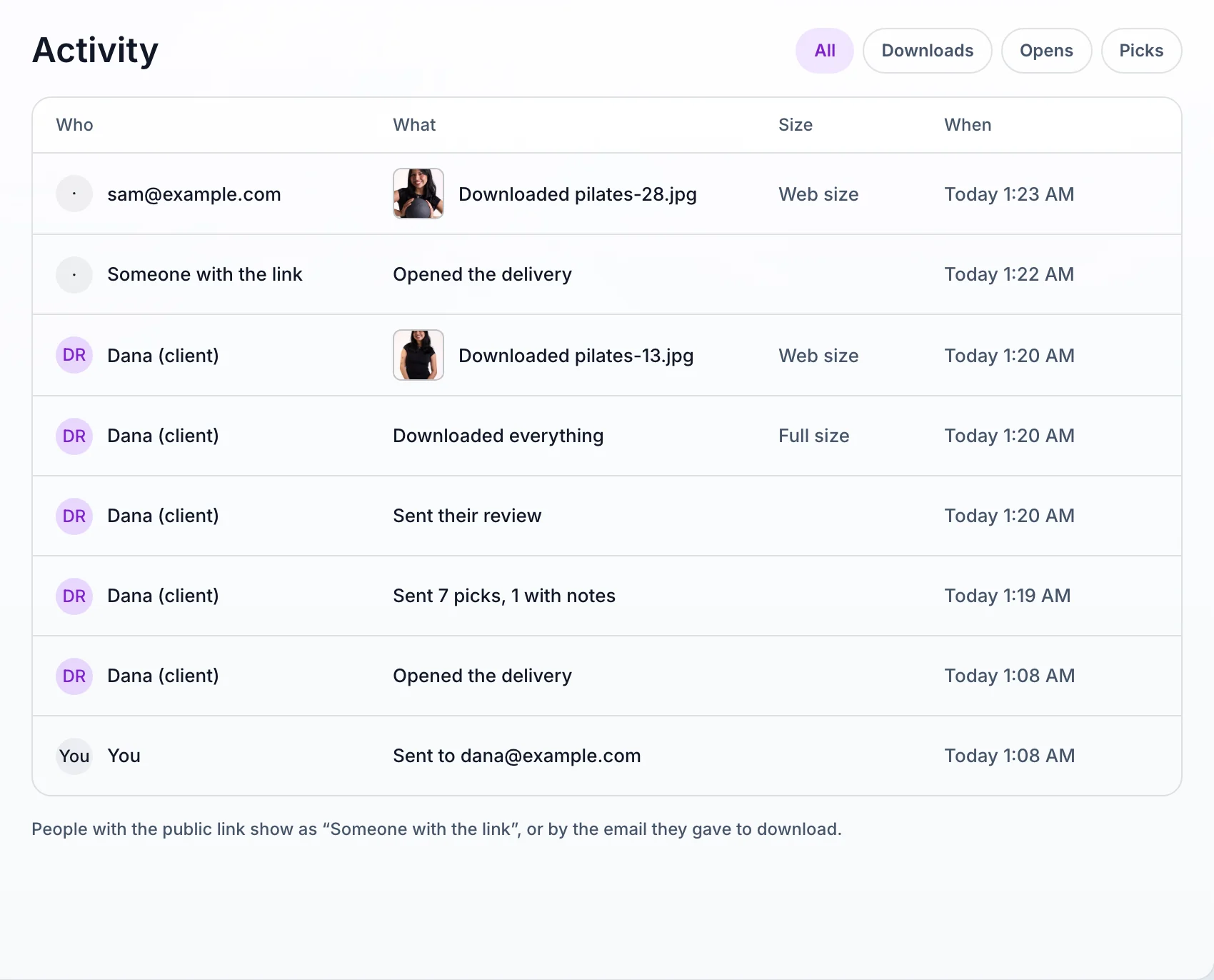
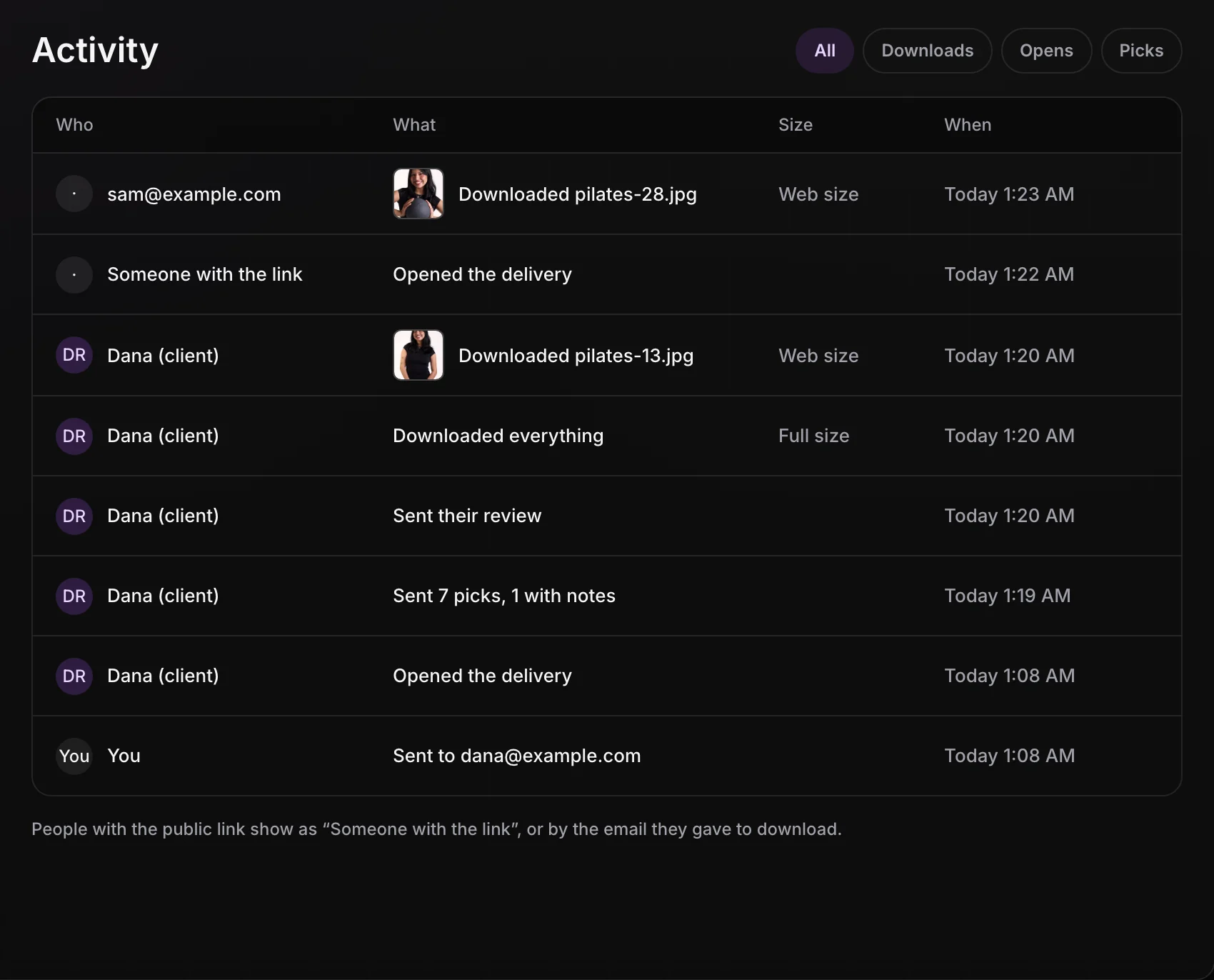
The log fills the middle of the Activity tab, newest first, with a row for each thing that happened: Who, What, Size, and When. Filter it to Downloads, Opens, or Picks.
- Your client shows by name, marked as the client. People with the public link show as "Someone with the link", or by the email they gave to download.
- A downloaded photo has a small preview. Open it to see every time it was saved and at which size, and choose Show in Files to find it in the delivery.
- Downloads of a whole set, a part of a big download, or everything at once each get their own row, so you can tell a full download from one file.
Sharing the public link more widely? In the delivery's Settings, under Access, turn on Ask for an email first. Anyone can still look, but they give an email before downloading, so the log can name them. The emails collect in the Share window: Copy all, Clear list, or open one to see what that person downloaded.
Put a PIN on downloads.
A PIN stops anyone who only has the link. You can set it when you send, with Require a PIN, or any time after in the delivery's Settings:
- Go to Settings, then Access, and turn on PIN. Aestro makes a 4-digit PIN, and New PIN replaces it. In Share, Access and downloads takes you to the same place.
- Under Ask for the PIN, choose To open it or To download. With To download, anyone with the link can look through the files, and the PIN is asked only when they save something.
- Send the delivery, or send it again. The PIN goes in your client's email, so anyone they forward it to can still get in.
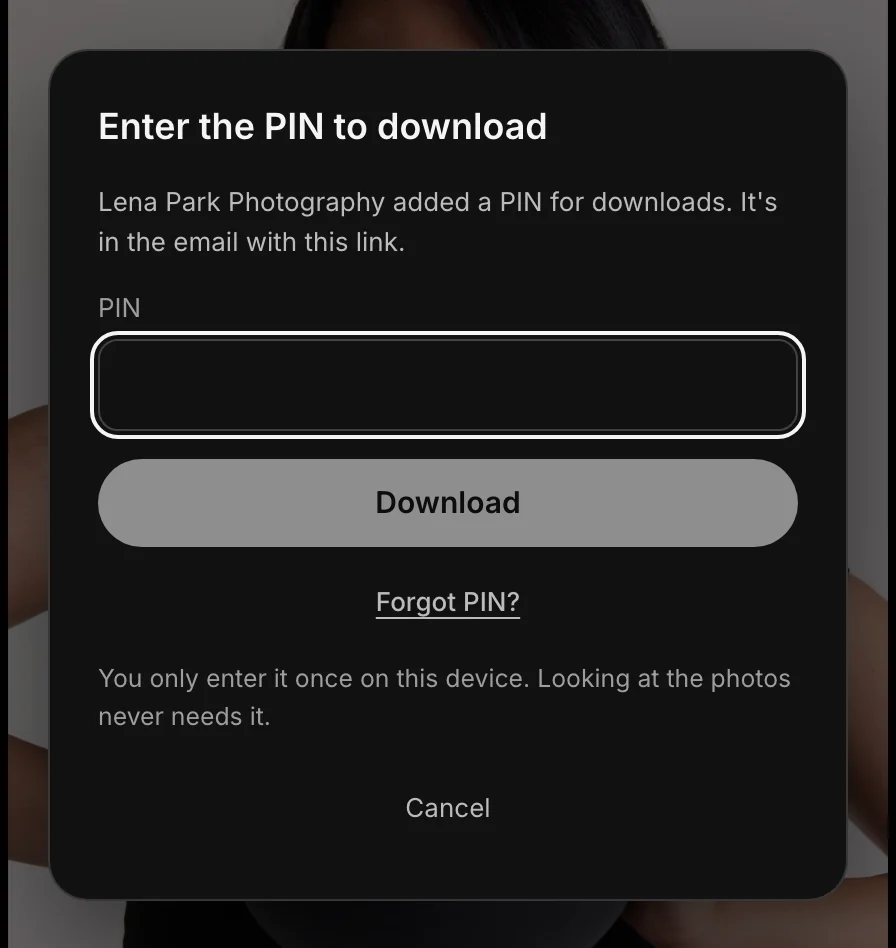
Your client enters the PIN once on each device. If they lose it, Forgot PIN? on their page sends it to their email, or tells them to ask you when there's no email to send it to.
Choose the download sizes.
In the delivery's Settings, under Downloads, Photo sizes sets what your client can save. Tick one or both:
- Full size: the original file.
- Web size: 2048 px on the long edge, for posting.
With both ticked, your client chooses on each photo and on Download all, which offers the same sizes. Videos and other files, like PDFs, audio, or RAW files, always download as you uploaded them. The log records which size each photo went out at, and once the delivery is sent, Download activity at the top of the section takes you there.
Before you send.
Use this checklist as you review. Your checks stay on this page until you leave or reload.
0 of 5 checked
Uploading, sharing, and the rest of a delivery are in delivering files to a client. To hold the full files back until you're paid, see watermarks and unlocking when paid.
Know your client got the files.
Send the delivery with Aestro and every open and download shows in its Activity log, with the size it went out at.
Start a deliveryExplore the demo first