
Backups and your data
How Aestro backs up your workspace (weekly on Free, daily or weekly with Pro), how to restore one, export everything as CSV or JSON, and delete your account.
Aestro keeps backups of your workspace.
A backup is a snapshot of your whole workspace: projects, invoices, people, gear, and expenses as they were on that day. Aestro makes them for you. On Free, Aestro keeps one backup a week. With Pro you can choose daily backups instead.
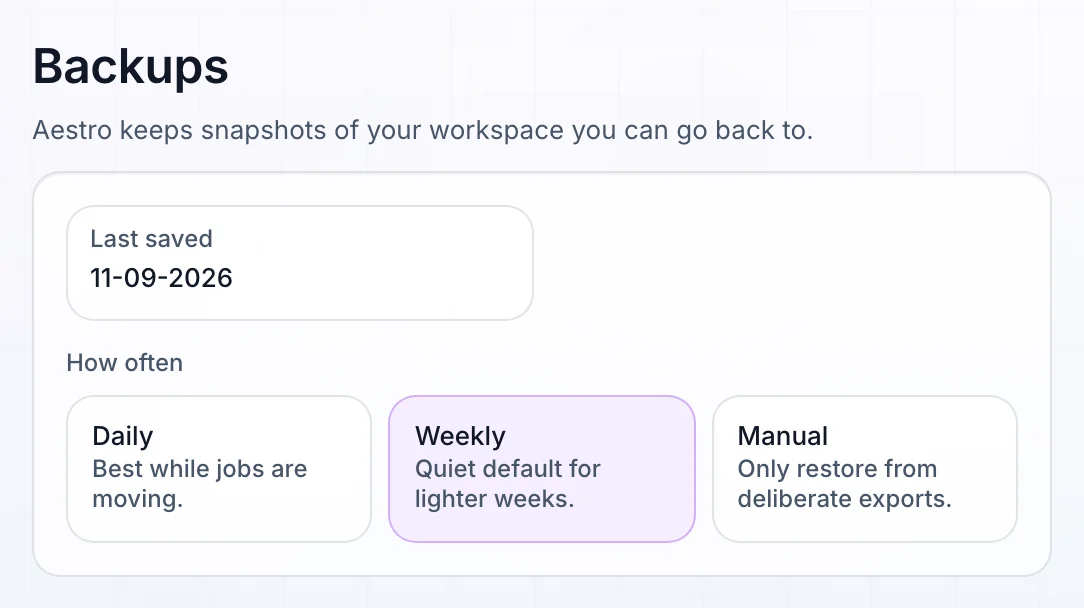
On the web, open Settings, then Backups. Under How often, pick one:
- Daily: best while jobs are moving. This one is Pro.
- Weekly: the setting on Free.
- Manual: no automatic backups. You rely on exports you make yourself.
The pane also shows when your workspace was Last saved. Saved backups lists each one by date, with how many projects, contacts, and gear items it holds. On iPhone, the same settings are in More, then Settings, then Backups.
Go back to a backup.
Choose Restore next to a backup. Your workspace goes back to how it was then, and everything changed since is replaced.
If you might want any of the newer work, export your workspace first, as below. Then restore, and copy across what you need.
Export your workspace as CSV or JSON.
Open Settings, then Export and import. Under Export your workspace:
- CSV downloads one spreadsheet file with a row for each project, invoice, contact, gear item, and expense, for opening in a spreadsheet app.
- JSON downloads the whole workspace in a form Aestro can read back. Import a workspace file, then Import JSON, brings an Aestro JSON export back in.
Neither file includes uploaded files: receipts, agreement PDFs, and profile images download separately. For a year of expenses on their own, use Export all entries for year on the Expenses tab in Finances. On iPhone, Export as CSV is on Expenses.
Export and import are on the web only. Both are free.
Download your account data, or delete your account.
Open Settings, then Account. Download account data gives you your profile, memberships, support and invitation records, and quote requests as a JSON file. This is your account, separate from the workspace export.
To delete your account:
- Choose Delete... next to Delete account. Aestro shows your shared projects first: one you own moves to the first person who joined it, without your invoices, notes, or contact details. A project nobody joined is deleted. Projects you joined, you leave.
- Export first if you need a copy. Export workspace JSON first is right there.
- Cancel App Store Pro on your iPhone. Pro bought on aestro.app is cancelled with the account. Pro bought through the App Store isn't, so cancel it in iPhone Settings first.
- Confirm. Type your Account email, type DELETE, and choose Permanently delete account.
This can't be undone. Your account, the workspaces you own, and their files are removed. Copies in Aestro's provider backups age out on their own schedule. On iPhone, Delete account is in Settings under Account.
Keep your own copy.
Use this checklist as you review. Your checks stay on this page until you leave or reload.
0 of 6 checked
Keep your work safe in Aestro.
Aestro backs up your workspace every week for free, and you can export all of it as CSV or JSON whenever you want.
Get started with AestroExplore the demo first