
Deliverable links and client approvals
How to keep links to cuts, selects, and finals on a project with a due date and status, and on Pro send them for approval with finals locked until the invoice is paid.
Keep every deliverable link on the project, with its due date and status.
Cuts on Frame.io, selects on Google Drive, finals on Dropbox or WeTransfer, a review page on Vimeo: wherever the work lives, paste its link into the project. Aestro keeps the link, never the files, along with when it's due and where it stands.
- Free: keep deliverable links on the project, with due dates and status, and share them yourself.
- Pro: Send to client gives your client a page with your deliverable links, where they approve or ask for changes. You see when it's opened, and you can keep the final files locked until the invoice is paid.
Want Aestro to hold the files themselves instead of a link? That's a delivery, covered in delivering files to a client. Both show in the same list.
Add a link.
Open the project and go to its Deliveries tab.
- Paste the link. Paste it into the box and choose Add. Make sure anyone with the link can open it.
- Name it and date it. The Title is filled in from the link; change it to something your client will recognize. Set Due to when it's owed.
- Add the extras, if you need them. More options has a Preview link for a watermarked cut, proofs, or a review page, a Note, and Link expires. A WeTransfer link gets its 7-day expiry filled in.
- Choose Add. The deliverable shows in the list. To add the next one, paste into Add another.
Track where each one stands.
Each deliverable has a short bar that fills as it moves: Not sent, Sent, Opened, then Approved, or Changes requested. Under it you see the due date, like Due today or Was due a date that's passed, and when a link stops working.
The line under the heading sums up the project, like how many deliverables need changes or are all approved.
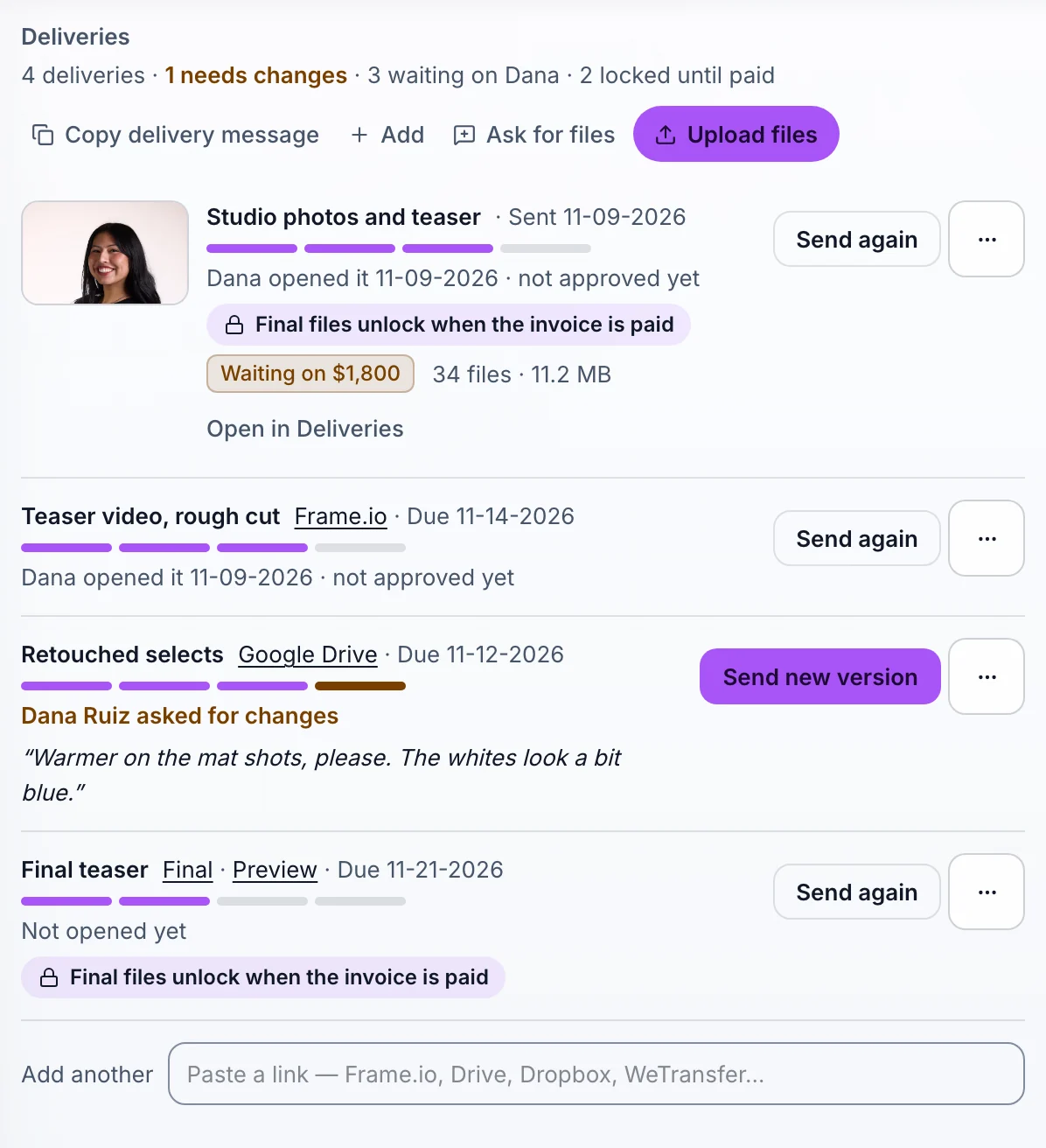
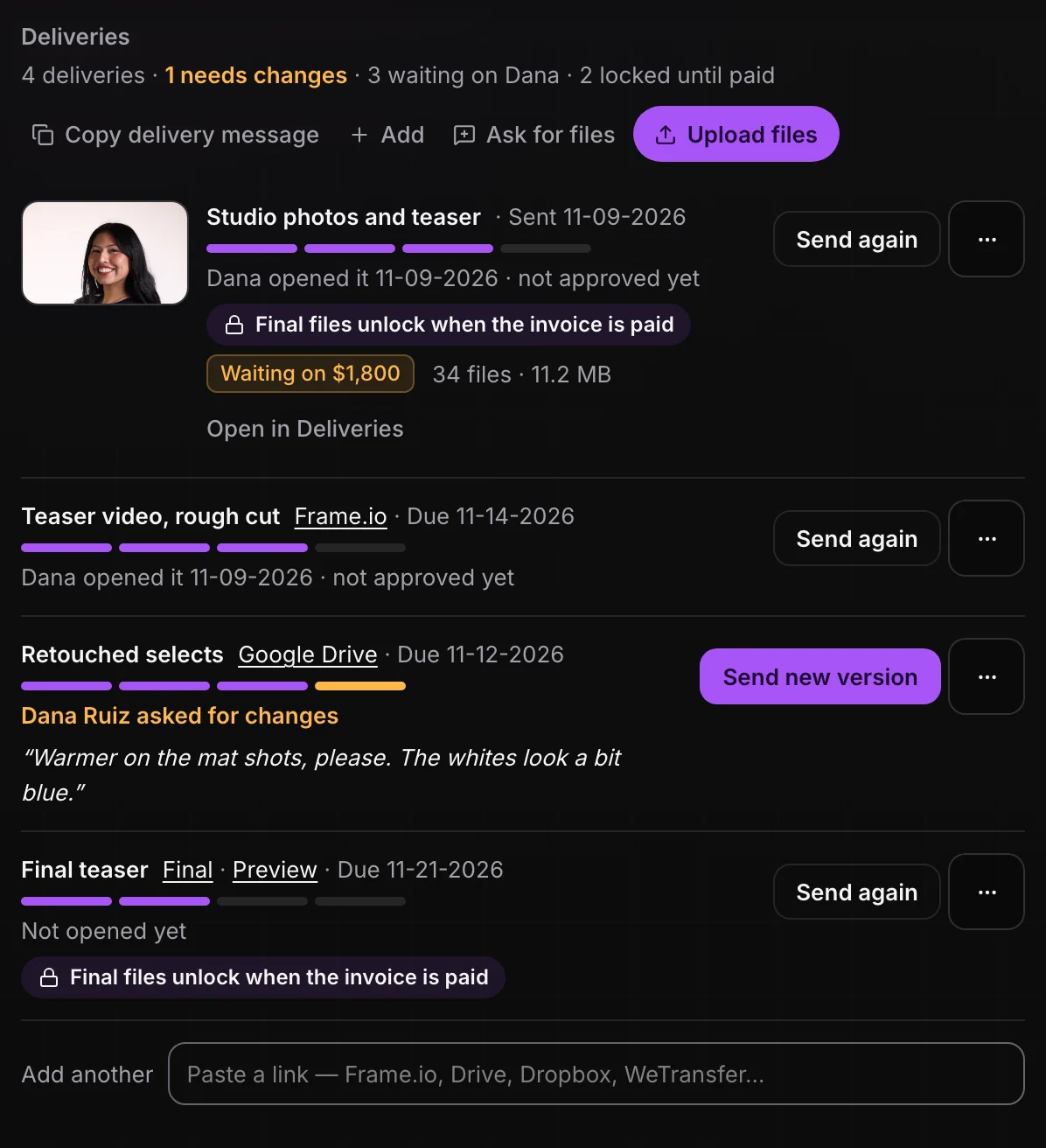
On Free, you share it yourself. The main button on a new deliverable is Share. It copies a message with the link, ready to paste into your email or a text, and marks it sent. Copy delivery message at the top copies one message with every link. When your client is happy, choose Mark approved.
Each deliverable's ••• menu has the rest: Copy message for this, Mark as sent, Mark approved, Back to working, Edit, and Remove.
Send it for approval.
With Pro, Send to client sends your client a link to their own page for the project. It's the same page they use for your invoices, with a Deliveries tab.
- Choose Send to client on the deliverable. The form opens under it.
- If there's a preview and a final, choose when the final opens. When can Dana download the final files? offers When an invoice is paid (or the one invoice, by name), Right away, or When I unlock them. The preview opens now either way.
- Choose Send to Dana. Tick Email me a copy, with a link to preview what they see first if you want your own copy.
On their page, your client chooses Open preview or Open final files, then Approve or Request changes with a note. A final waiting on the invoice says it unlocks once the invoice is paid.
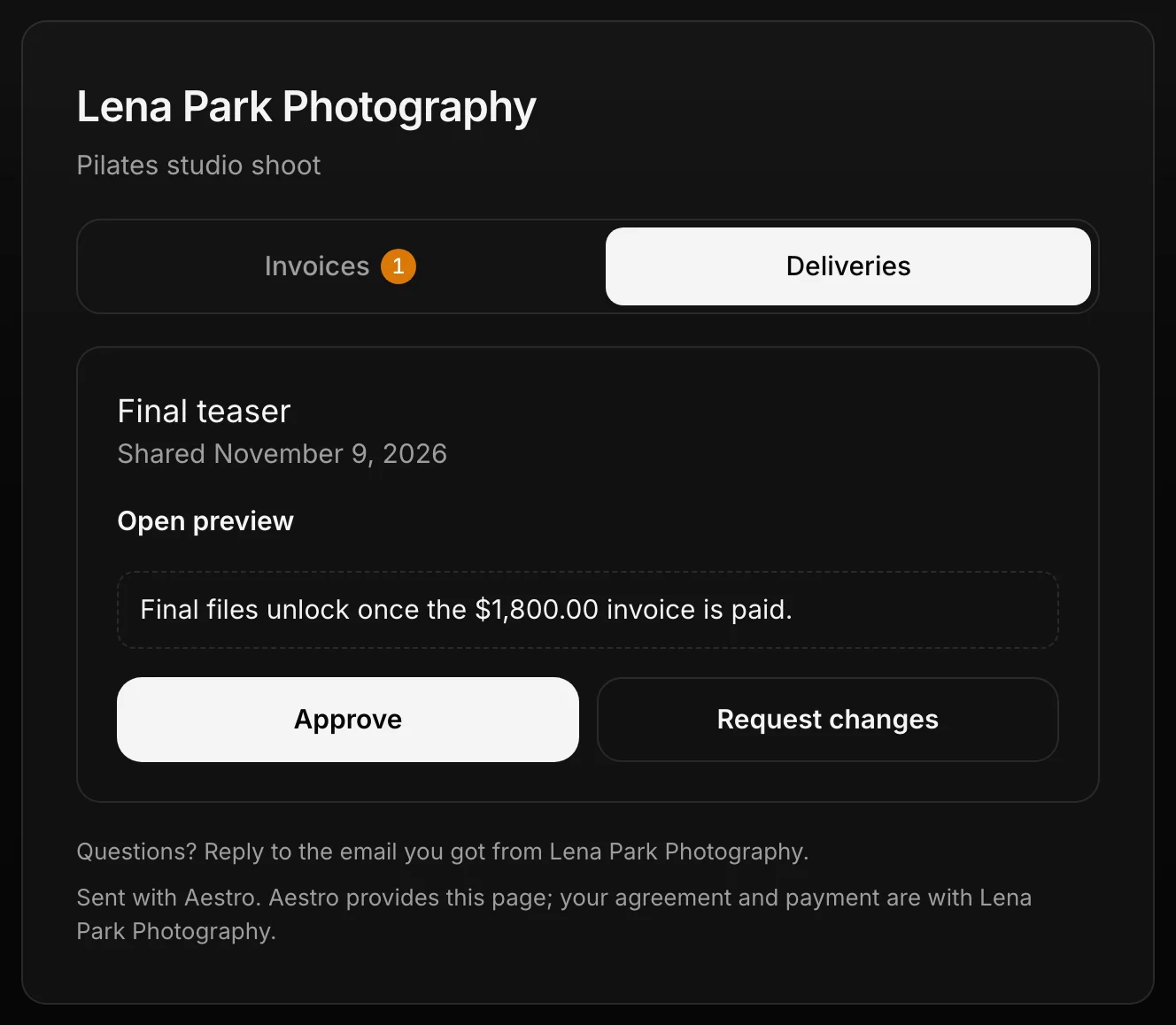
Back on the project, the deliverable shows the answer. If your client asked for changes, you see their note and the main button becomes Send new version: paste the new link, choose Save and send, and it goes to the same page. Once it's approved and the final is still locked, Unlock now opens it early; at any other point it's Unlock final files now in the ••• menu. Paid invoices open finals on their own. How that works is in watermarks and unlocking when paid, and getting the invoice paid online is in sending an invoice with Aestro.
Keep every deliverable with the job.
Paste the link, set the due date, and see where each one stands. With Pro, your client approves on their own page.
Create a projectExplore the demo first