
Watermarked previews that unlock when you're paidProfeature
How to show your client watermarked previews of a delivery while the invoice is open, and have the full files open on their own the moment it's paid.
Your client sees marked previews until the invoice is paid.
When you send a delivery with Aestro, you choose when the full files open. Pick an invoice, and until it's paid your client can look through every file on their page, but the previews and videos carry your name or logo and nothing full size downloads. Once the invoice is paid, the full files open on their own. You don't have to go back and do anything.
Downloads are never watermarked. The mark is only on what your client sees while they wait, so the files they save after paying are clean.
This works for any mix of files: photos, videos, PDFs, audio. Photo and video previews carry the watermark, and every file stays locked for download until it's paid.
Set up the watermark.
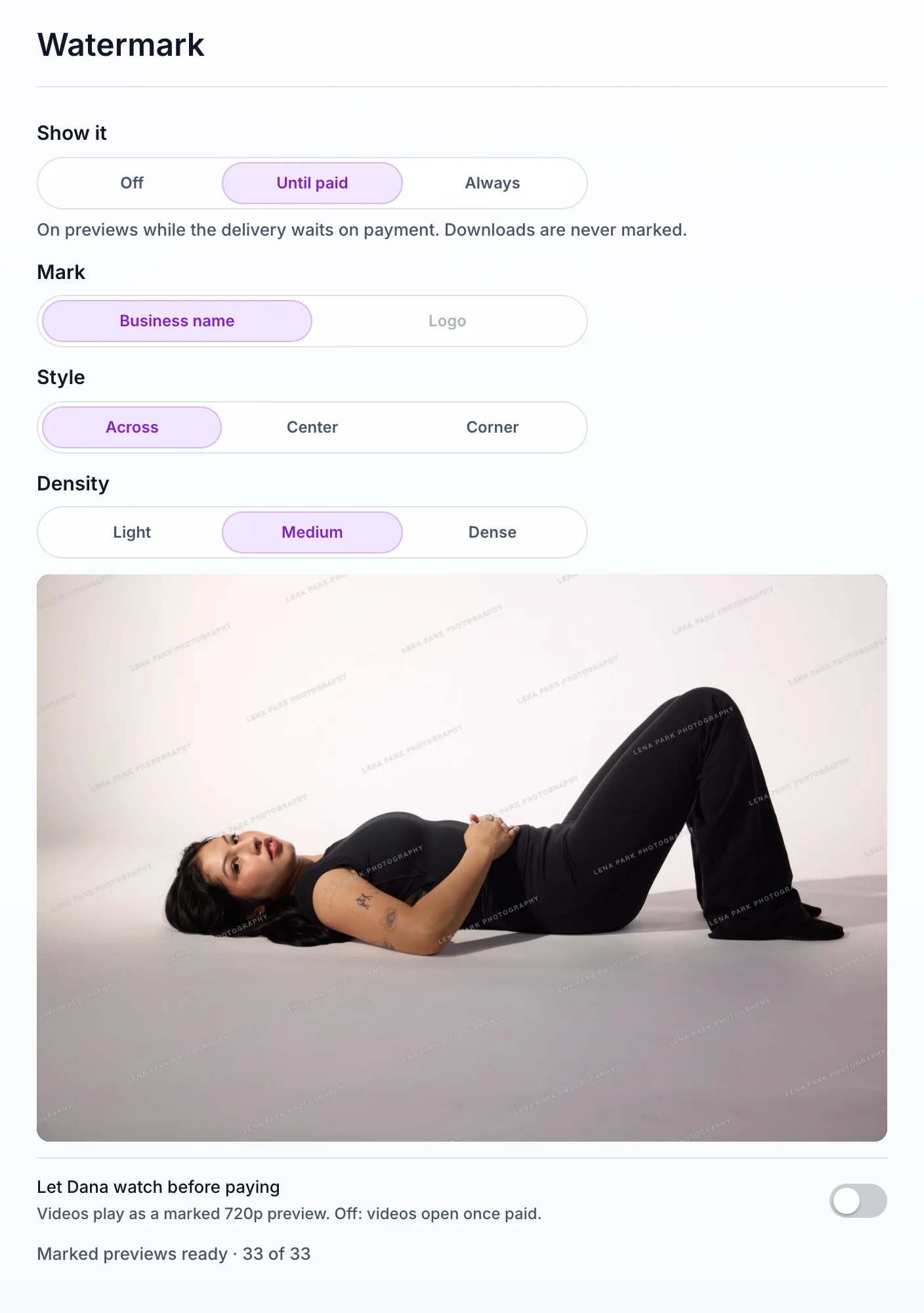
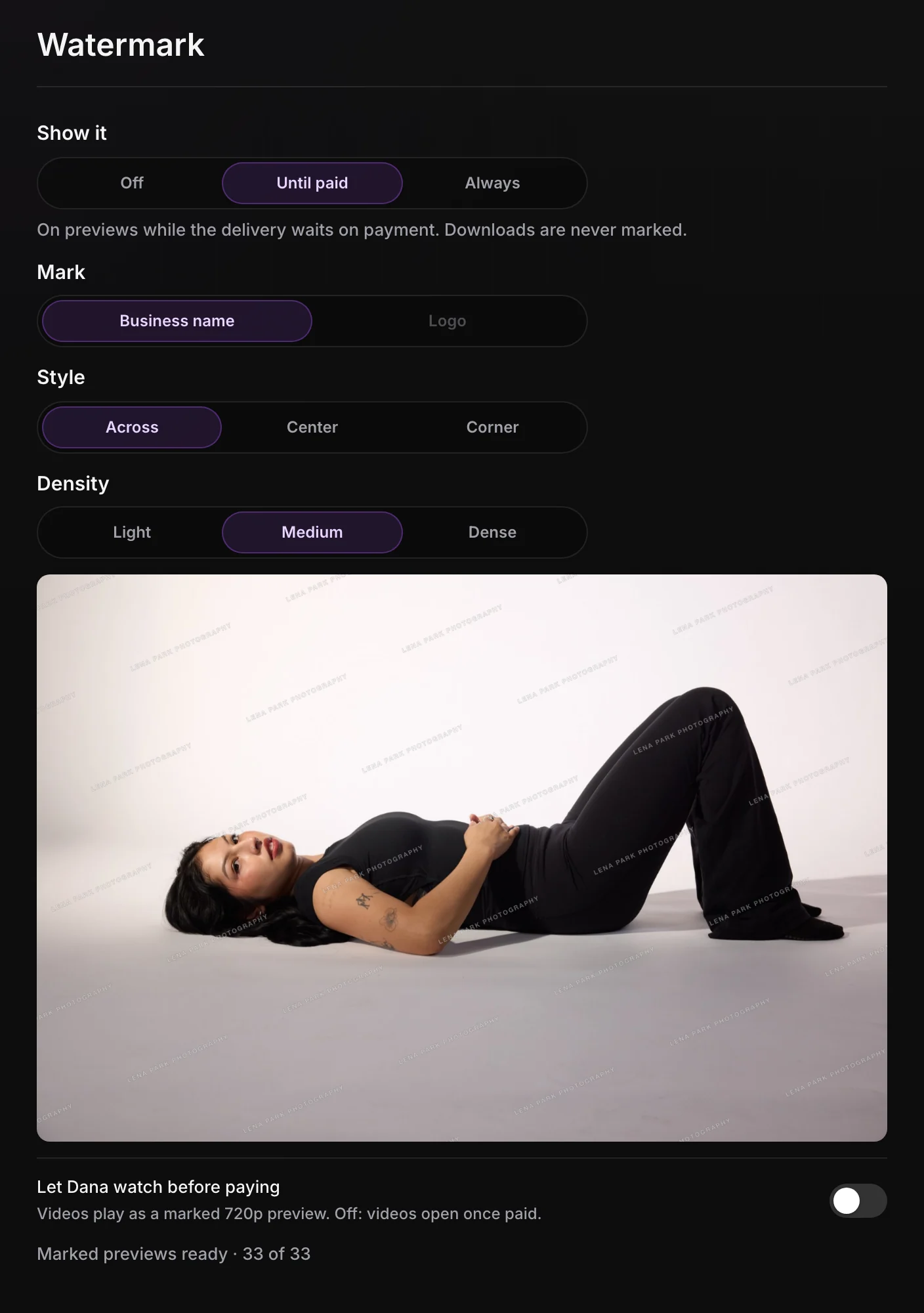
Open the delivery from Deliveries and go to its Settings tab, then Watermark. It has a live preview that updates as you change it.
- Choose when it shows. Under Show it, pick Until paid. Always keeps it on the page for good, even after payment. Off shows the previews as they are.
- Choose the mark. Business name or Logo. Logo needs a logo in Settings first.
- Choose the style. Across, Center, or Corner. Across also has a Density: Light, Medium, or Dense.
- Decide on videos. If the delivery has videos, Let Dana watch before paying plays them as a marked 720p preview. Turn it off and videos open only once it's paid.
Aestro makes the marked copies in your browser, and the section shows how far along it is. Leave the delivery open until it's done.
Keep the final files locked until you're paid.
The lock is part of sending. Open Share and choose Send to Dana. The form asks When can Dana download the final files?
- When an invoice is paid. If the project has one invoice, the choice names it, like When invoice INV-1042 is paid. If it has more, pick the one from the list. Previews open now, and full files open by themselves once it's paid.
- Right away. Everything downloads now.
- When I unlock them. Previews open now, and you decide when.
No invoice on the project yet? The paid option says Add an invoice to this project first. Make the invoice, then come back and send.
The lock starts when you send. Before that, anyone with a link you copied yourself can download everything, so send the delivery before you share the link around.
What your client sees while it's locked.
Your client opens their page from the email. A line at the top tells them the previews are watermarked and which invoice opens the clean, full-size files. Next to it, Pay $1,800 to unlock takes them to that invoice. If picks are on, they can pick favorites now. If you turned on Comment before paying in Settings, under Comments, they can comment on the previews too.
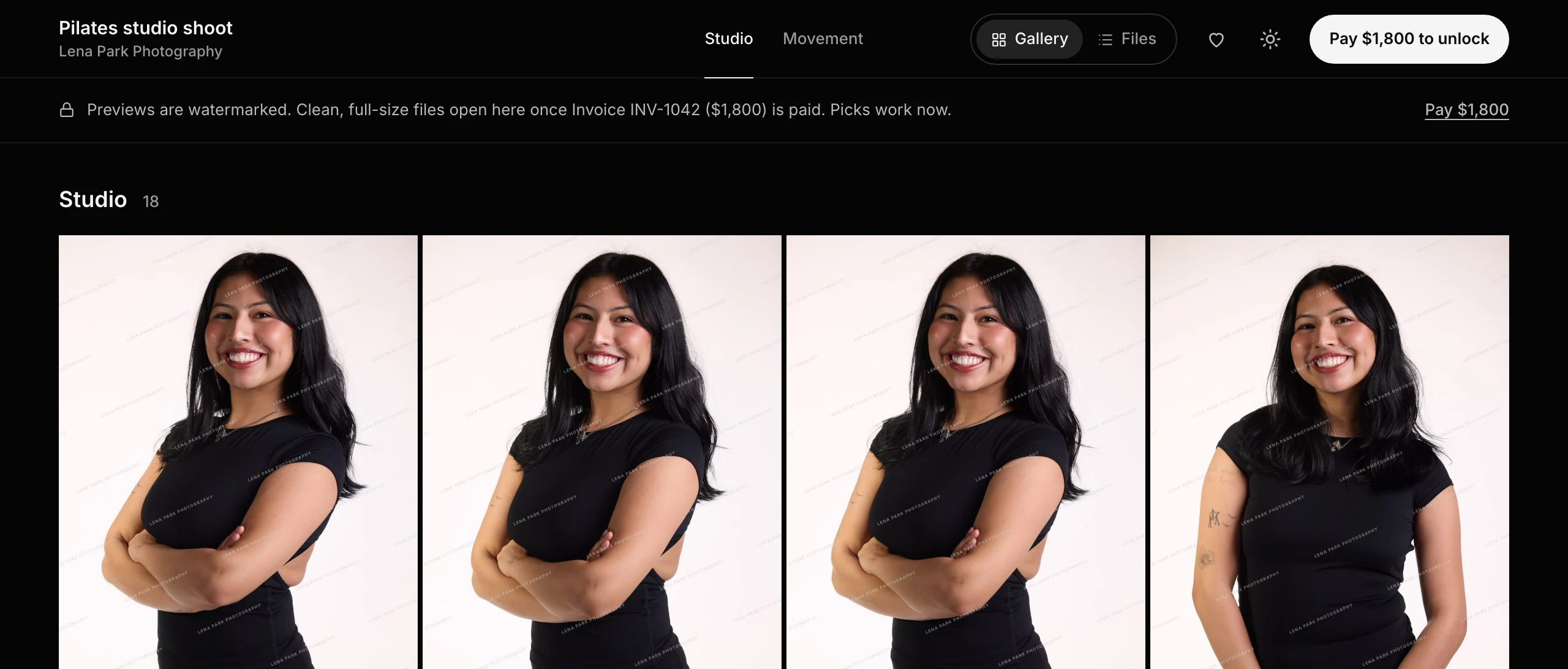
If you send the invoice with Aestro too, your client can pay it online from the invoice's own page. The guide to getting paid online covers that.
When the invoice is paid.
As soon as the invoice is marked paid, the full files open on your client's page. That happens on its own when they pay online. If they pay some other way, choose Record payment on the invoice, and the files open once the invoice shows as paid.
Until then, the delivery's card on Deliveries shows what it's waiting on, like Waiting on $1,800, and the Waiting on payment filter lists every delivery in the same state.
Want to open them early? On the project's Deliveries tab, open the delivery's ••• menu and choose Unlock final files now. To change the rule, open the delivery's Settings, go to Downloads, and choose Change next to When they open.
Before you send.
Use this checklist as you review. Your checks stay on this page until you leave or reload.
0 of 5 checked
The rest of a delivery, from uploading to picks and approvals, is in delivering files to a client.
Keep final files locked until you're paid.
Set the watermark once, pick the invoice when you send, and the files open on their own when it's paid.
Start a deliveryExplore the demo first