
Add photos to your gearProfeature
How to add a photo to each piece of gear and each kit on the web or iPhone, where the photos show, and what happens to them if your Pro plan ends.
One photo for each piece of gear and each kit.
With Pro, you can add a photo to any item or kit in your library. It helps you pick the right case off the shelf, and it helps a renter see what they're asking for.
The photo shows in three places:
- Your Gear library on the web, beside each item in the list and larger on the item's panel.
- Your public gear page, beside each item and kit you've listed.
- The iPhone app, in your gear and on each item's page.
A kit can have its own photo. Without one, it shows two of its pieces' photos stacked. Gear list PDFs don't include photos.
Add a photo on the web.
- Open Gear library and the Gear tab, then click the item or kit.
- On the photo square at the top of its panel, choose Add photo. You can also drop a file on it or paste an image.
- To swap it, choose Change. To take it off, choose Remove.
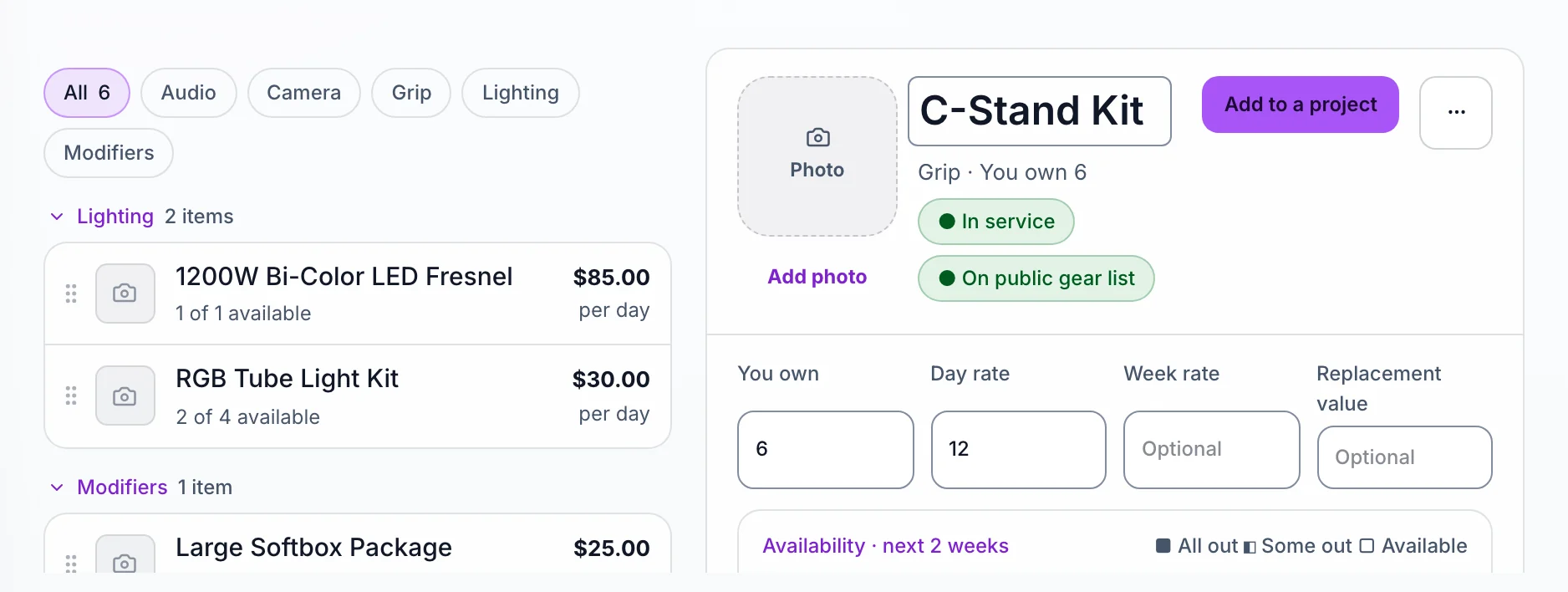
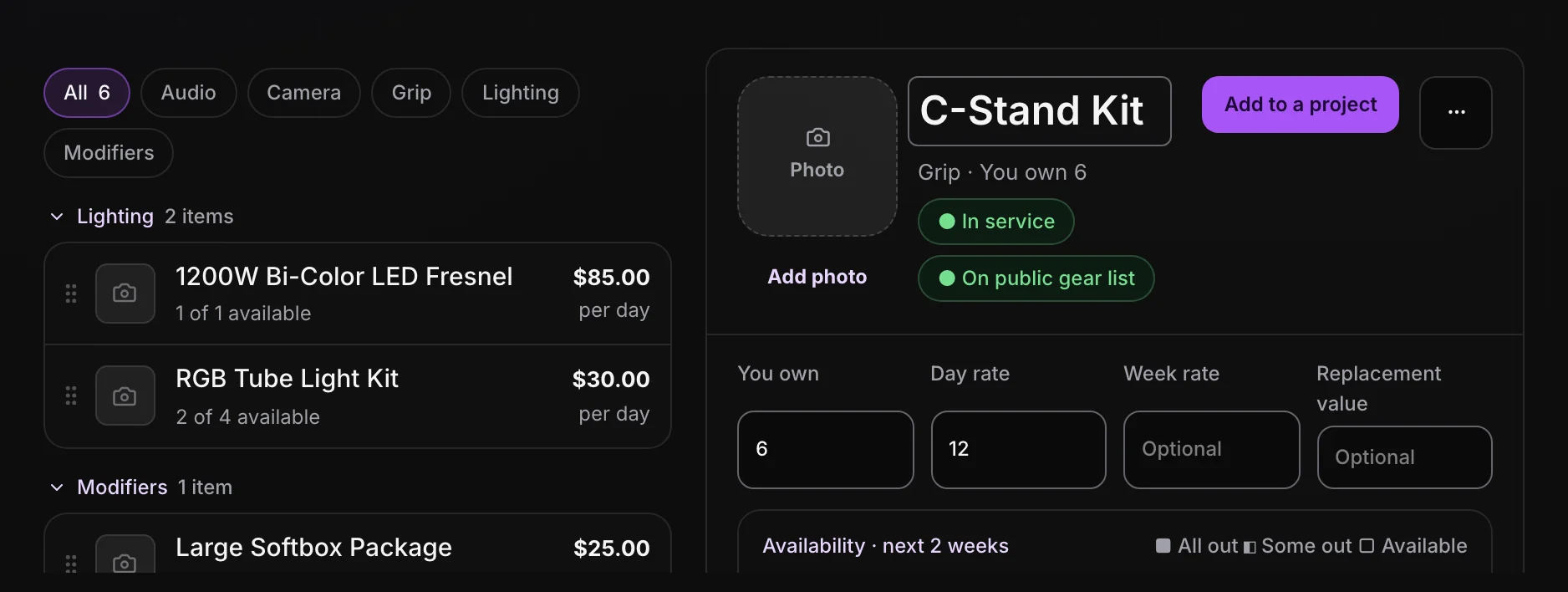
You don't need to resize anything first. Aestro shrinks the photo before it uploads and keeps a small copy for thumbnails. Archived gear can't take a new photo until you restore it.
Add a photo on iPhone.
- Open the item on the Gear tab and tap Edit. For a kit, open the kit.
- Tap Add a photo, then Take photo, Photos, or Files.
- To change it later, tap the photo for View photo, Change photo, or Remove photo.
Photos upload when you're online. If you're not, Aestro says Connect to add a photo.
If your Pro plan ends, your photos wait for you.
On Free, gear shows by name, with no photo square. Photos you added aren't deleted. They're hidden everywhere, including your public gear page, and come back as they were when you're on Pro again.
Before you photograph your shelf.
Use this checklist as you review. Your checks stay on this page until you leave or reload.
0 of 5 checked
Getting your gear into Aestro in the first place is covered in the gear library guide.
Show renters what they're getting.
Add photos to the gear you list publicly, and your gear page shows them beside each item.
Try Aestro freeExplore the demo first